Changing your website in Host Dada's WPBuild is like messaging a web designer. Use a starter button or type what you want, and WPBuild makes the change on your private staging copy for you to check.
About the examplesHollin & Wick and Larkspur Grooming are example businesses made for these guides. Everything else is the real WPBuild screen.
Before you start
- A site in Host Dada's WPBuild with a staging copy (a finished new build or a connected site).
Step-by-step
- Use a starter button. Under the chat, Edit my site has buttons for the common jobs: Change words, Add a page, Add a blog post, Prices and products, Swap a photo, Contact details and Fix something.
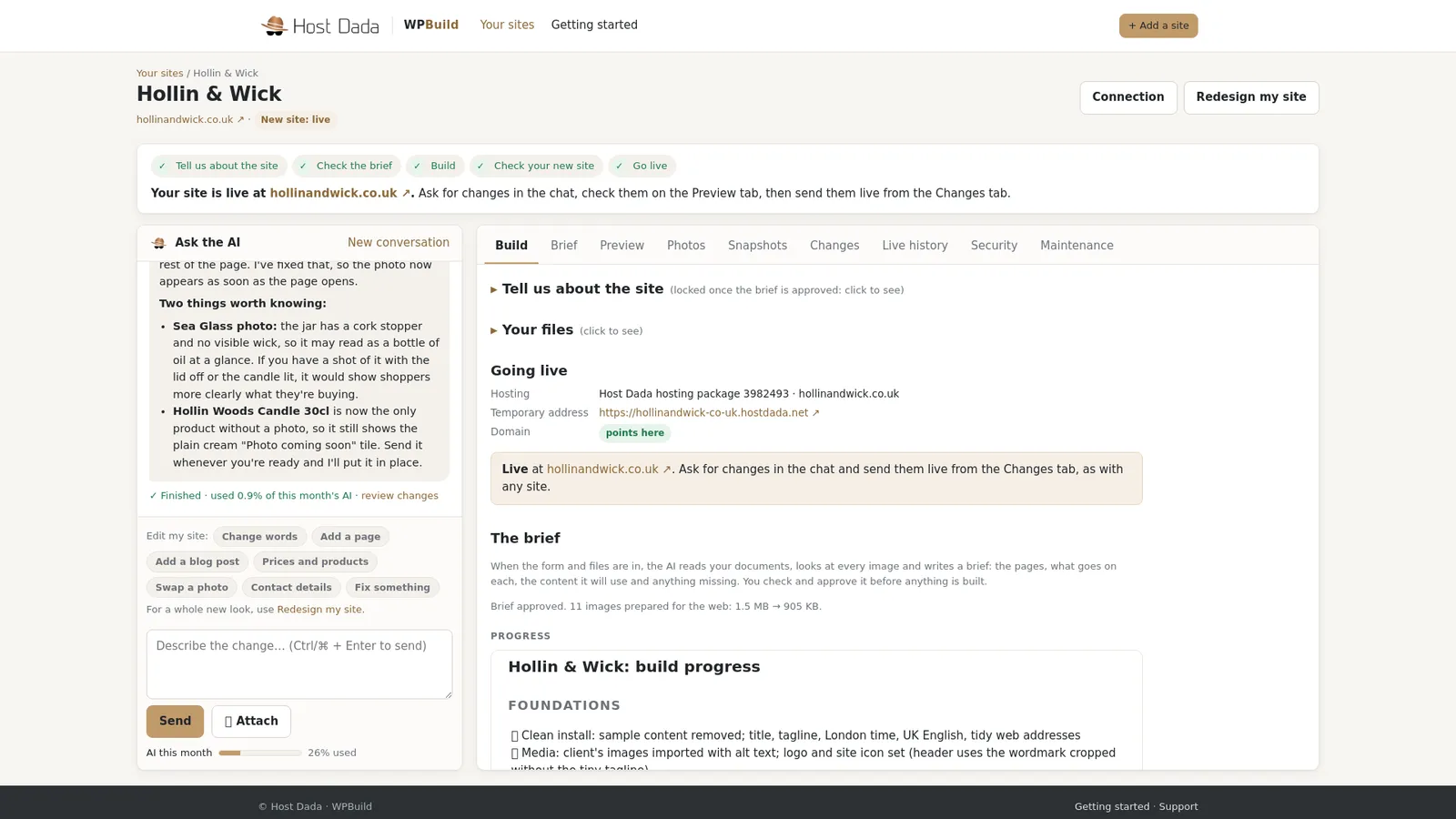 Not sure where to start? Use the buttons.
- Finish the sentence. A button fills the chat with a starter sentence. Complete the highlighted part.
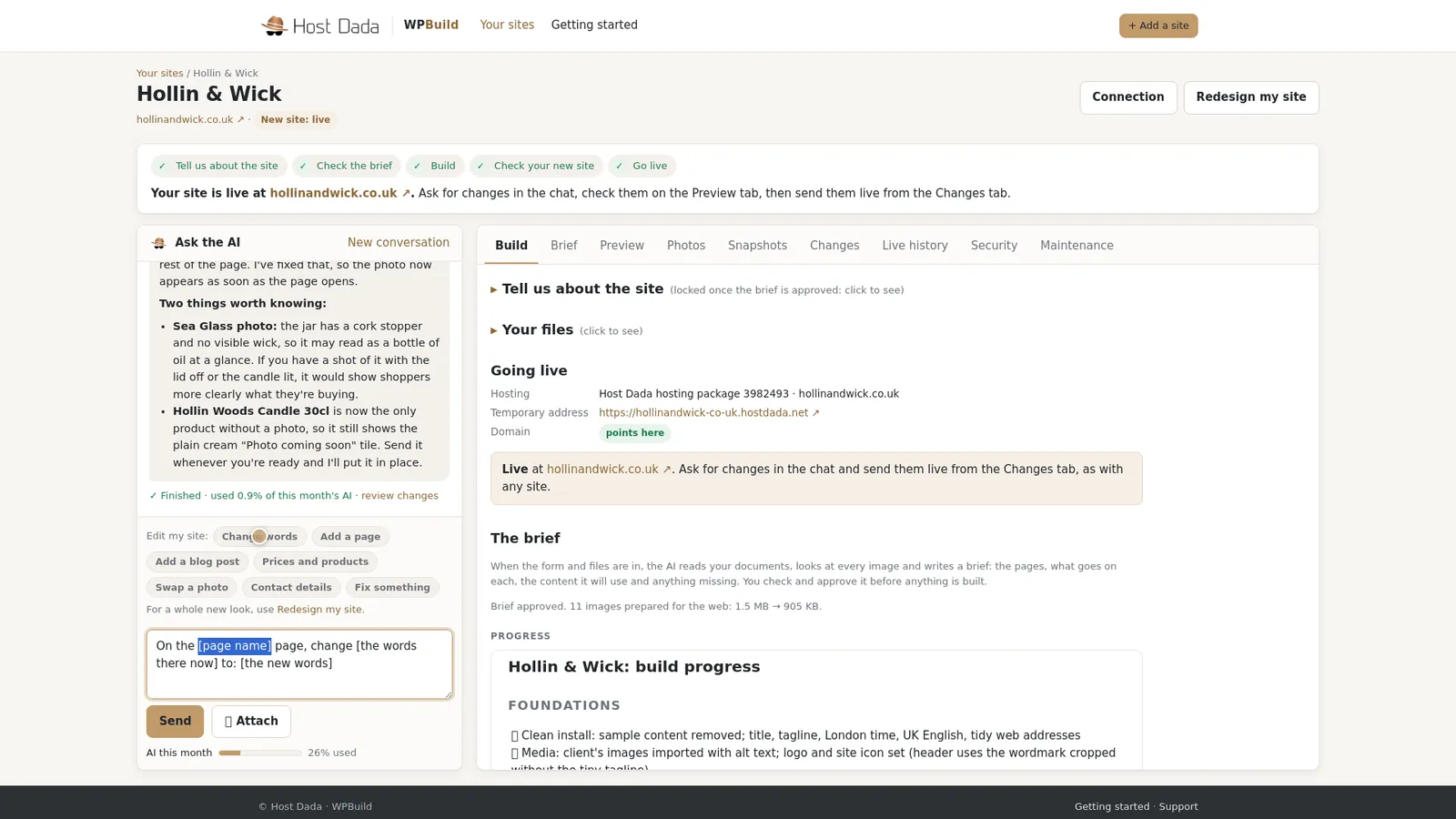 Fill in the gaps and press Send.
- Or type what you want in plain English. Say what you'd say to a web designer: which page, what to change, and what it should say. Then press Send.
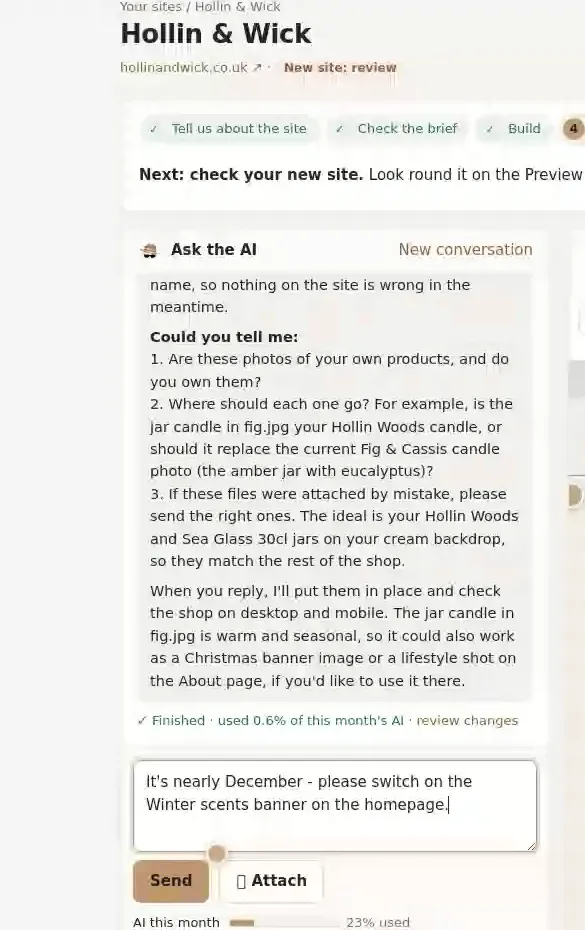 Here: a Winter scents banner on the home page.
- Attach a photo if you need one. Press Attach to add a photo to your message, and say where it goes. WPBuild uses your photo. It doesn't make images up.
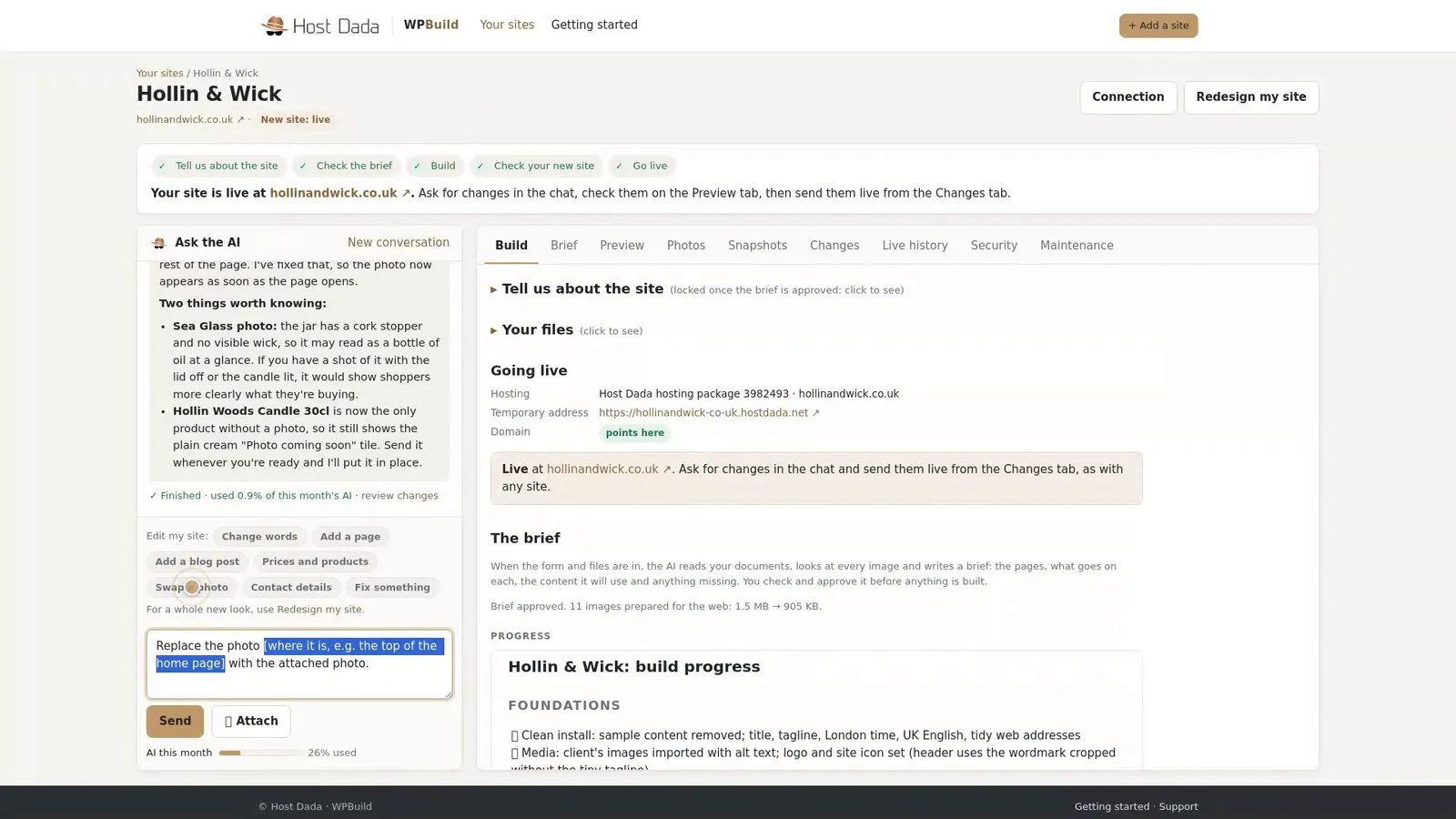 Attach adds a photo to the message.
- Let it work. WPBuild makes the change on your staging copy, and a restore point is taken first. Press Stop at any time. Use New conversation to start a different job.
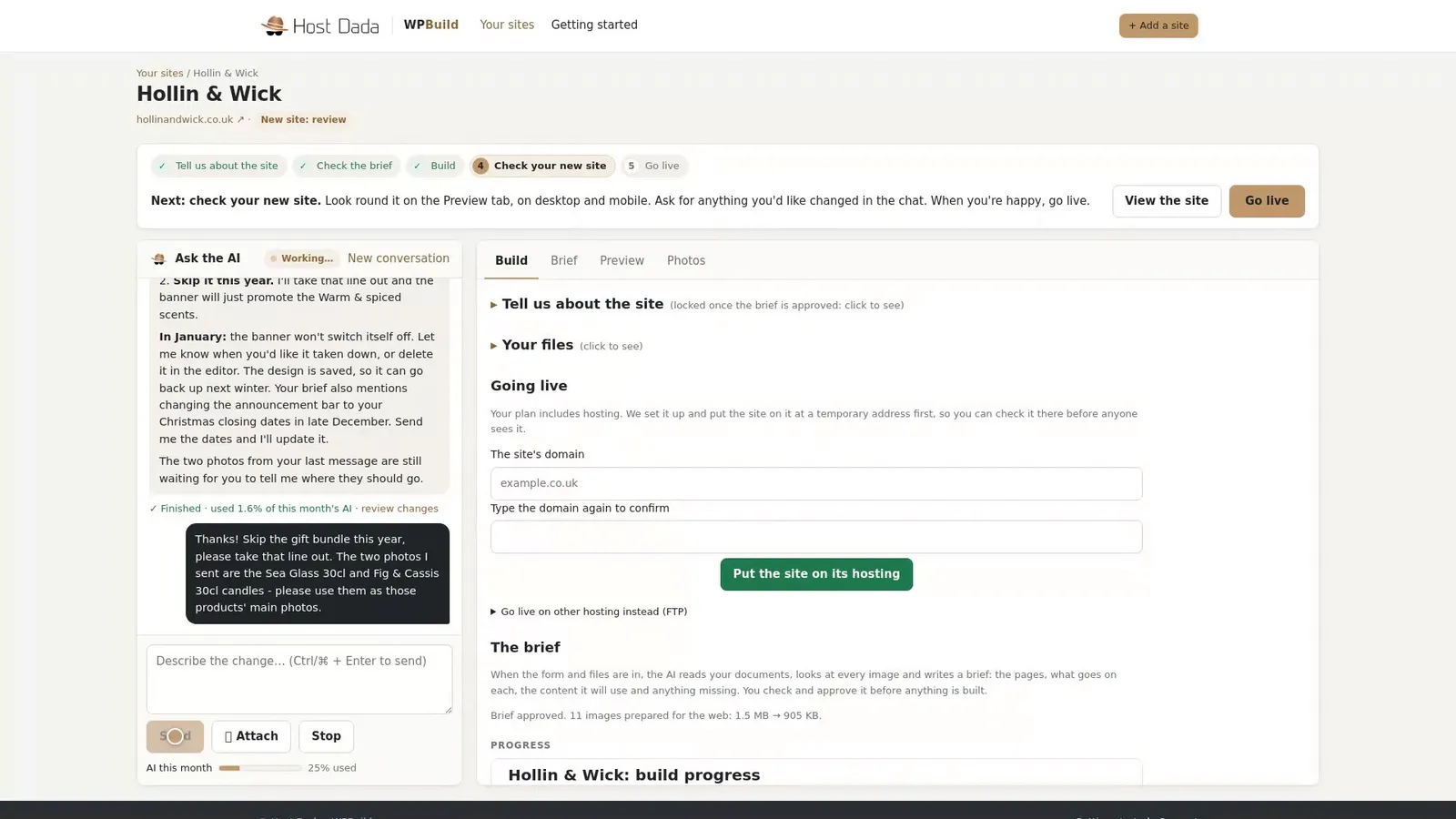 Stop halts it at any time.
- Read the reply. Each reply says what was changed and shows how much of this month's AI allowance it used. A small change uses far less than a whole build.
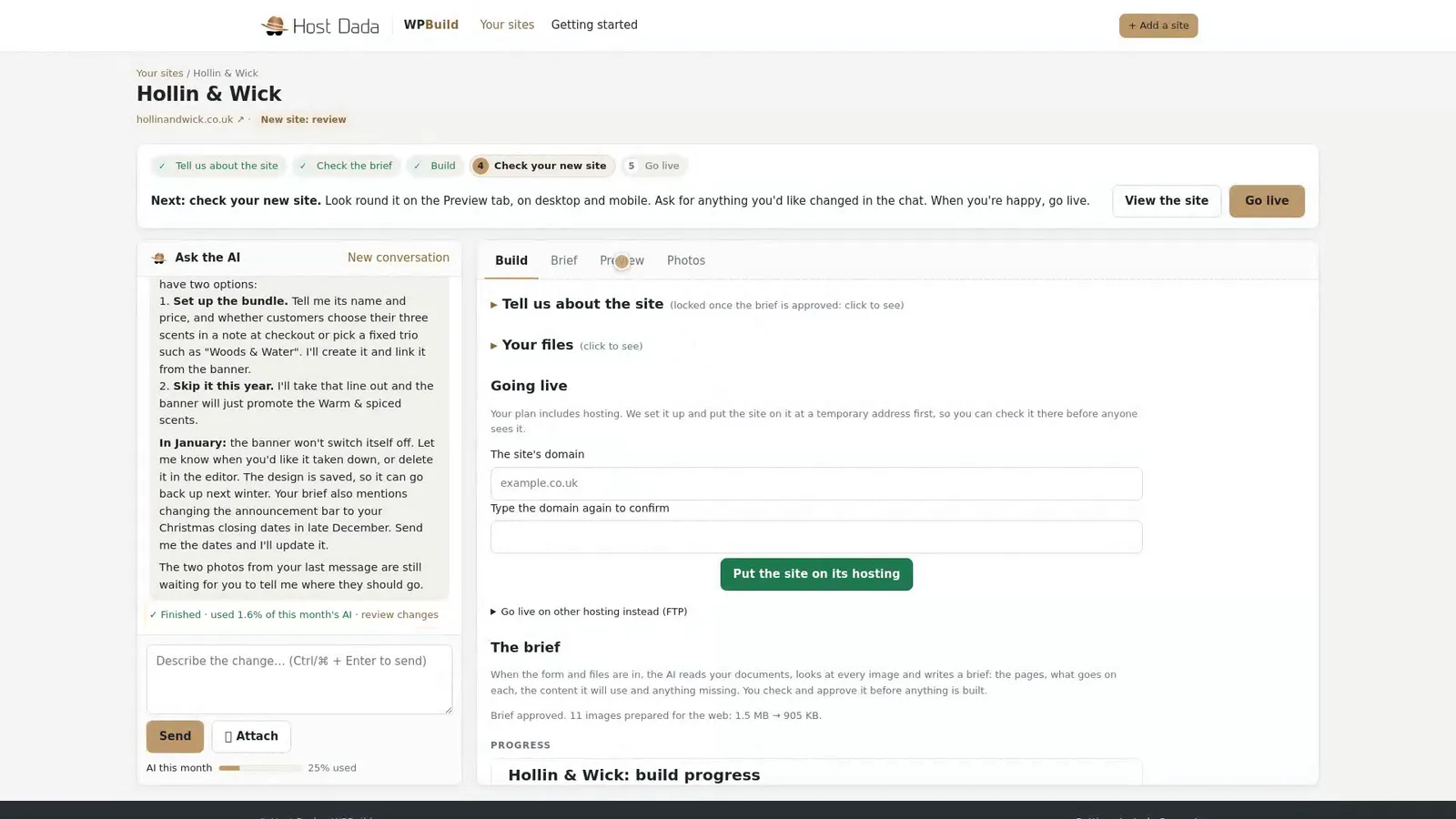 The meter under the chat shows this month's total.
- Check it on the staging copy. Look at the change on the Preview tab. Nothing has changed on your live site yet. When you're happy, send it live.
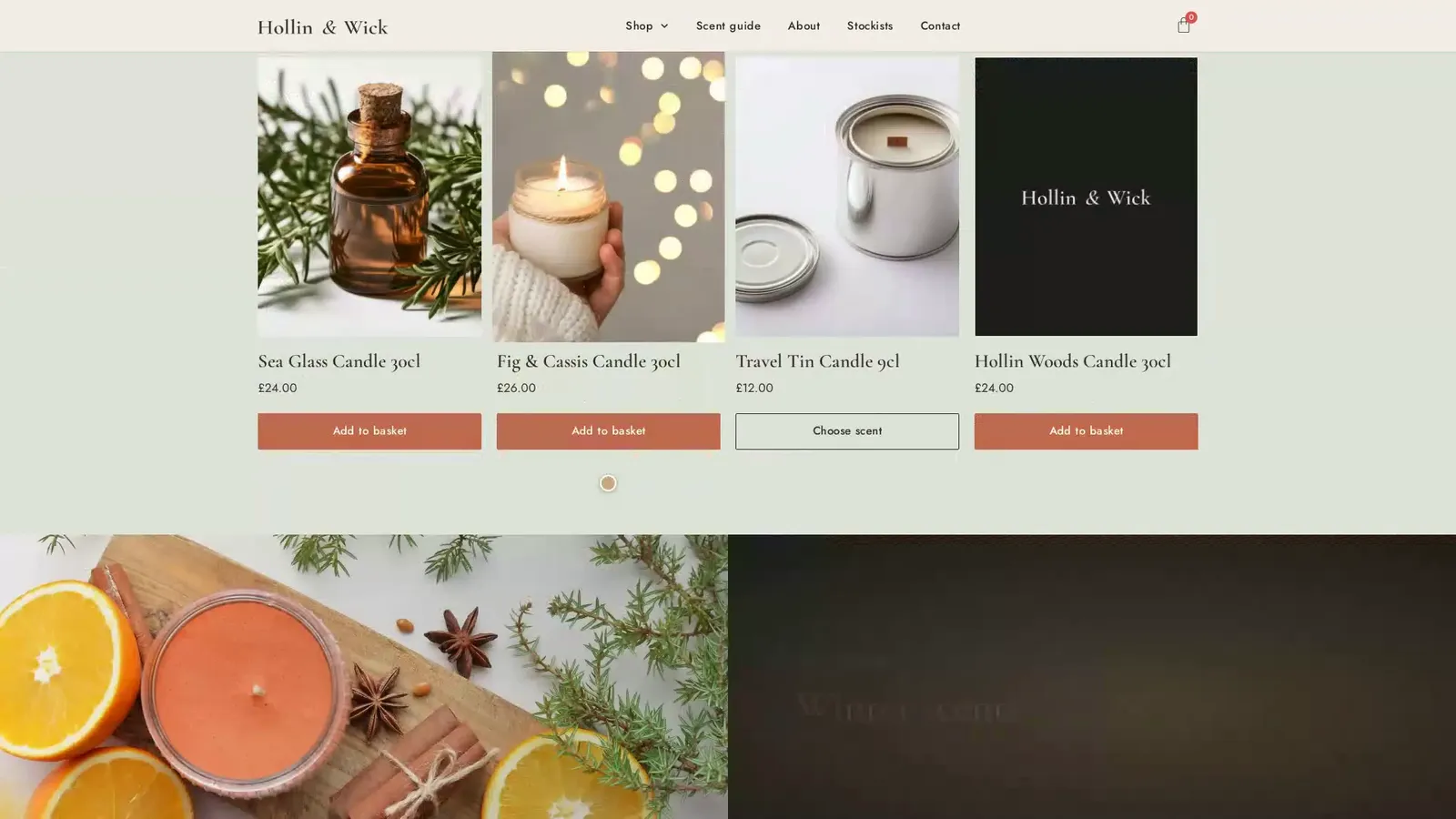 The banner on the staging copy.
TipOne job per message gets the best result. Be specific: "On the About page, change the second paragraph to…" works better than "update the About page".
Troubleshooting
The change isn't quite right
Reply in the same conversation and say what to adjust, for example "Make the banner text bigger".
The AI has paused
This month's AI allowance has run out. Your sites keep running, and you can still preview, send changes already made and roll back. The allowance resets on the 1st, or you can upgrade in the Client Area.
Still stuck? Our UK support team is happy to help. Open a support ticket
and tell us the site's name and what you've tried so far.
Last reviewed: November 2026
