WordPress updates keep your site safe, but they can break things, so Host Dada's WPBuild tries every update on your private staging copy first. Updates only go live when you send them, with a restore point and a backup.
Before you start
- A site in Host Dada's WPBuild with a live copy.
Step-by-step
- Open the Maintenance tab. It shows your WordPress and PHP versions, your plugins and theme, and any updates waiting for WordPress, your plugins or your theme.
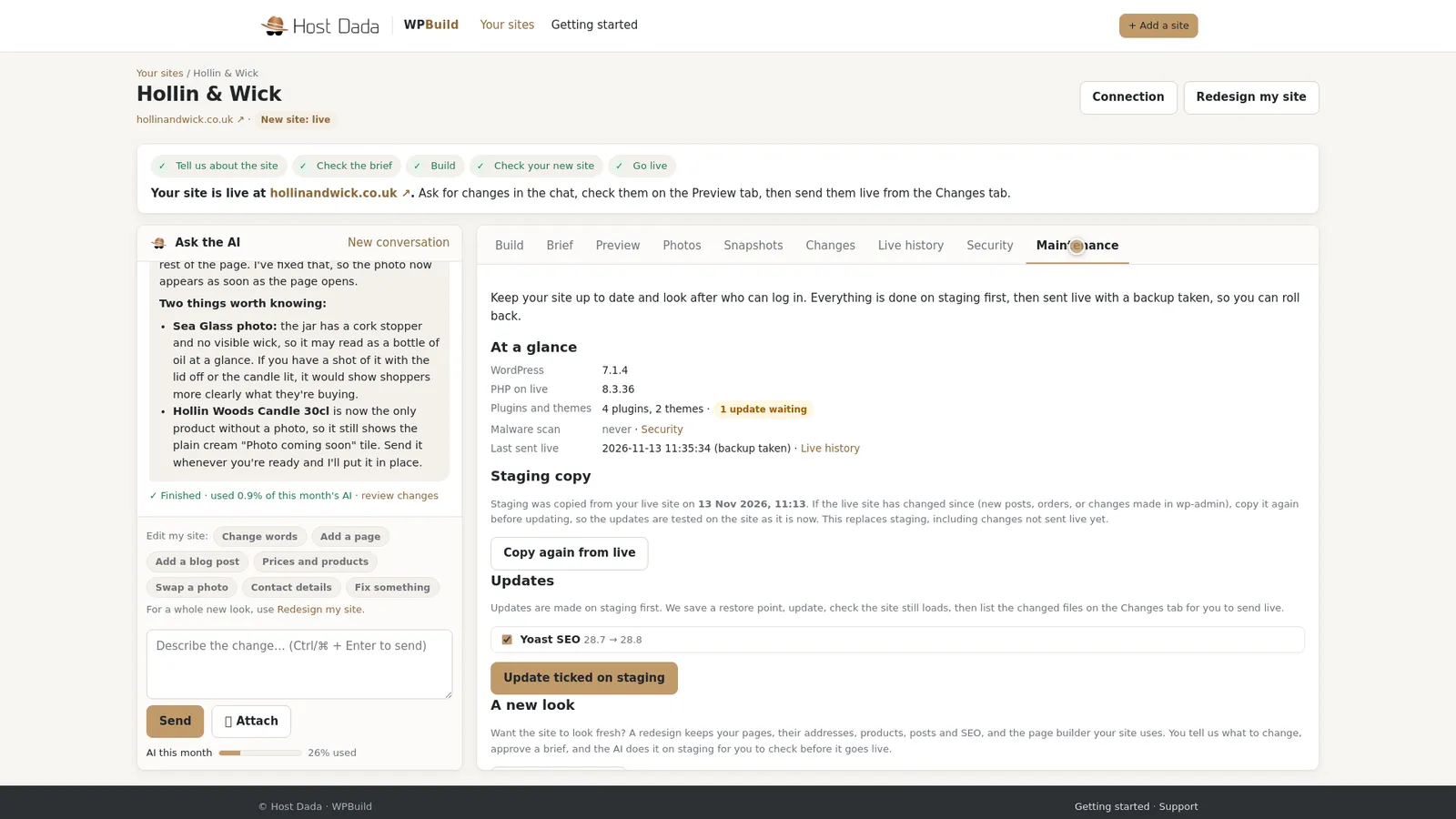 Everything that needs updating, in one place.
- Tick the updates and run them on staging. Tick the updates you want and press Update ticked on staging. A restore point is taken first, then WPBuild checks the site still loads.
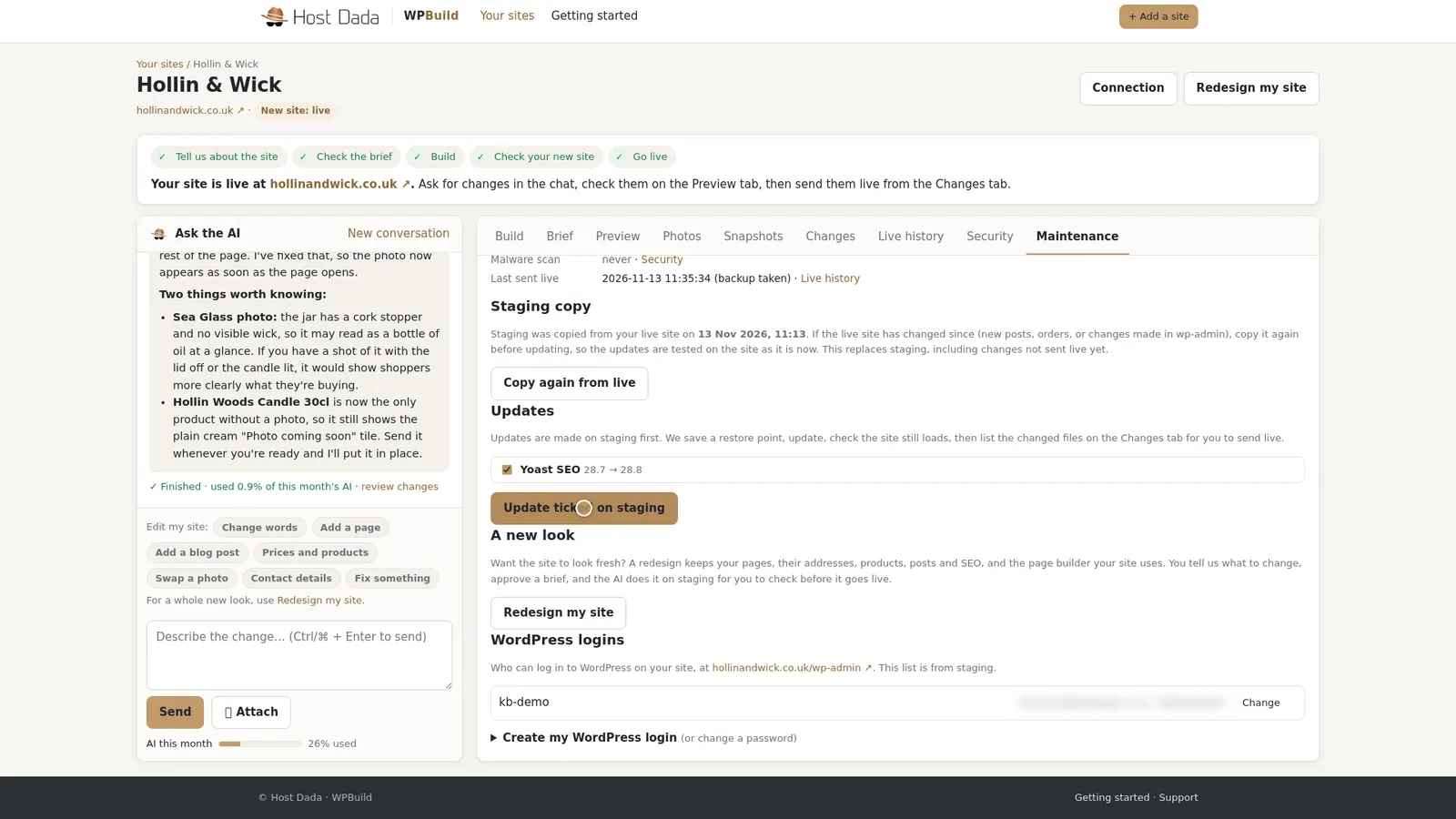 Updates run on the staging copy, never straight on live.
- Have a look round. Check your key pages on the Preview tab: the home page, a product, the contact form and the checkout.
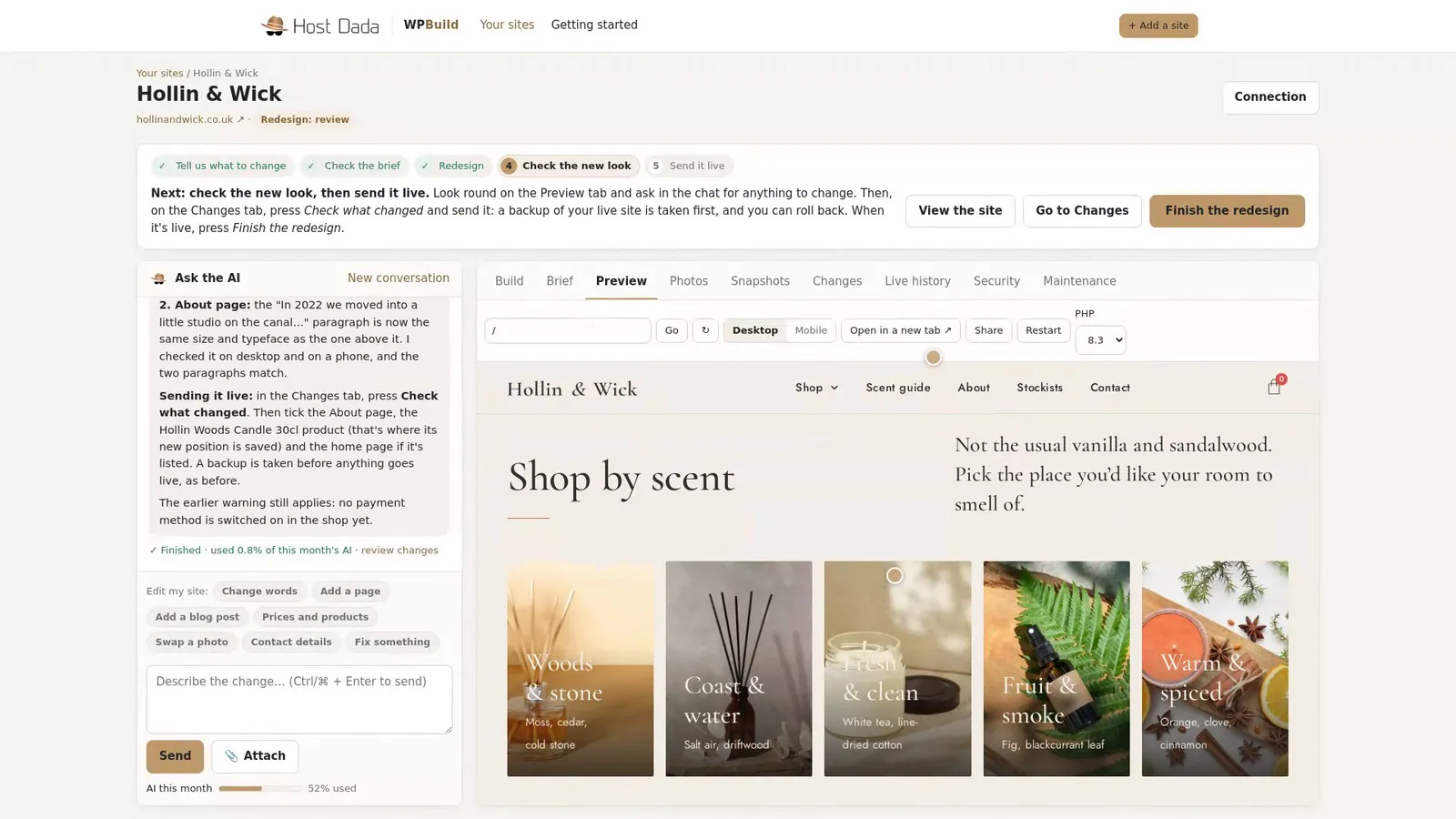 Happy? Then send it.
- Send the updates live. On the Changes tab, tick the plugin and theme updates and send them like any other change. A backup of your live site is taken first.
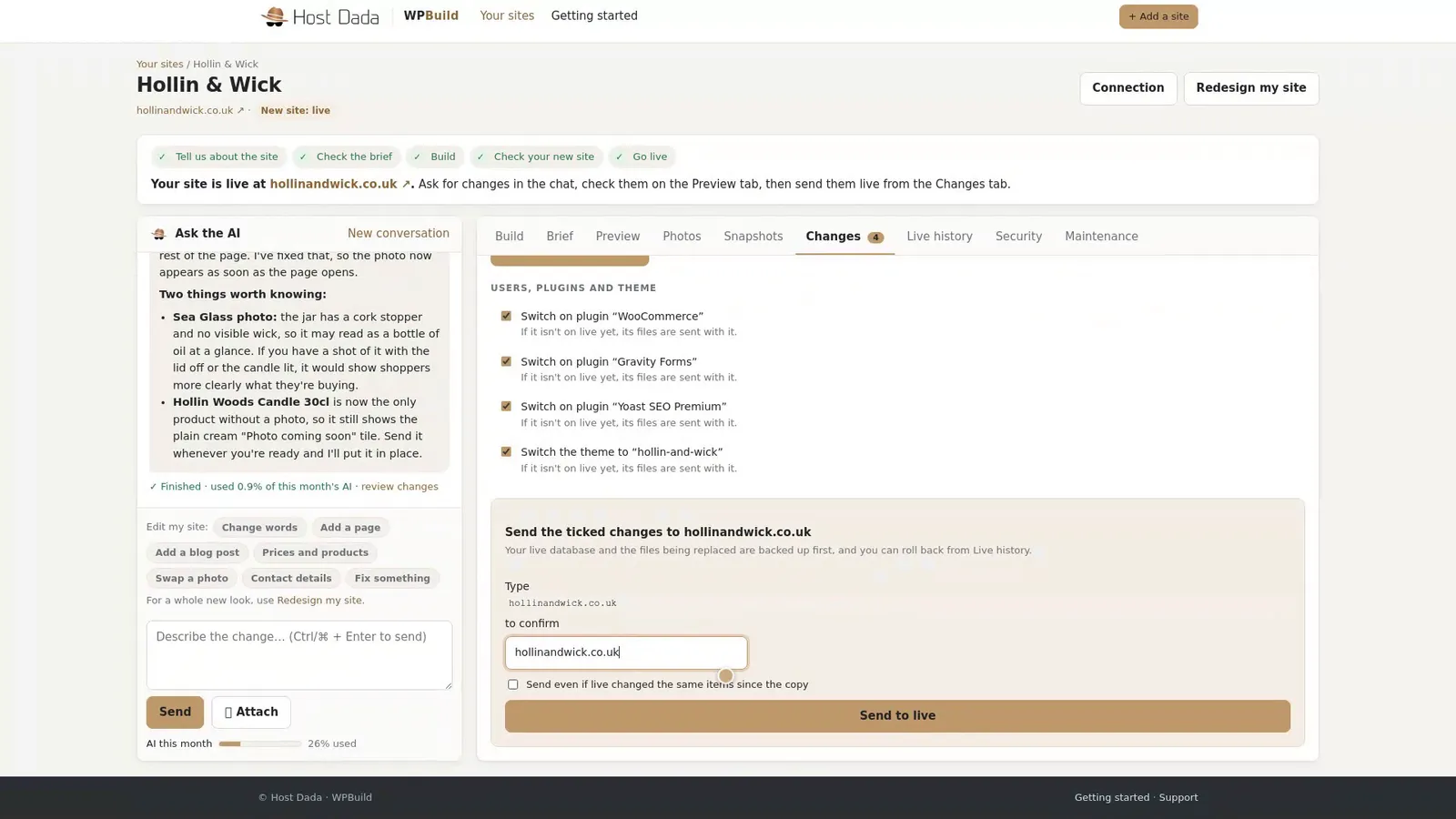 Updates go live like any other change.
- Roll back if a plugin misbehaves. If something goes wrong later, open Live history and press Roll back on that send.
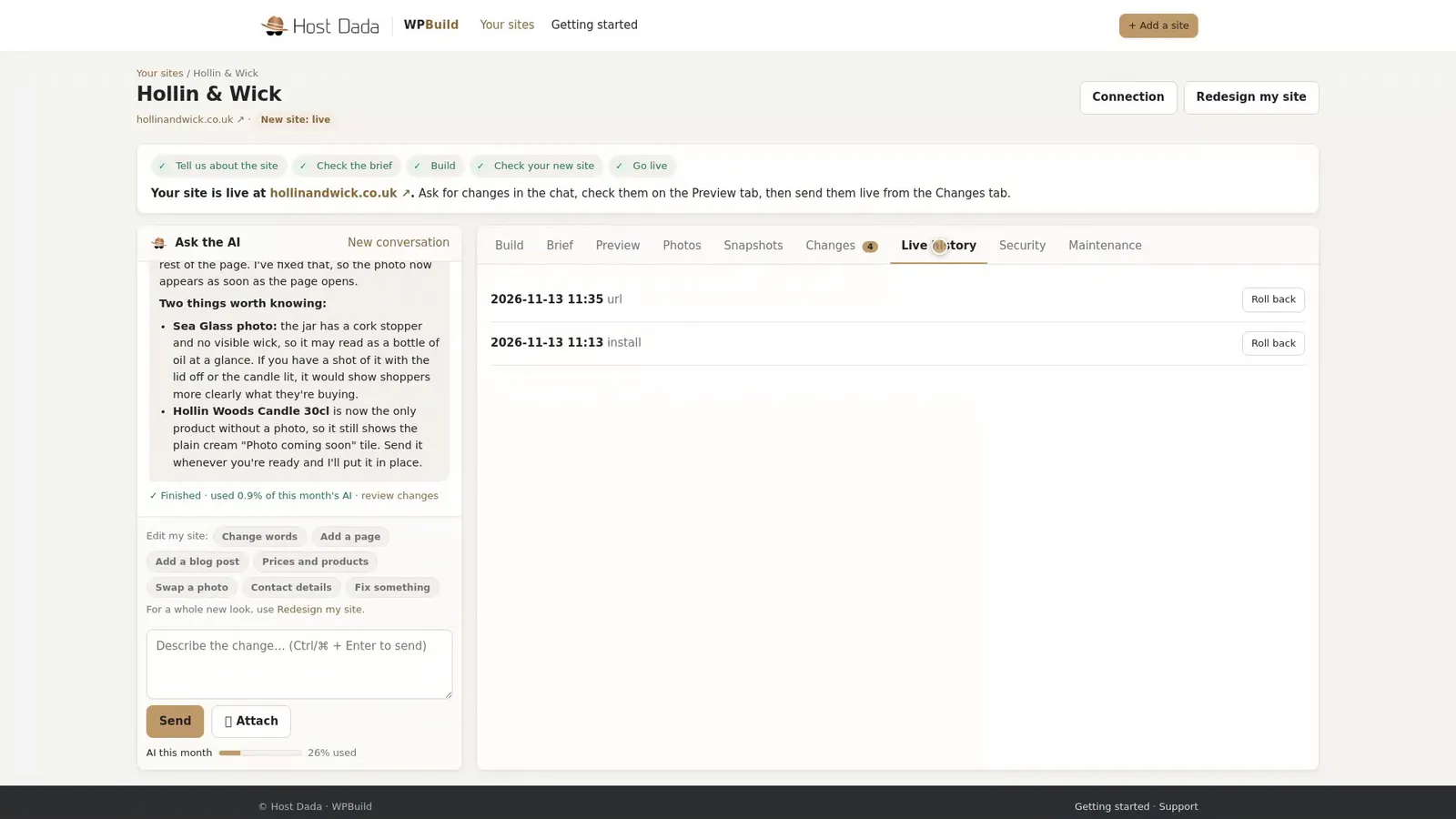 One click puts it back.
Create a WordPress login for a colleague
Further down the Maintenance tab, Create my WordPress login adds a WordPress user. Enter a username, email and password, and choose a role: Administrator, Editor, Author or Shop manager. The login is created on staging and sent straight to your live site.
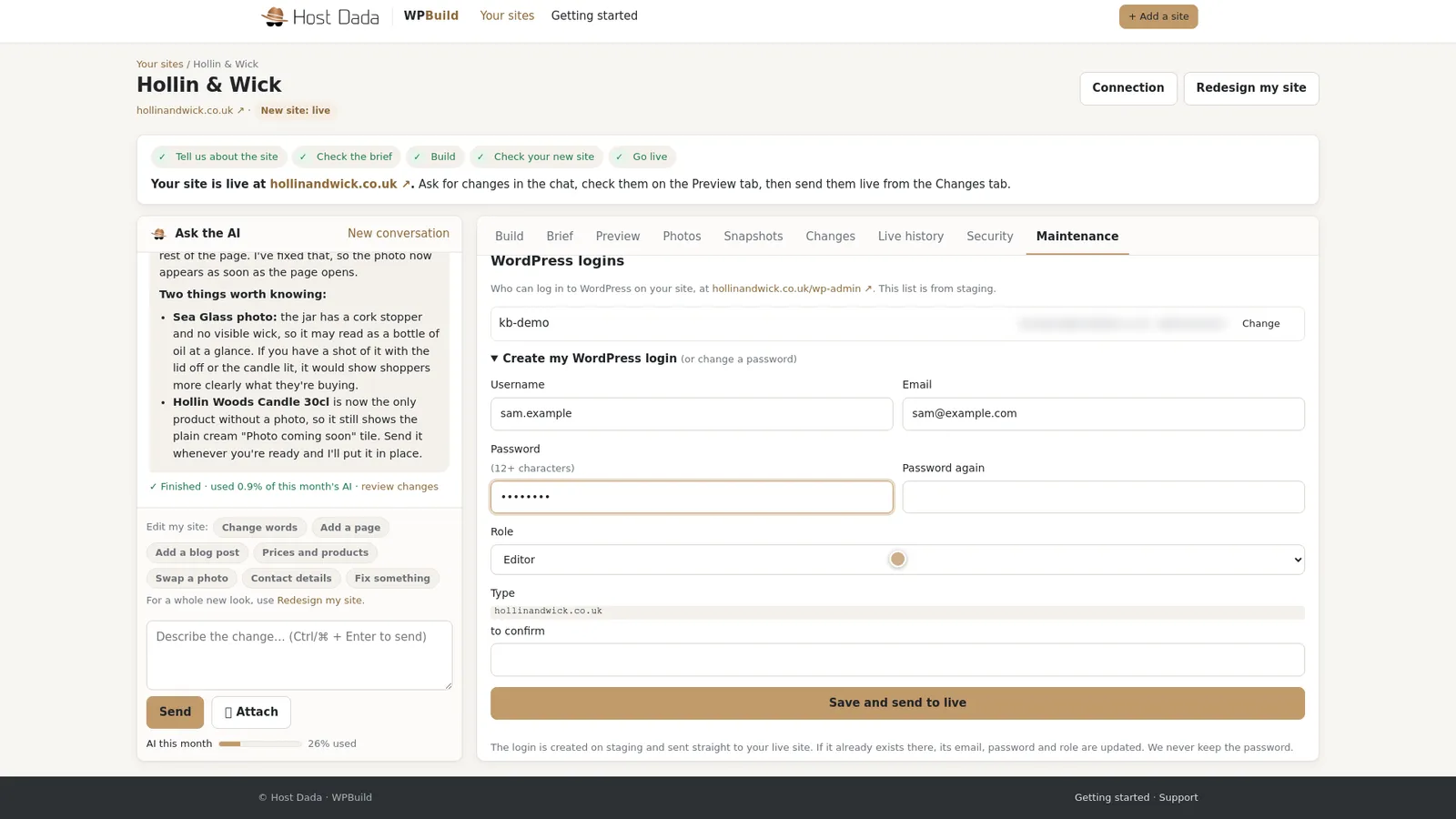 An example colleague, typed for this guide and not sent.
Troubleshooting
An update broke something on staging
Your live site hasn't changed. Ask in the chat to fix it, or leave that update unticked when you send.
There's a PHP warning on the Maintenance tab
Your site runs on an older PHP version. Staging is moved to a supported version after a set time, so you can check everything works first. Ask our support team if you'd like help.
Last reviewed: November 2026
