Build a brand-new WordPress website with Host Dada's WPBuild from a few photos, a logo and a short brief. You approve the plan before anything is built, and the finished site waits on a private preview for you to check.
Before you start
- A Host Dada's WPBuild plan, and your WPBuild login.
- Your logo and some photos of your products, premises or work. Your own photos give the best result.
- A short brief if you have one: what you sell, who it's for and the pages you need. A rough note is fine. WPBuild turns it into a full page-by-page plan.
- Your current website address, if you have one. WPBuild can read its words and photos.
Step-by-step
- Choose Add a site. From Your WordPress sites, press + Add a site.
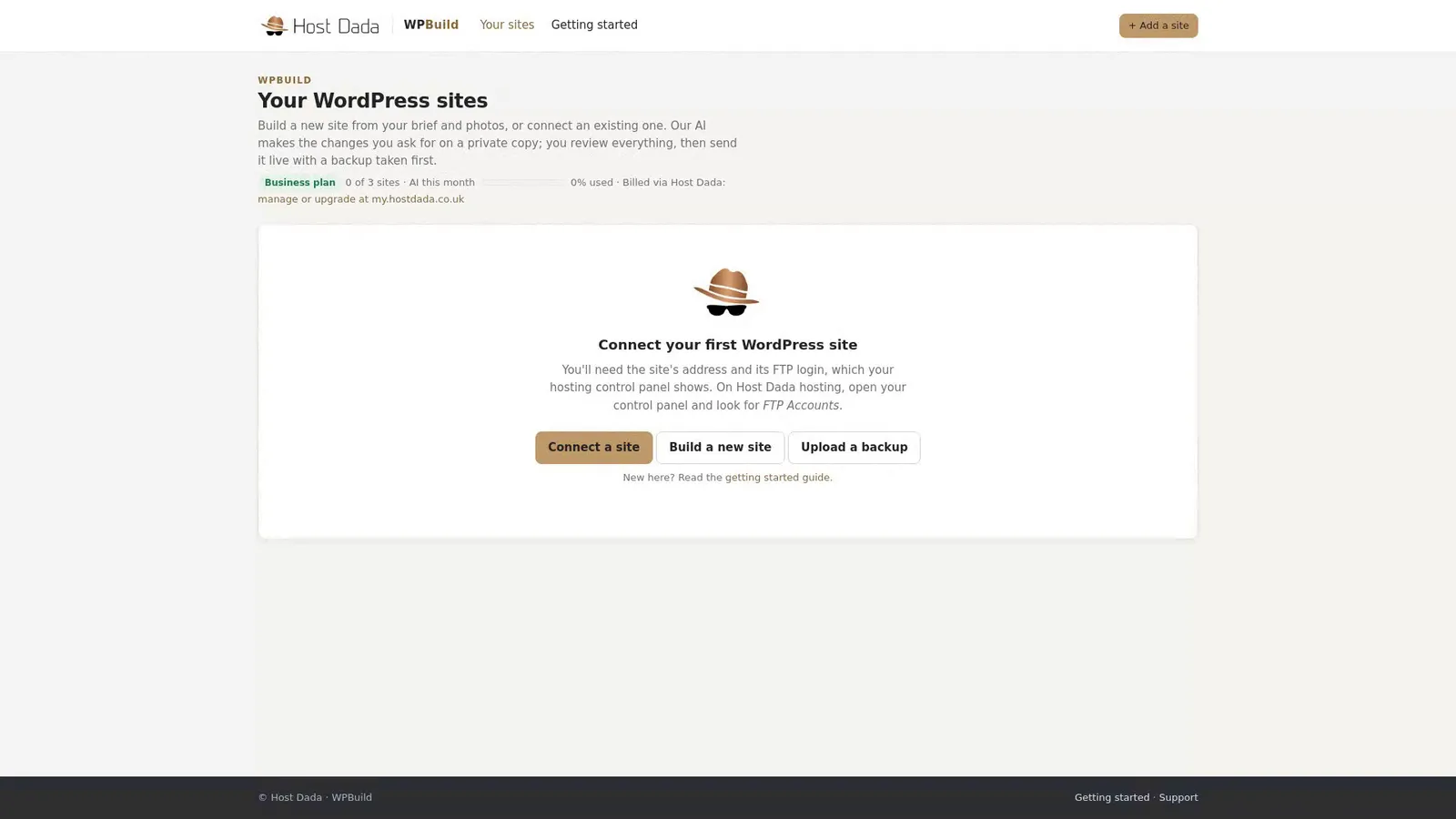 Your dashboard. Add a site is at the top right.
- Choose Build a new site. You'll also see Connect an existing site and Upload a site backup. Those are for sites you already have.
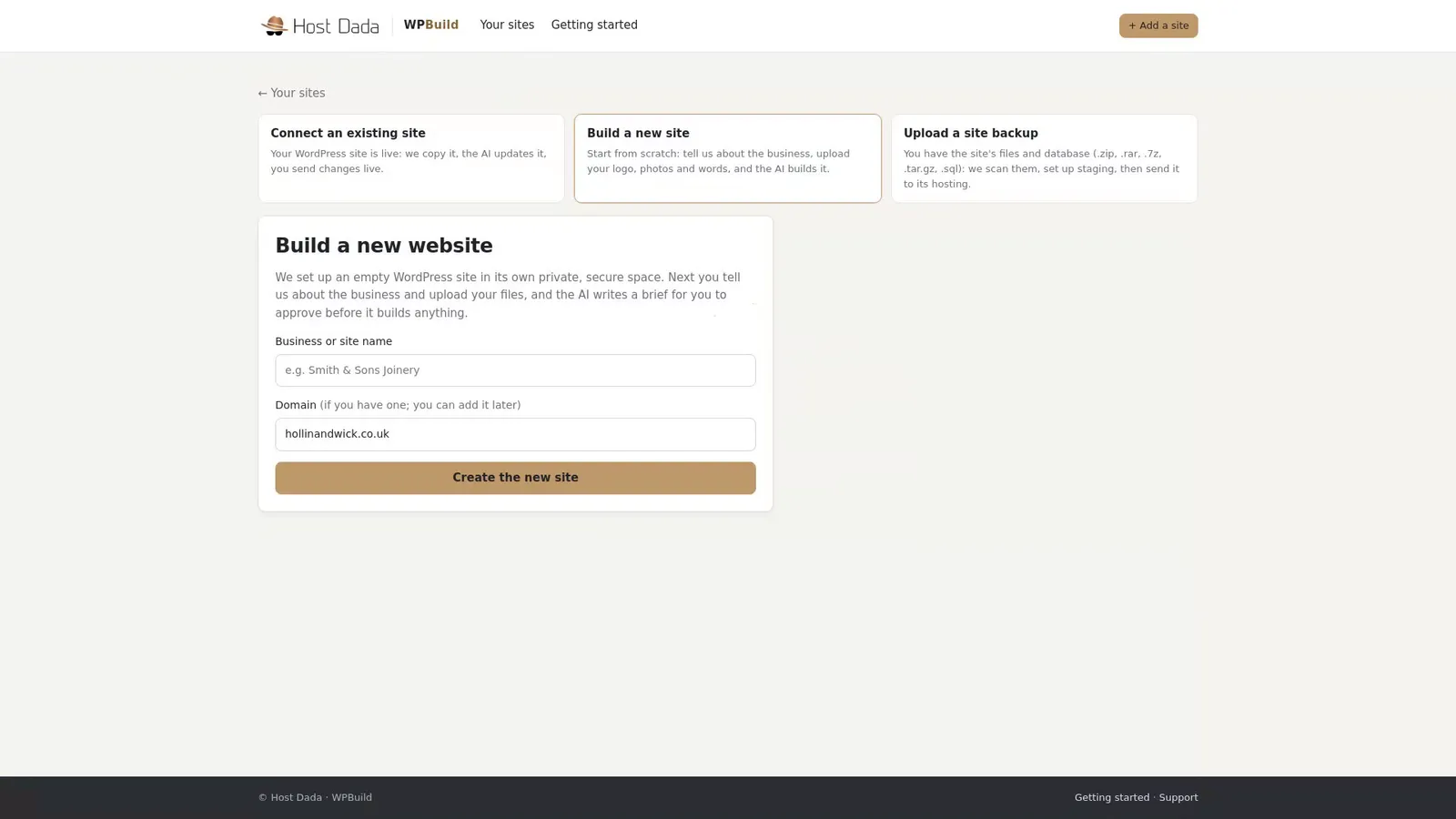 Pick Build a new site.
- Name the site. Type the business or site name and, if you have one, the domain. You can add the domain later. Then press Create the new site.
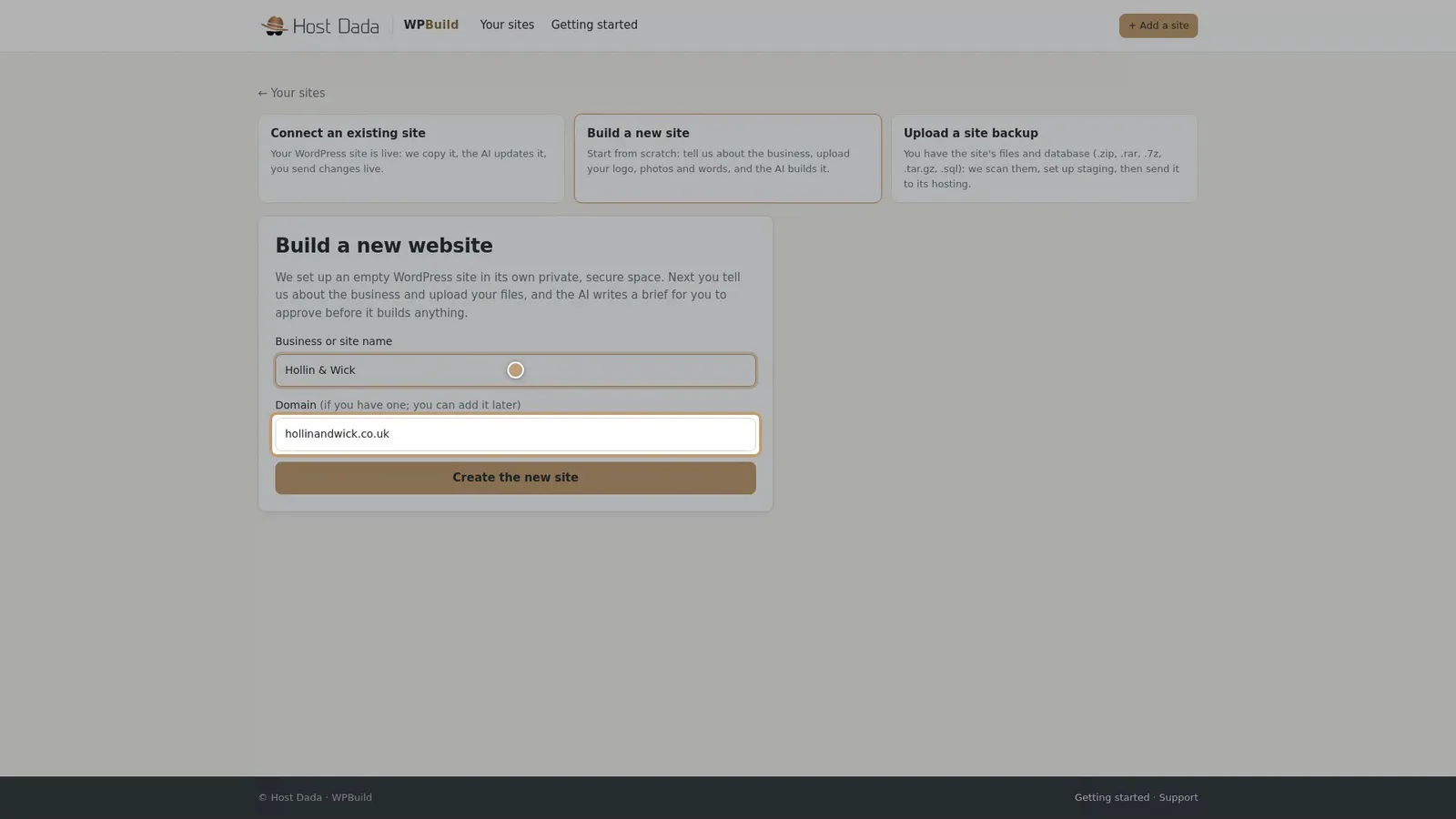 Here the example business is Hollin & Wick, a candle shop.
- Tell WPBuild about the business. On the Build tab, describe what you sell, who it's for, where you work and the pages you need. If you have a current website, add its address and choose whether to keep its wording, rewrite it or mix the two.
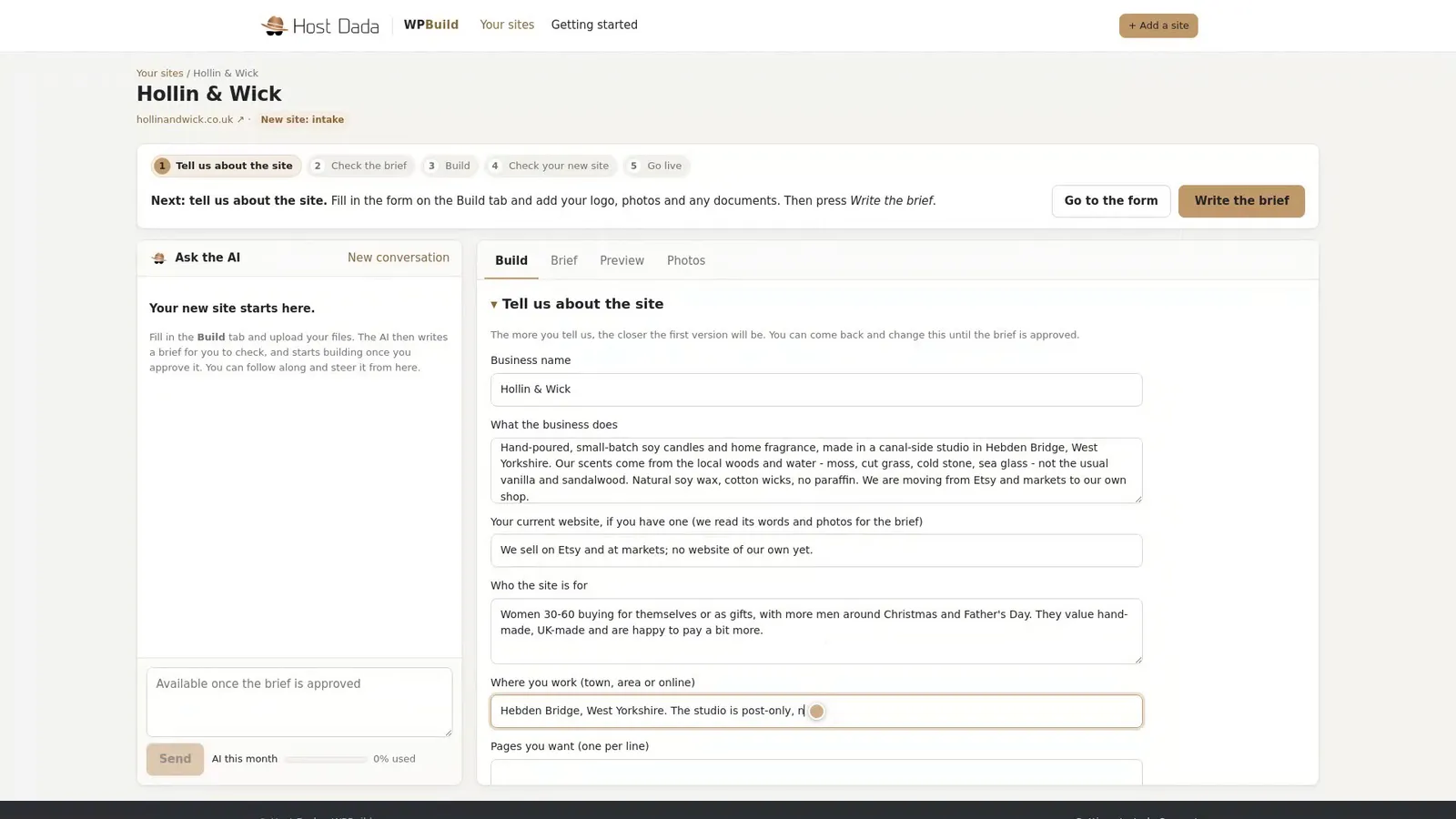 Plain English is all it needs.
- Choose how the site is built. Pick WordPress blocks (the standard WordPress editor) or Elementor (a drag-and-drop page builder). Both give you a real WordPress website you can log in to.
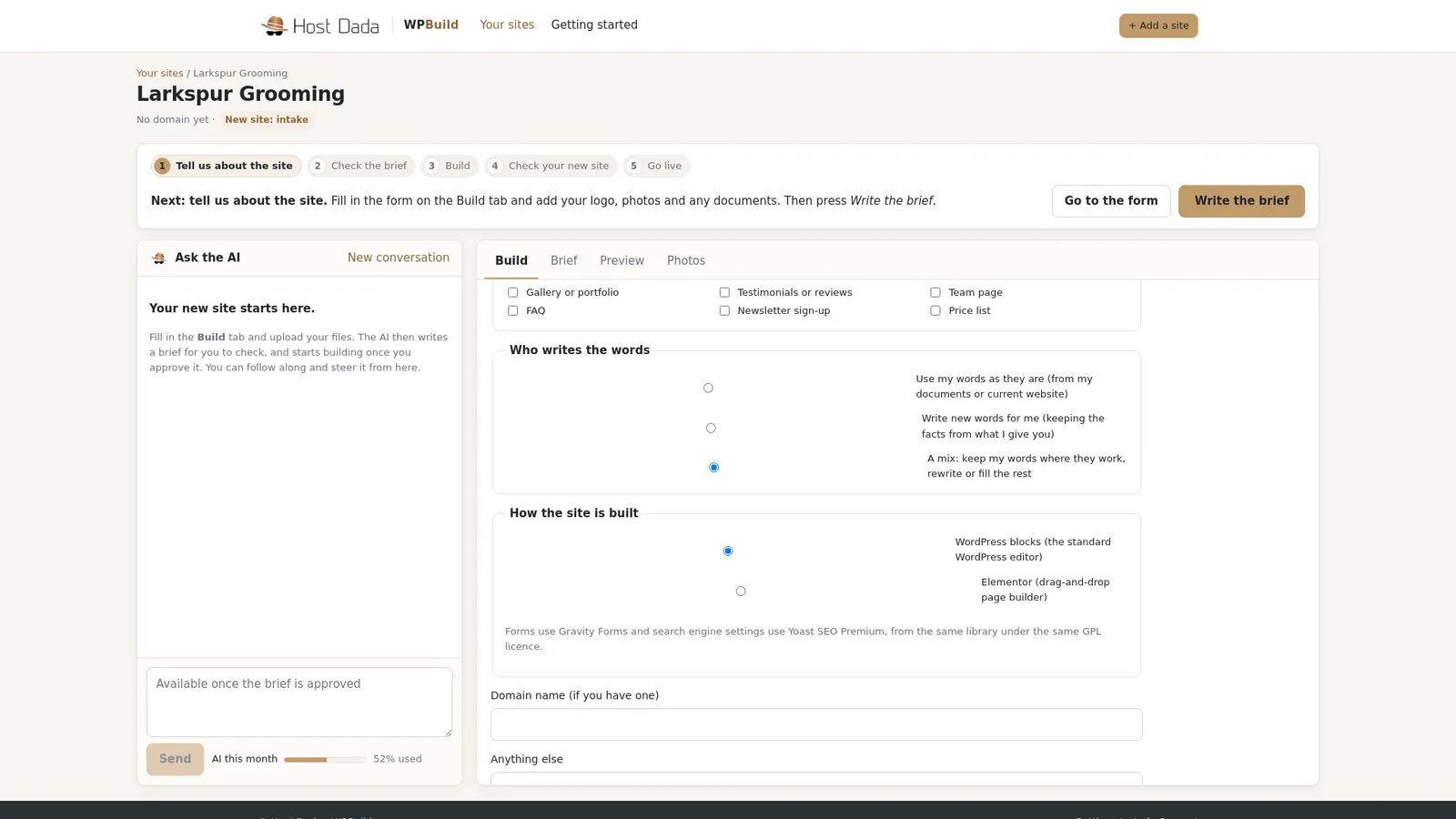 Hollin & Wick was built with Elementor.
- Upload your files. Drop in your logo, photos, any documents and your brief.
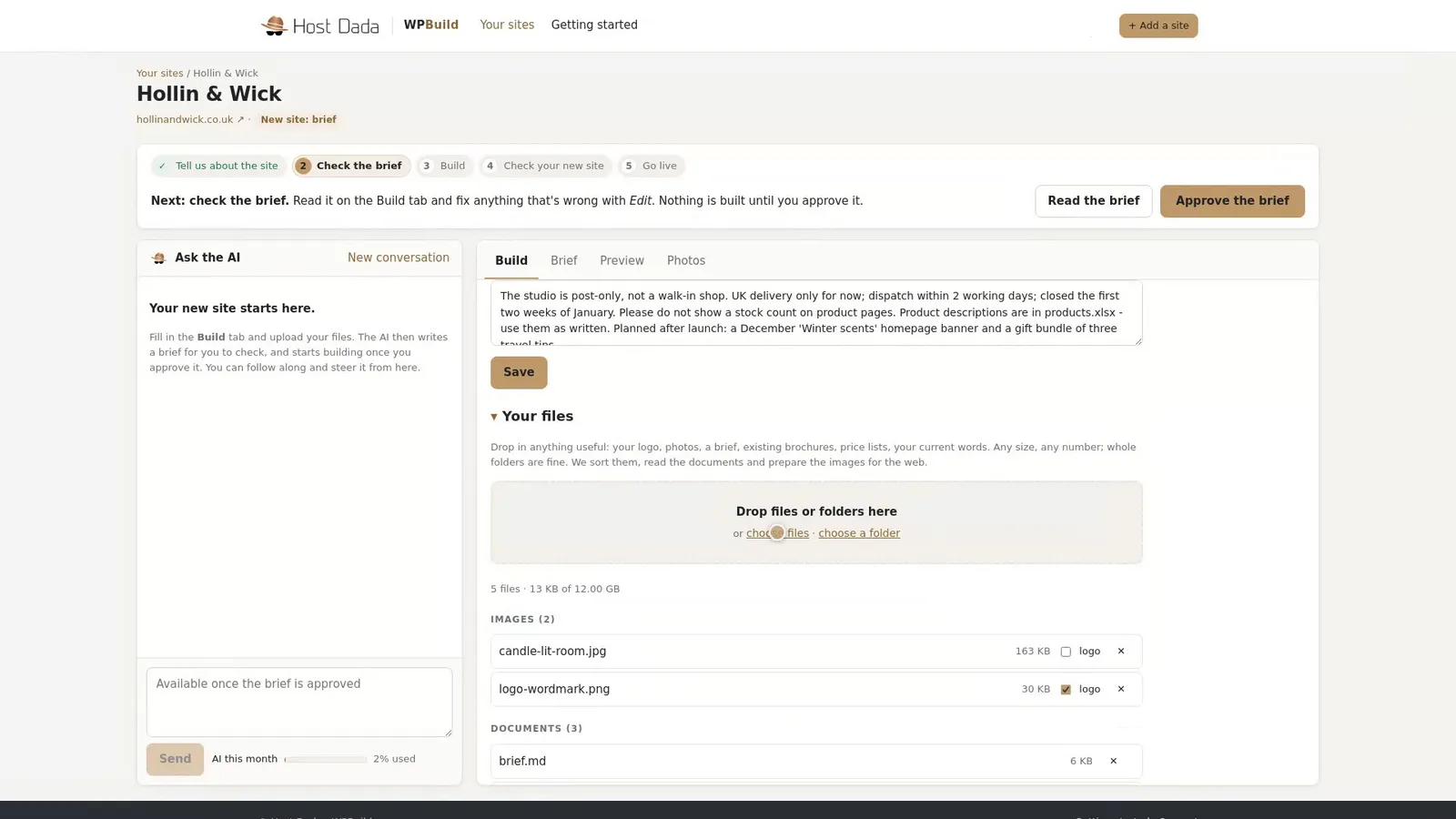 Drag files or folders onto the box.
- Press Write the brief. WPBuild looks at every photo, describes it, writes its alt text and works out where it belongs. This usually takes a few minutes.
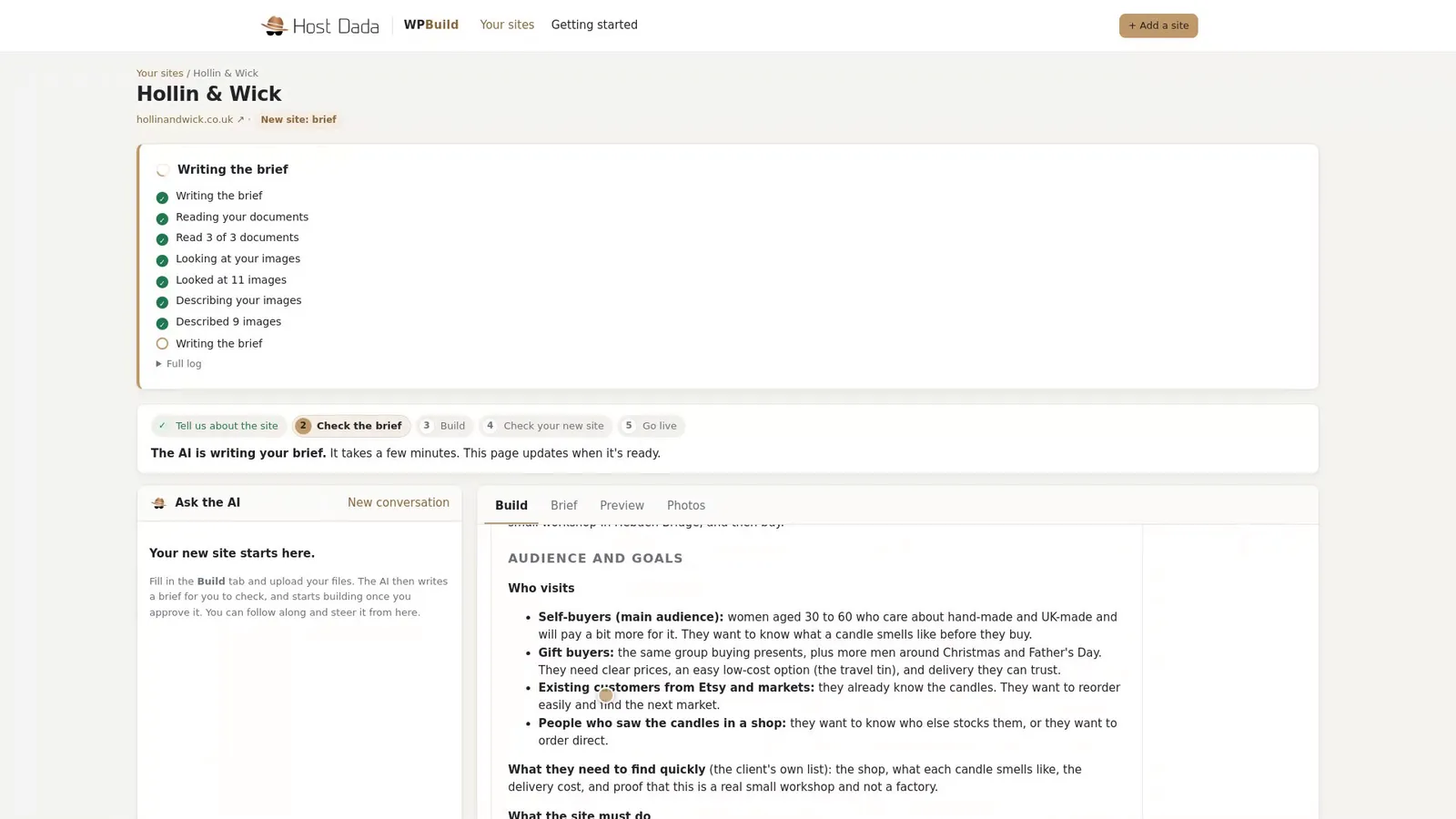 The checklist shows what it's doing.
- Read the brief. The Brief tab shows a page-by-page plan: the words, the photos for each section and any gaps it couldn't fill. It never invents facts, reviews, prices or contact details. Gaps are marked for you. If something's wrong, say so in the chat or edit your answers and write it again.
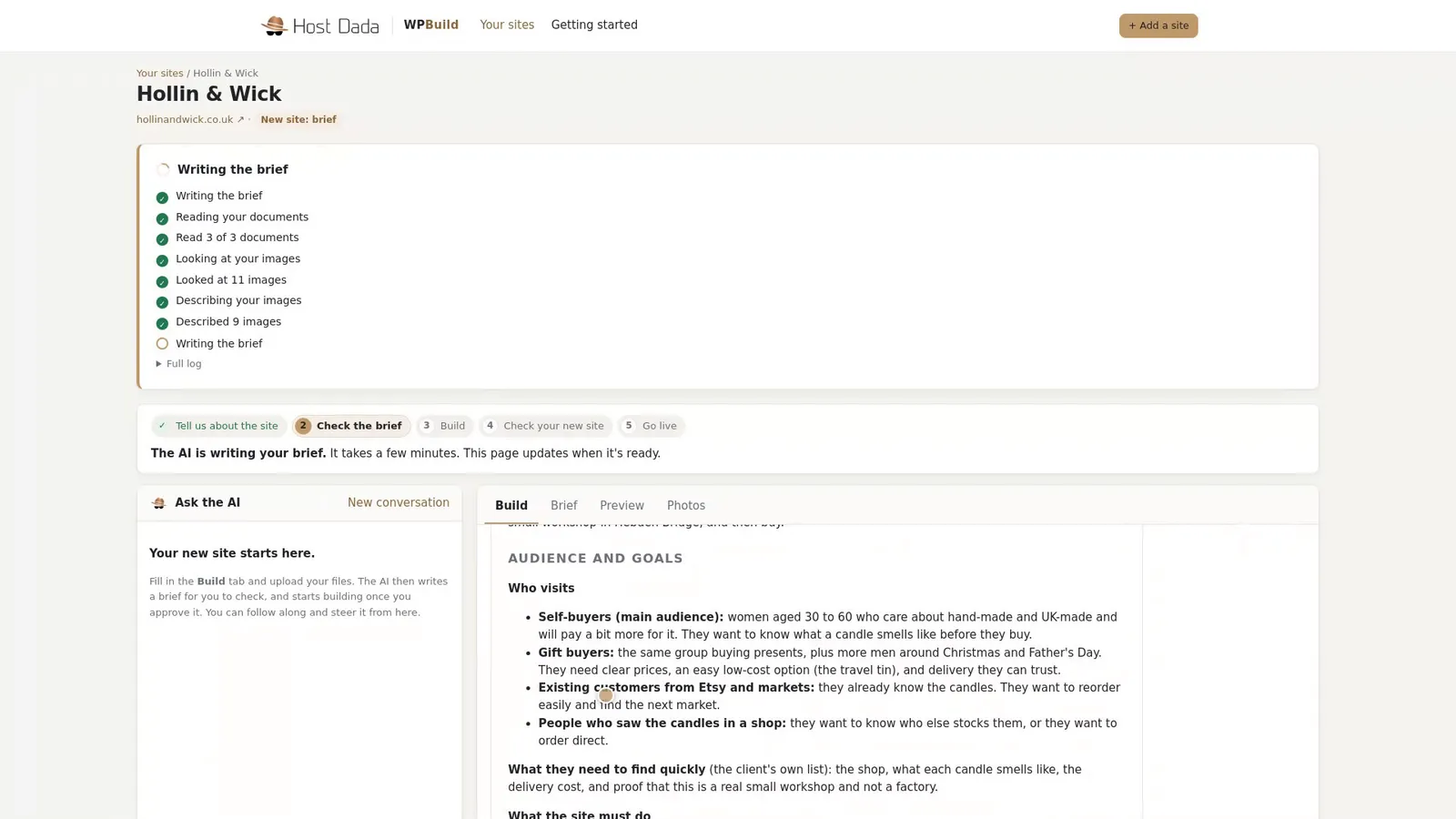 Read it through before you approve it.
- Approve the brief. When you're happy, press Approve the brief. Nothing is built until you do.
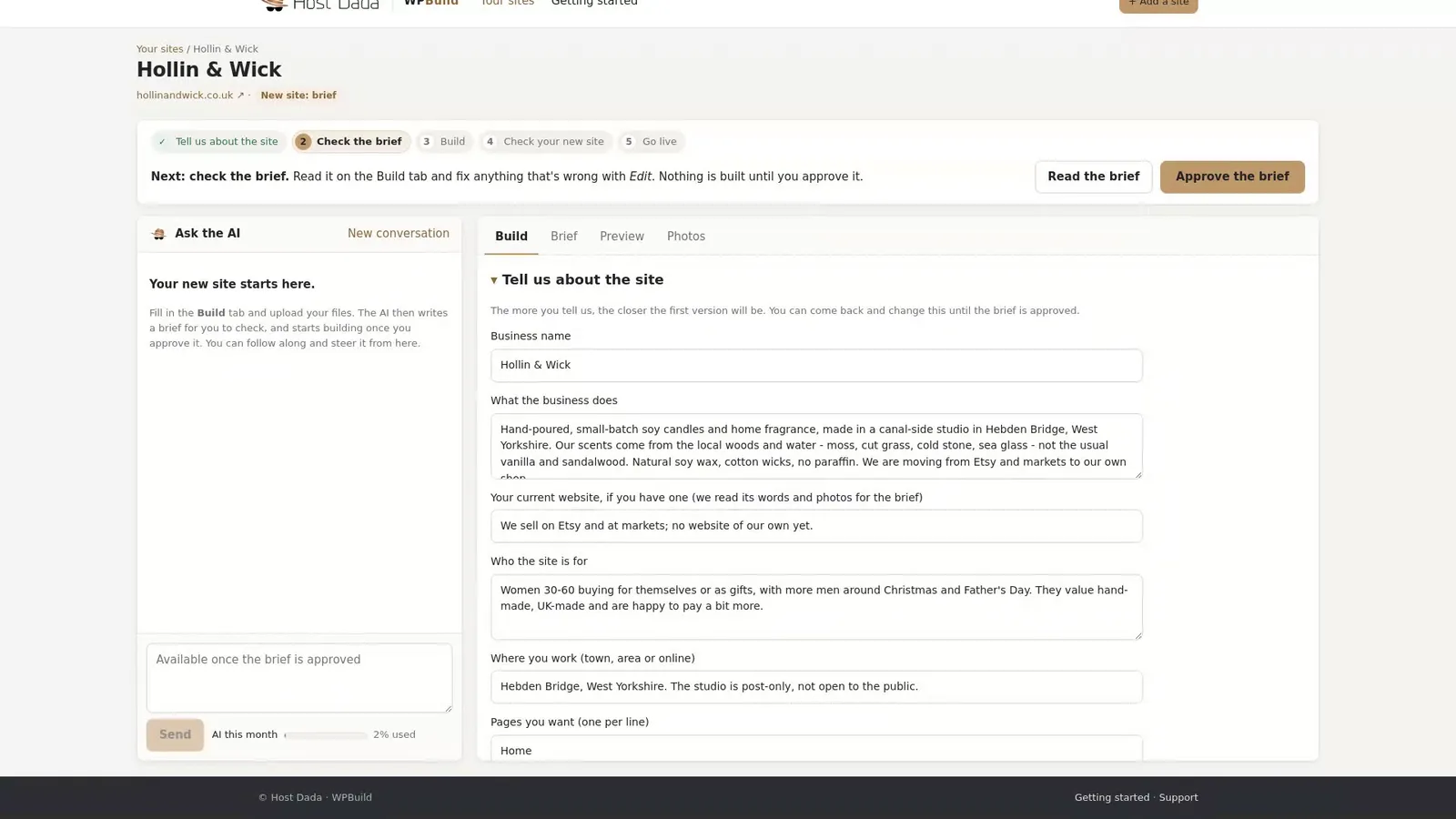 Approving locks the plan and starts the build.
- Let it build. WPBuild builds a custom WordPress site, checking each page on desktop and mobile as it goes. The build progress checklist fills in as it works. It's usually ready within a few hours, and bigger sites can take more than one session. You can close the page and come back.
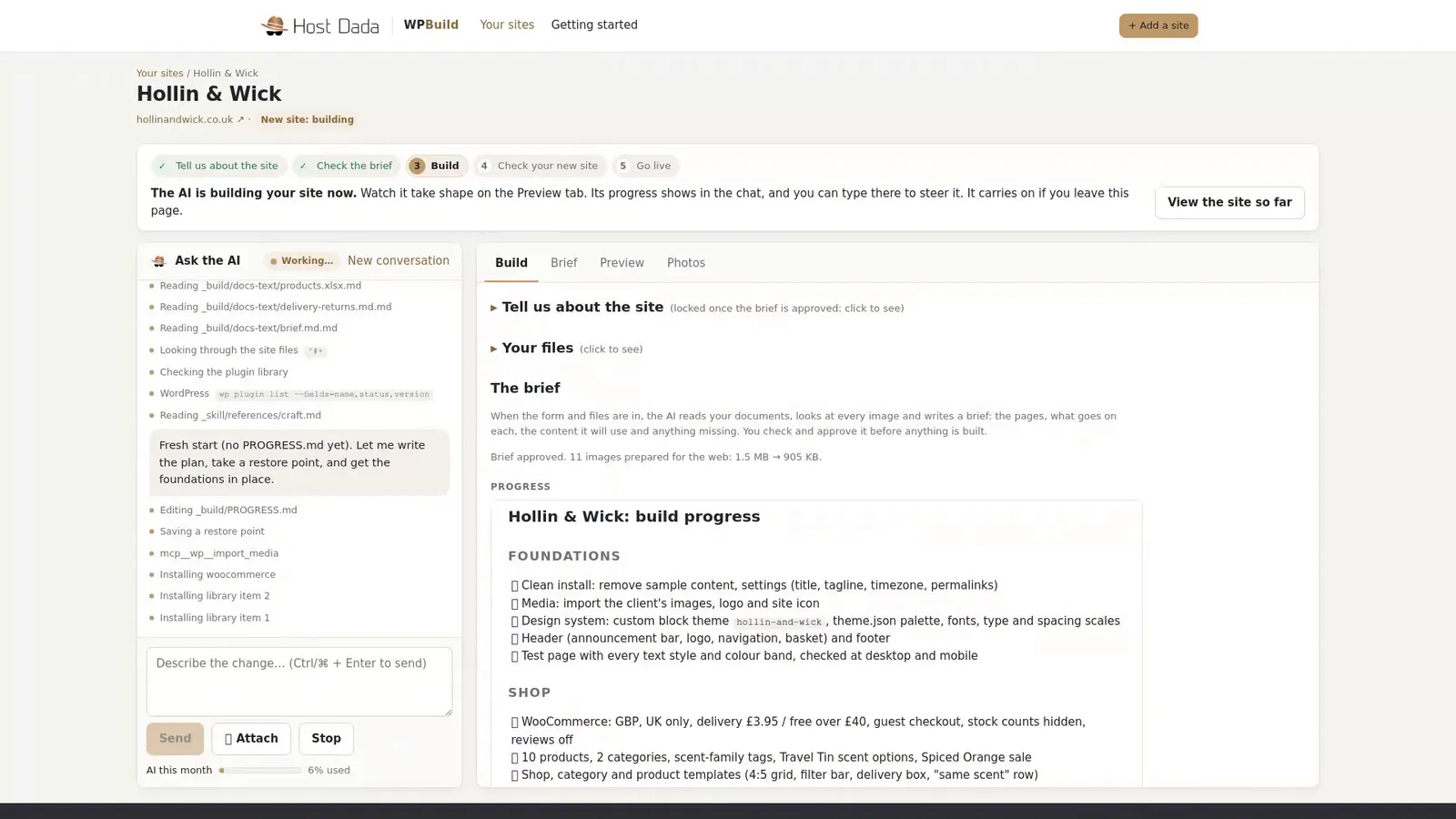 You can steer it in the chat while it builds.
- Check your new site. When it's finished, the site shows Ready on your dashboard. Open it and use the Preview tab to look round on desktop and mobile. The preview is private, and only you can see it.
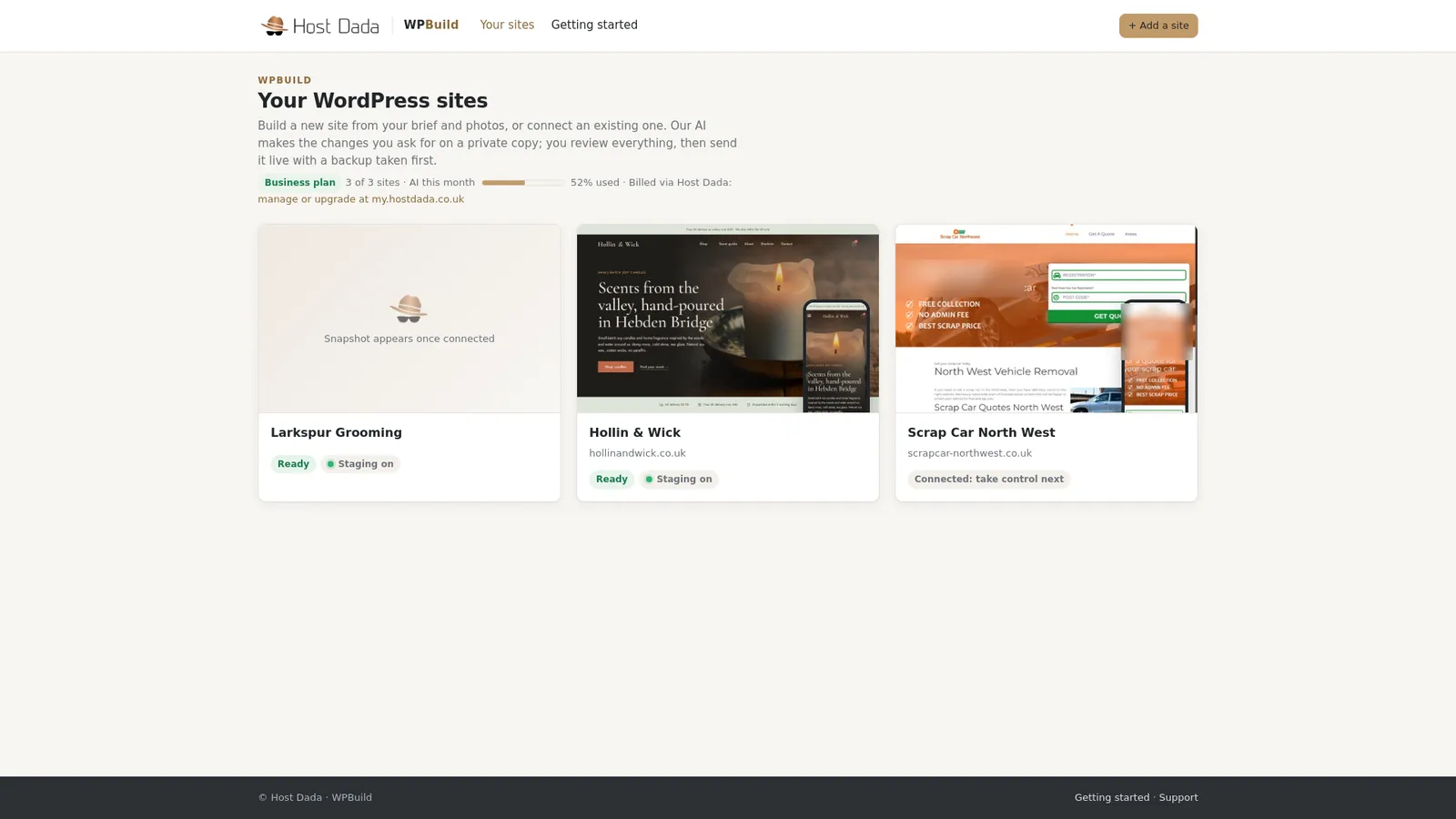 The finished site on your dashboard.
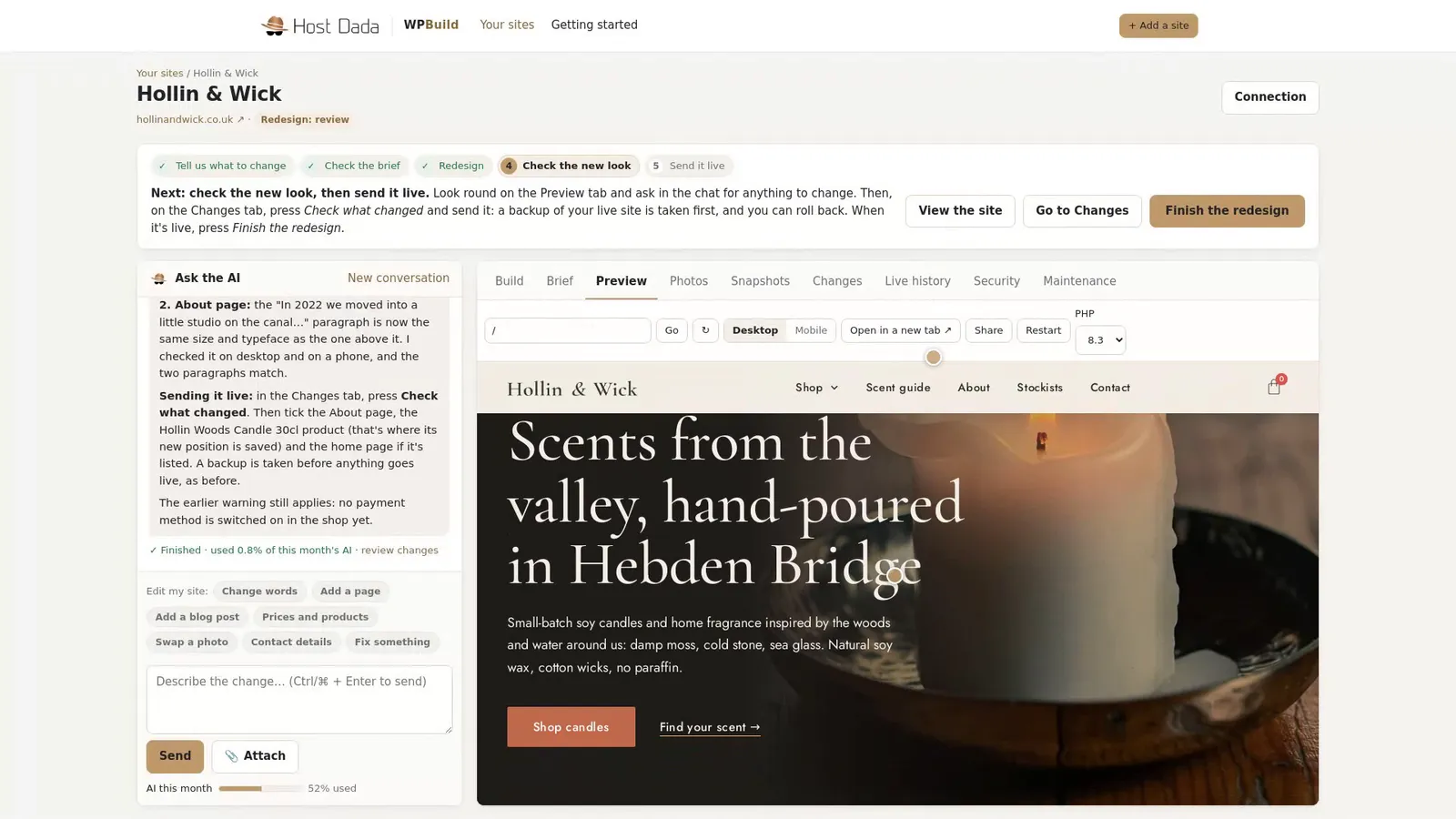 A real WordPress website, on your private preview.
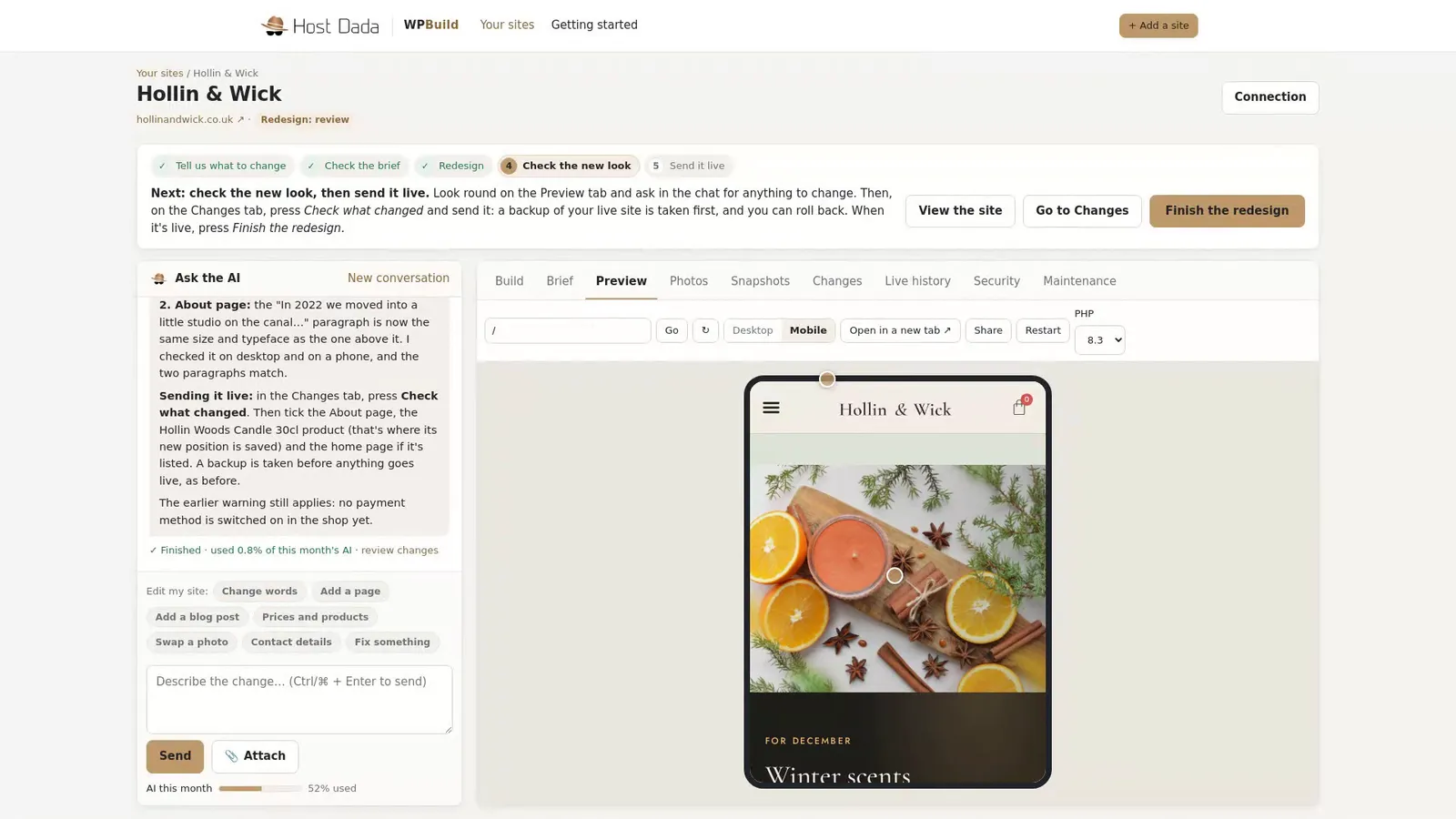 Switch to Mobile to check it on a phone.
Troubleshooting
The brief has gaps marked
That's on purpose. WPBuild won't make up opening hours, prices or contact details. Add them in the chat (for example, "Our phone number is…") or edit your answers on the Build tab and write the brief again.
The build stopped part-way
Big sites can need more than one session. Press Continue building when you see it. If the AI paused because this month's allowance ran out, your site is safe. You can upgrade in the Client Area or wait for it to reset on the 1st.
I want a different look
Ask in the chat once the site is built (for example, "Make the header darker and the buttons rounder"). You can also use Redesign my site later.
Last reviewed: November 2026
