Check your site before anything goes live: look round your private staging copy on desktop and mobile, and compare it with your live site. Then send a preview link to anyone who needs to approve it, with no login needed.
About the examplesHollin & Wick and Larkspur Grooming are example businesses made for these guides. Everything else is the real WPBuild screen.
Before you start
- A site in Host Dada's WPBuild, either a new build or a connected site.
Step-by-step
- Open the Preview tab. This is your private staging copy. Click around it like a visitor would: menus, buttons, forms and the shop.
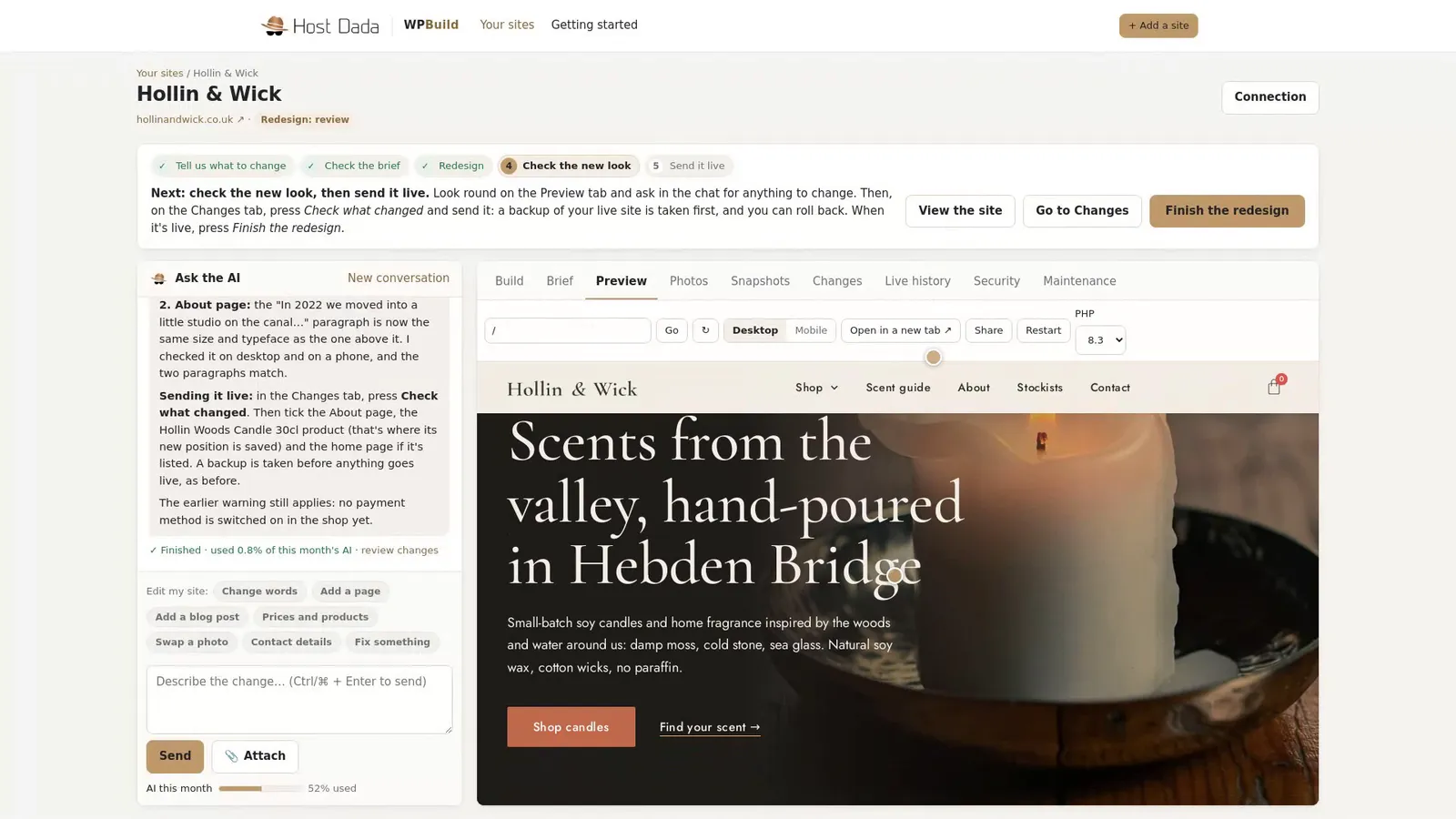 The Preview tab shows your staging copy.
- Switch to Mobile. Use Desktop and Mobile to check it works on a phone.
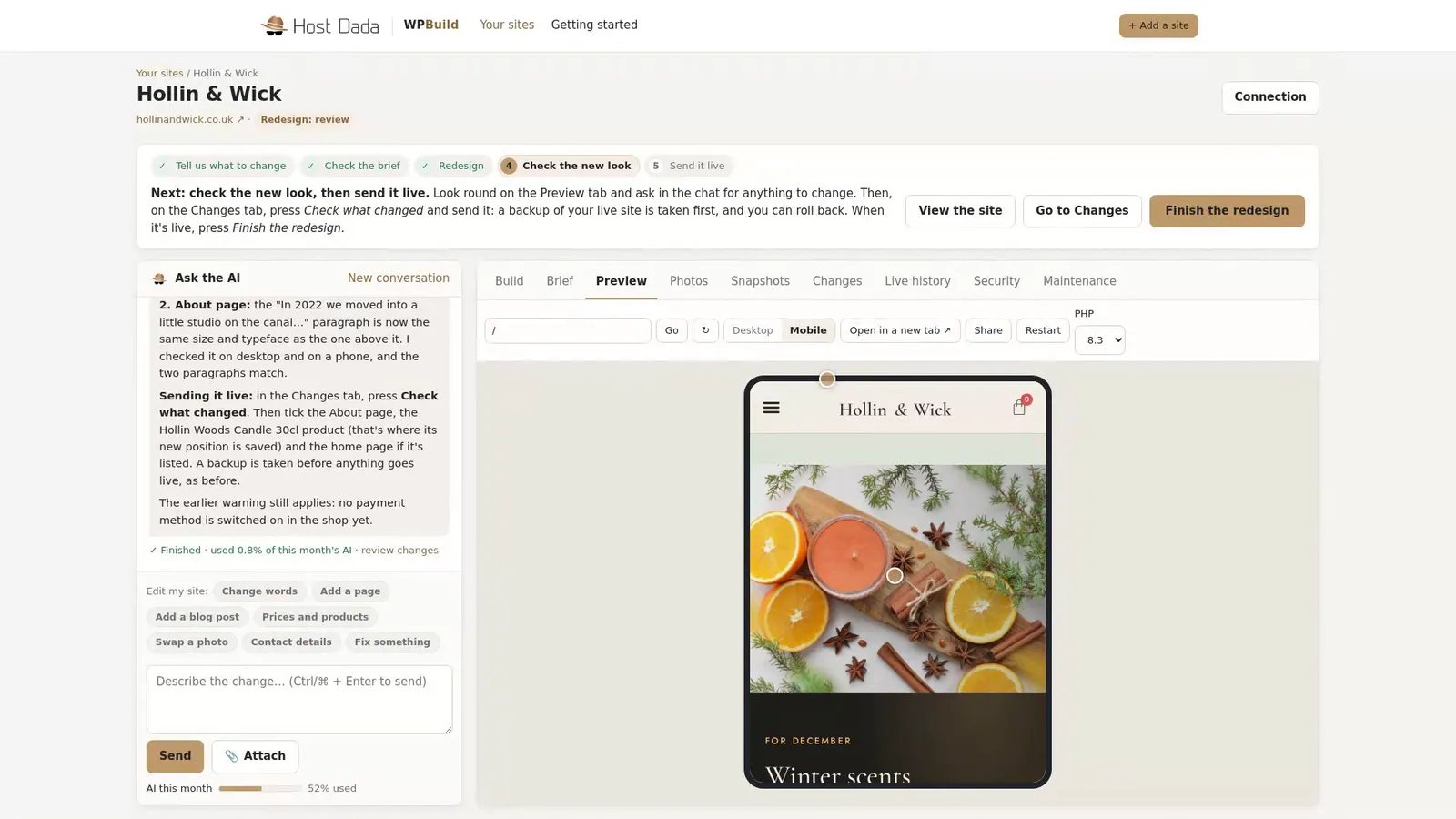 Most visitors will see the mobile version.
- Compare with your live site on the Snapshots tab. Once a site is live, Snapshots shows the staging copy and the live site, on desktop and mobile, so you can see exactly what will change. Press Refresh snapshots for the latest pictures.
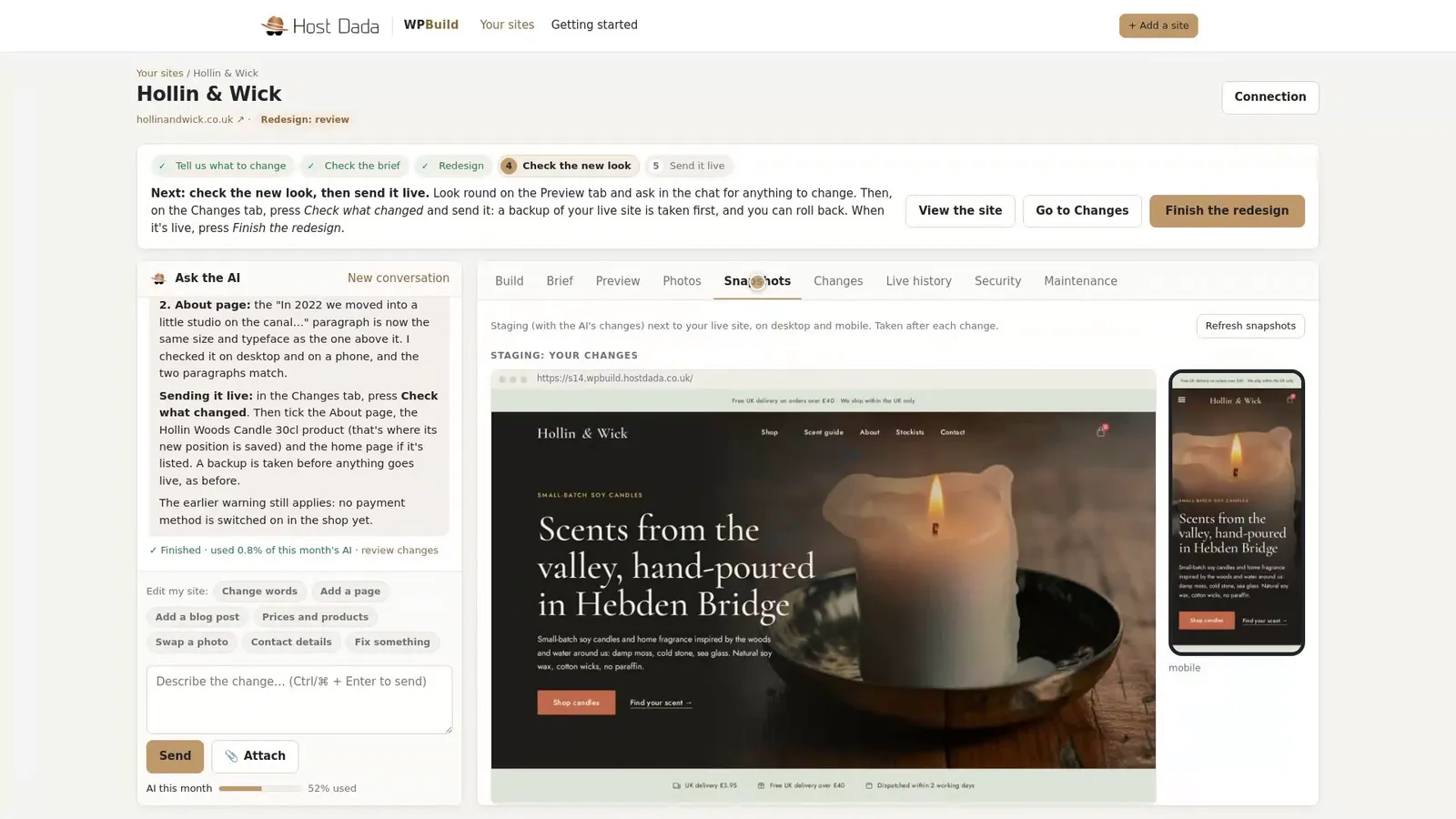 The top of the tab shows the staging copy.
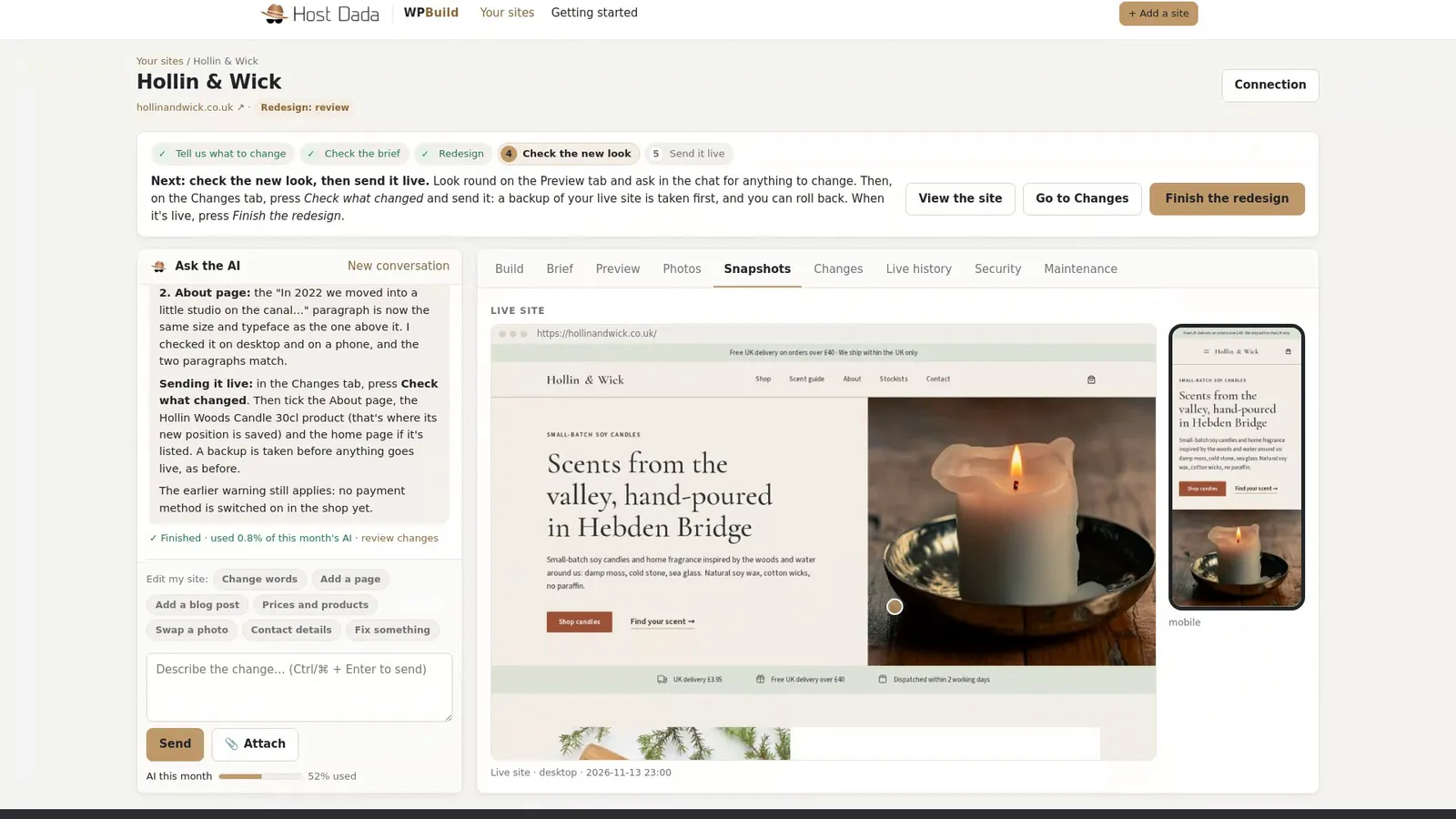 Further down: your live site, for comparison.
- Press Share to create a preview link. Need someone else to approve it, like a business partner or client? Press Share on the Preview tab.
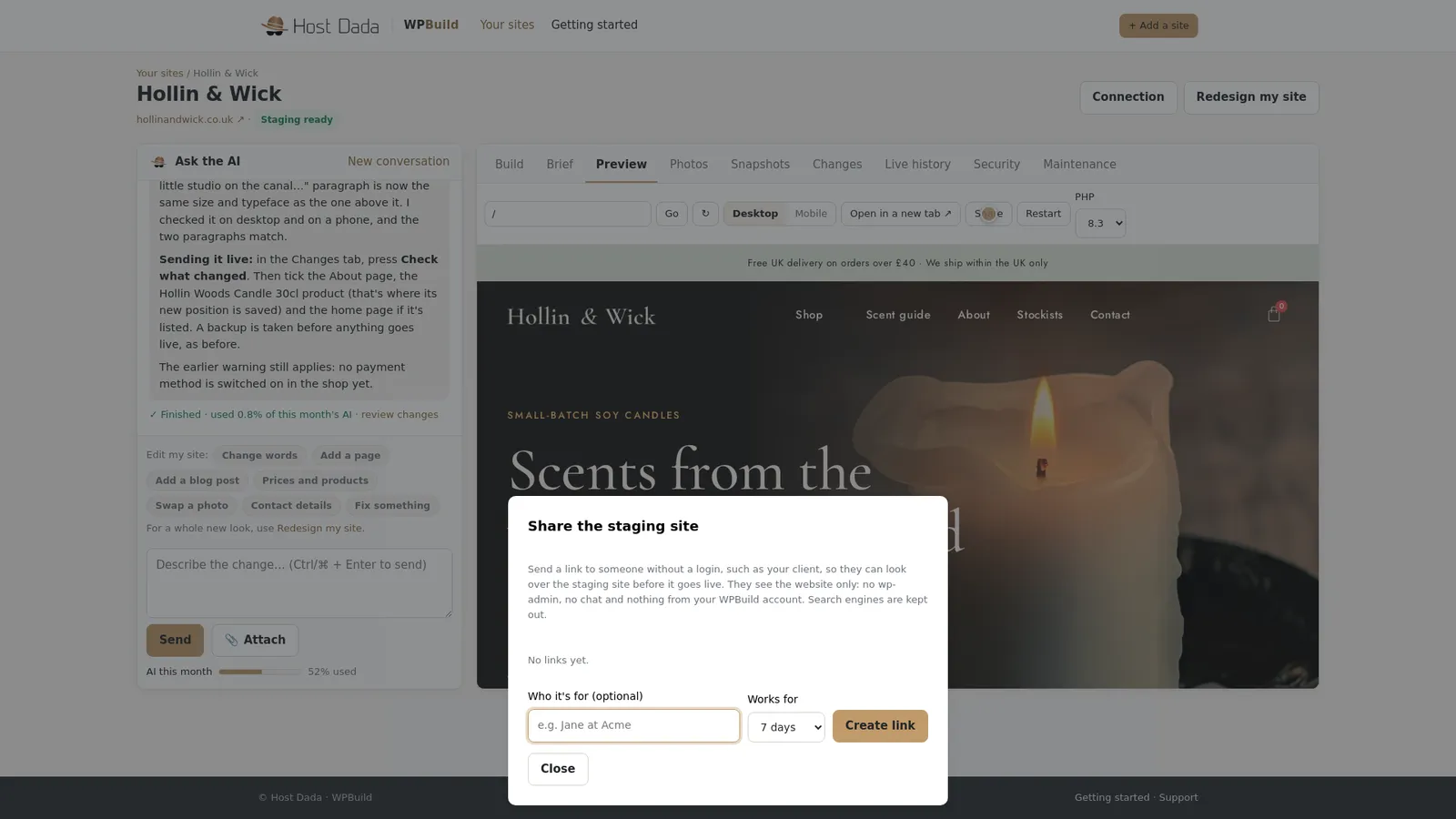 Share the staging site.
- Choose who it's for and how long it works. Add a label so you remember who has it, then choose how long it works: 1, 7, 14 or 30 days. Press Create link.
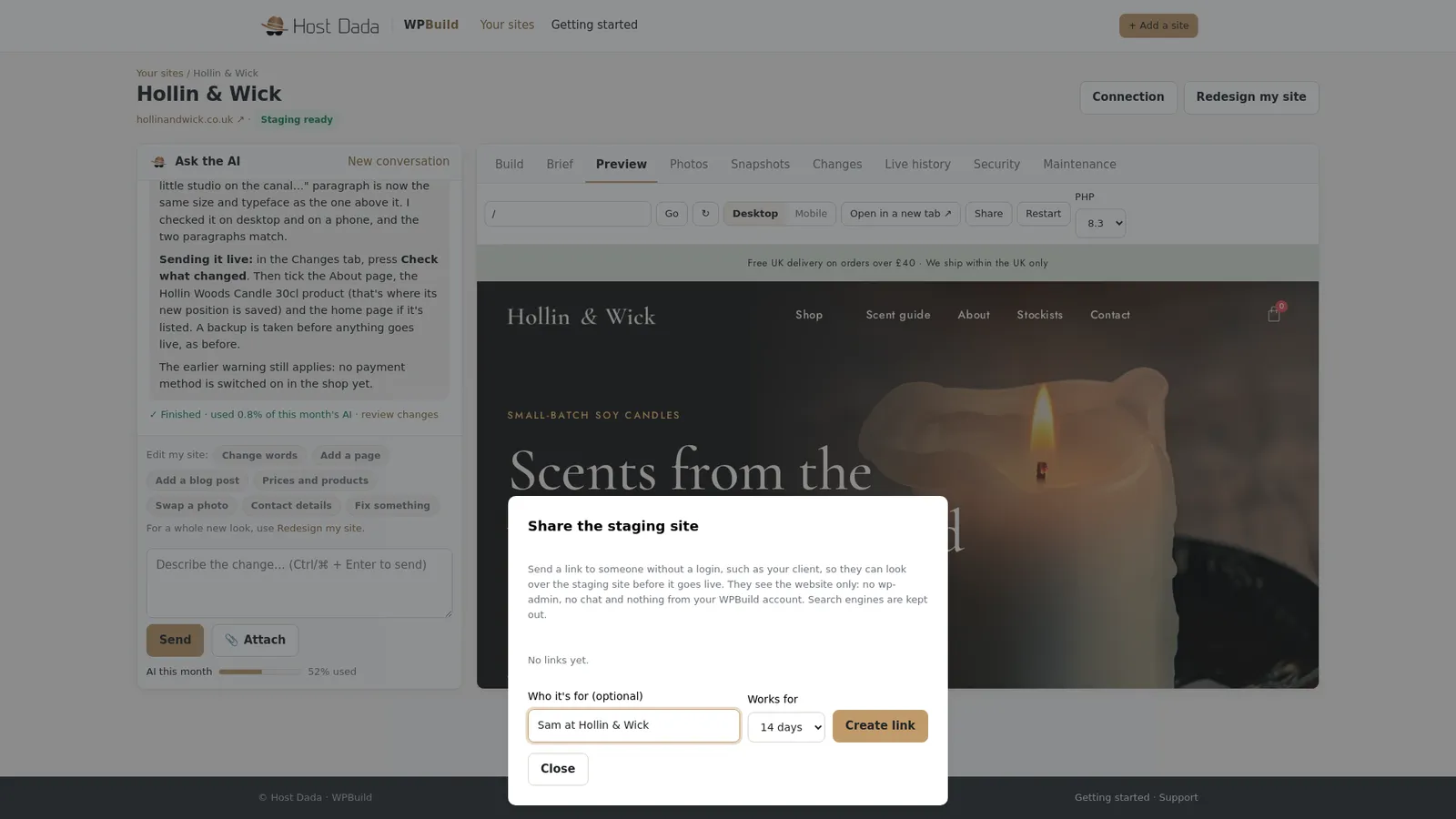 Links last 1, 7, 14 or 30 days.
- Copy and send the link. Anyone with the link can look round the site, with no login. They can't change anything.
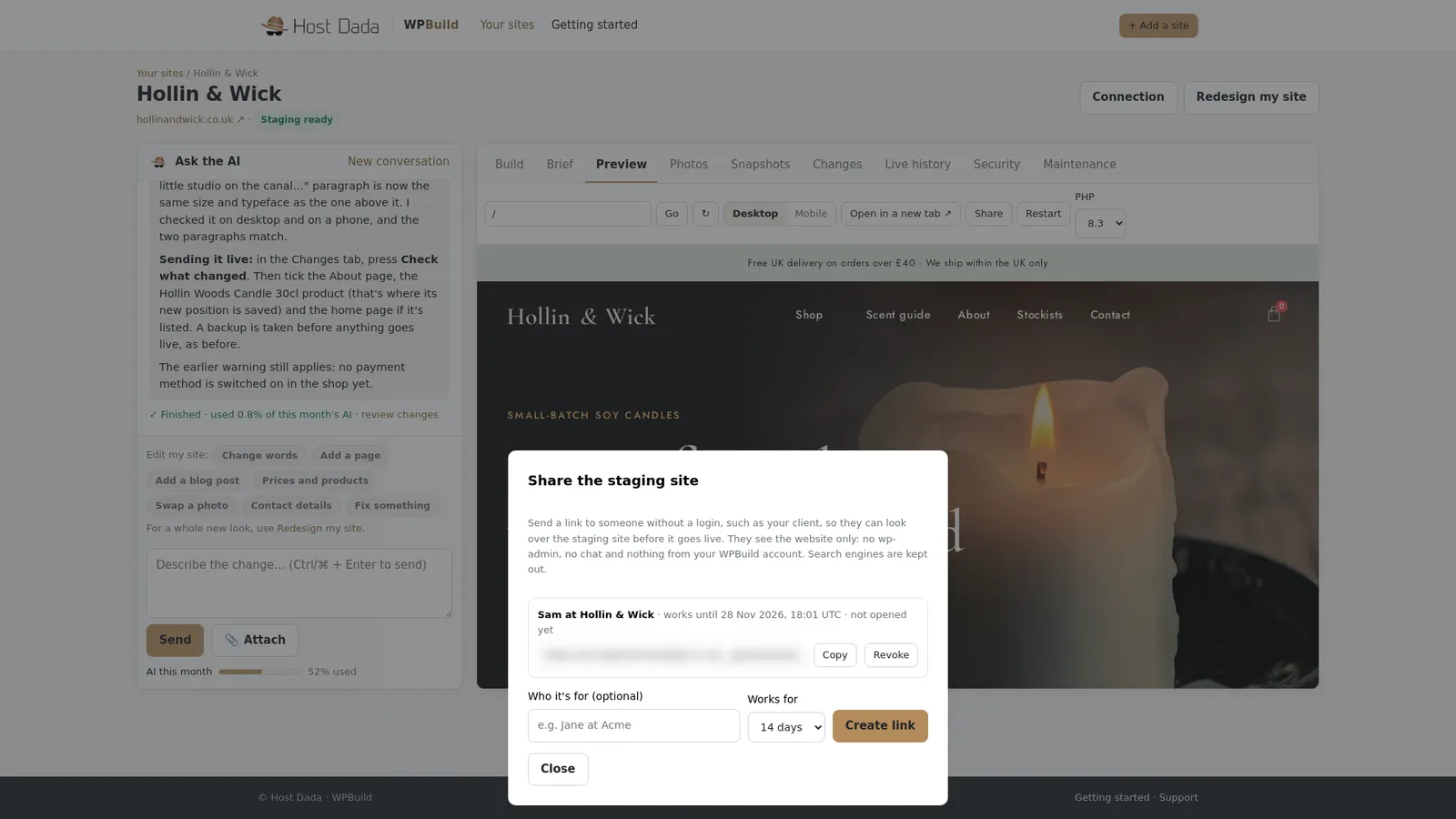 Link address blurred for this guide.
- Revoke it when you're done. Press Revoke to cancel a link at any time. It stops working straight away.
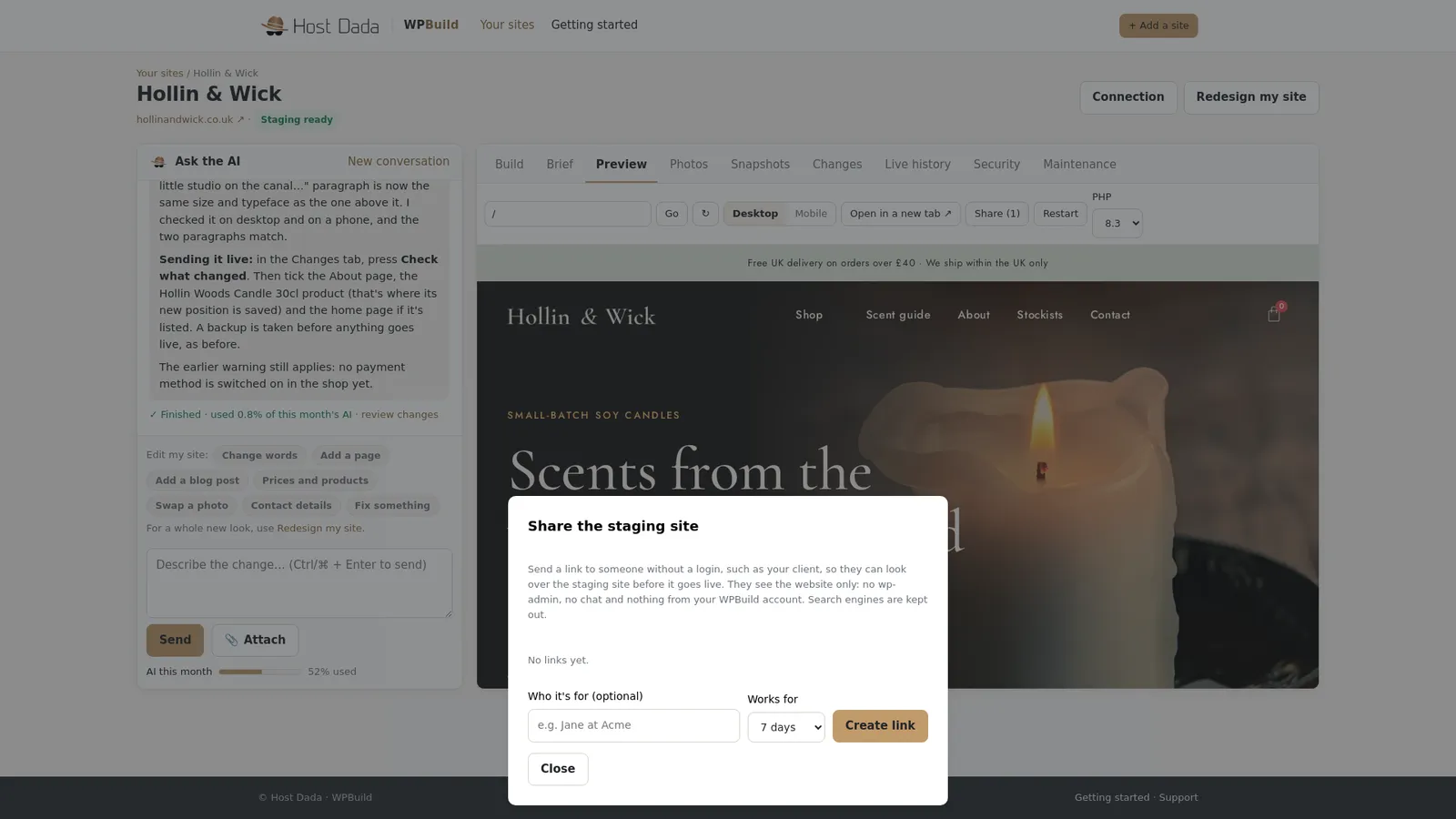 Revoked links stop working at once.
Troubleshooting
The live side of Snapshots is empty
Press Refresh snapshots. It takes new pictures of both versions.
Someone can't open my preview link
Check it hasn't expired or been revoked, and create a new one if needed. Links show the front of the site only, not the WordPress admin.
Still stuck? Our UK support team is happy to help. Open a support ticket
and tell us the site's name and what you've tried so far.
Last reviewed: November 2026
