To back up a WordPress site you need two things, its files and its database, and this guide shows how to back up and restore both on Host Dada hosting. It also covers taking a snapshot before an update, so you can undo it if something goes wrong.
What a WordPress backup includes
| Part | What it holds |
|---|---|
| Files | Your themes, plugins and uploaded images (all in wp-content), plus WordPress itself and wp-config.php |
| Database | Your posts, pages, settings, users, comments and any shop orders |
A backup of only one of these won't bring your site back, so always keep the two together.
Which backup should I use?
| Your hosting | Automatic backups | Backups you take yourself |
|---|---|---|
| Essential and WordPress hosting | Daily Timeline Backups, which you restore yourself | Take snapshot, or Backup / Restore for a copy to download |
| ProFlex hosting | Daily off-site backups, restored by our team when you open a ticket | WP Toolkit's Back Up / Restore, or cPanel's Backup tool |
Essential and WordPress hosting
Take a backup before you make changes
- Log in to the Host Dada Control Panel. Go to cp.hostdada.uk, or from the Client Area choose Services → your hosting → Login to Control Panel, and open your package.
- Open Timeline Backups. It's in the Web Files section.
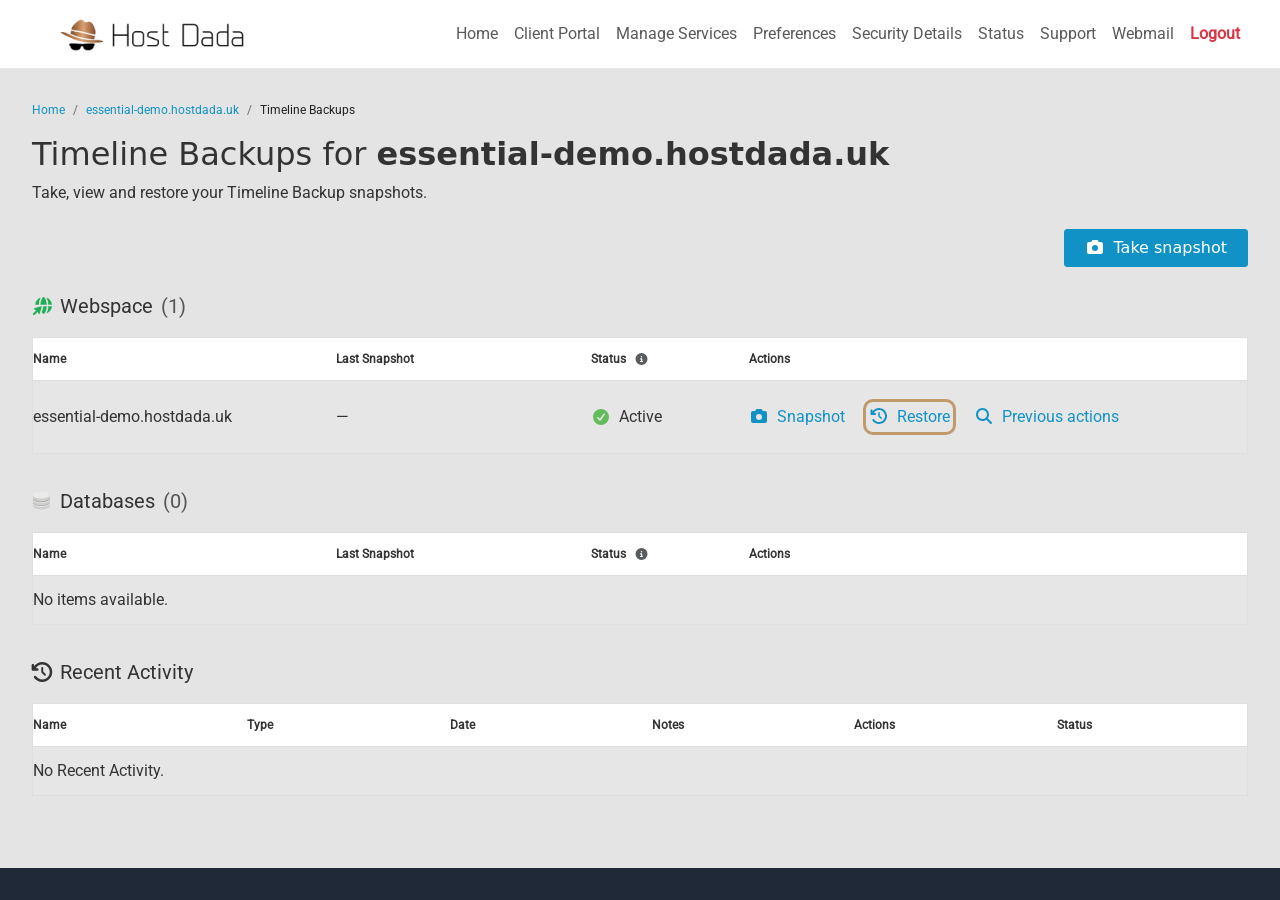 Timeline Backups, with Take snapshot at the top right.
- Click Take snapshot. Do this before updating WordPress, a major plugin or your theme, so you can return to this exact point.
Restore your site
- Restore your files. In Timeline Backups, click Restore on the Webspace row and pick the date and snapshot. Leave the path empty to restore all files, then confirm.
- Restore your database. Click Restore on your WordPress database's row, in the Databases section. Choose the same date and check the target database is correct, then confirm.
- Check your site. Progress and results appear under Recent Activity. Larger sites can take a while.
Download a copy to keep
Open Backup / Restore in the Web Files section. Choose Files or Databases under Backup Type, click Create Backup, and repeat for the other one. Download both from Previous Backups, as they're removed automatically after 12 hours.
For every option, including restoring one folder, see Restore your website from Timeline backups.
ProFlex hosting
- Log in to cPanel. In the Client Area choose Services → your ProFlex service → Log in to cPanel.
- Open WP Toolkit. It's shown in cPanel as WordPress Management.
- Click Back Up / Restore on your site's card. This is a quick way to take a snapshot right before an update.
To keep your own copy, use cPanel's Backup tool. If you need to go back to one of our daily backups, open a support ticket and tell us the date and time you'd like to return to. Back up and restore your cPanel website has the full steps.
Other ways to back up WordPress
These work on any hosting, including if you're with another provider at the moment:
- A backup plugin. Plugins such as UpdraftPlus back up your files and database from inside the WordPress dashboard, and can save the copies to cloud storage.
- By hand. Download your site's files with File Manager or FTP, then export the database with phpMyAdmin.
Troubleshooting
The site looks the same after restoring
You may be seeing a cached copy. Purge the CDN cache, clear any caching plugin and refresh with Ctrl+F5.
Errors or a white screen after restoring
Check you restored the files and database from the same date. If the problem continues, see Fix the WordPress white screen or critical error.
A database is missing from the Databases list
New databases appear after their first daily snapshot. Click Take snapshot to create one now.
I've lost email
WordPress backups don't include email. Open a ticket straight away with the mailbox address and roughly when it happened, and we'll check what can be recovered.
Last reviewed: November 2026
