Every Host Dada mailbox has spam and virus filtering switched on automatically. This guide shows you how to make the filter stricter or more relaxed, block persistent senders, make sure important senders always get through, and rescue good mail from the Spam folder.
How spam filtering works
- Emails containing a virus are rejected automatically and never reach you.
- Emails that look like spam are delivered to the mailbox's Spam folder (some apps call it Junk) rather than your inbox.
- You can tune this per domain or per mailbox, and add your own block and allow lists.
All the settings below are in the Host Dada Control Panel: log in at cp.hostdada.uk, open your package and click Email → Junk Mail Filters.
Change the filter level
-
Find Junk Filter Levels. Next to your domain, open the Filter Level list and choose Low, Normal, High or Extreme.
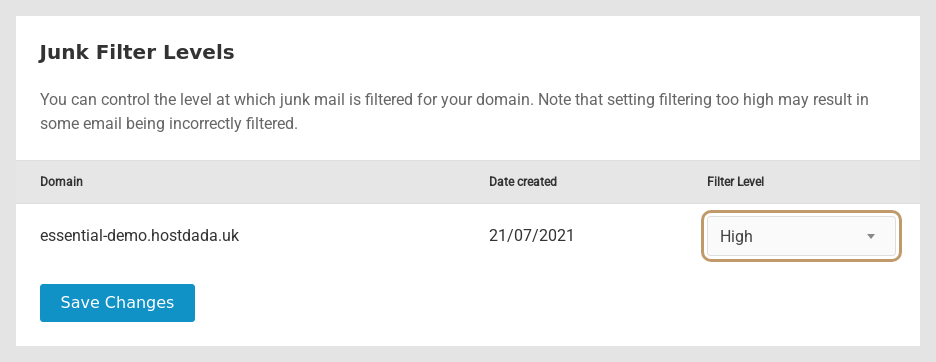 Set how strict the spam filter is for the whole domain.
- Click Save Changes.
- Getting a lot of spam? Move up one level at a time and check your Spam folder for a few days afterwards.
- Genuine emails going to Spam? Move down one level, and allow the senders you trust (below).
- To set a different level for one mailbox, go to Email Accounts, click Options next to the mailbox and choose Junk Filter Level.
Block a sender (Reject by Sender)
Under Reject by Sender, enter an address, a domain (for example spammy-company.com) or an ending (for example .ru) in Sender Address. Separate several with commas.
- Add Domain Rule → Reject Sender to Domain blocks the sender for every mailbox and forwarder on your domain.
- Add Mailbox Rule → Reject Sender to Email blocks the sender for one address only.
Always allow a sender (Allow by Sender)
Under Allow by Sender, enter a trusted address or domain (for example yourbank.co.uk or bookings@supplier.co.uk) and click Whitelist Sender for Domain (all addresses) or Whitelist Sender for Address (one mailbox). Mail from these senders skips the spam filter.
gmail.com would let a lot of junk through.Check and rescue mail from the Spam folder
- Open the Spam folder in Host Dada Webmail, or the Junk folder in your email app.
- Move genuine messages back to the Inbox. In webmail, select the message and drag it to Inbox.
- Allow the sender under Allow by Sender so it doesn't happen again.
You can also create your own sorting rules in webmail under Settings → Filters, for example to move anything with "newsletter" in the subject into a folder.
Troubleshooting
Genuine emails keep going to Spam
Add the sender under Allow by Sender and consider lowering the filter level. Also check your email app: Outlook and Apple Mail have their own junk filters, which can move mail even if our filter didn't.
I'm still getting lots of spam in my inbox
Raise the filter level one step, and block repeat offenders with Reject by Sender. If you have a Catch-All Forwarder switched on, remove it, because catch-alls attract large amounts of spam.
My own emails are landing in other people's spam
That's about your domain's reputation rather than our filter. Set up SPF, DKIM and DMARC: see SPF, DKIM and DMARC explained.
I've received a suspicious email that looks like it's from Host Dada
Don't click any links. See Spotting phishing emails that impersonate your host.
Last reviewed: October 2026
