The Host Dada Client Area at my.hostdada.co.uk is where you manage everything to do with your account: your hosting, domains, invoices, support tickets and login security. This quick tour shows you where everything lives.
Before you start
- You'll need the email address and password you used when you ordered. If you've forgotten the password, see Reset your Client Area, Control Panel or cPanel password.
Logging in
- Go to the Client Area. Open my.hostdada.co.uk in your browser and choose Login.
- Enter your details. Type your Email Address and Password, tick the I'm not a robot box and select Login. If you've turned on two-factor authentication, you'll then be asked for the six-digit code from your authenticator app.
The dashboard
After logging in you land on My Dashboard. The tiles show how many Services, Domains, Unpaid Invoices and Tickets you have, and you can select any tile to jump straight to that list. Below them, Your Active Products/Services lists each hosting plan with a Manage button.
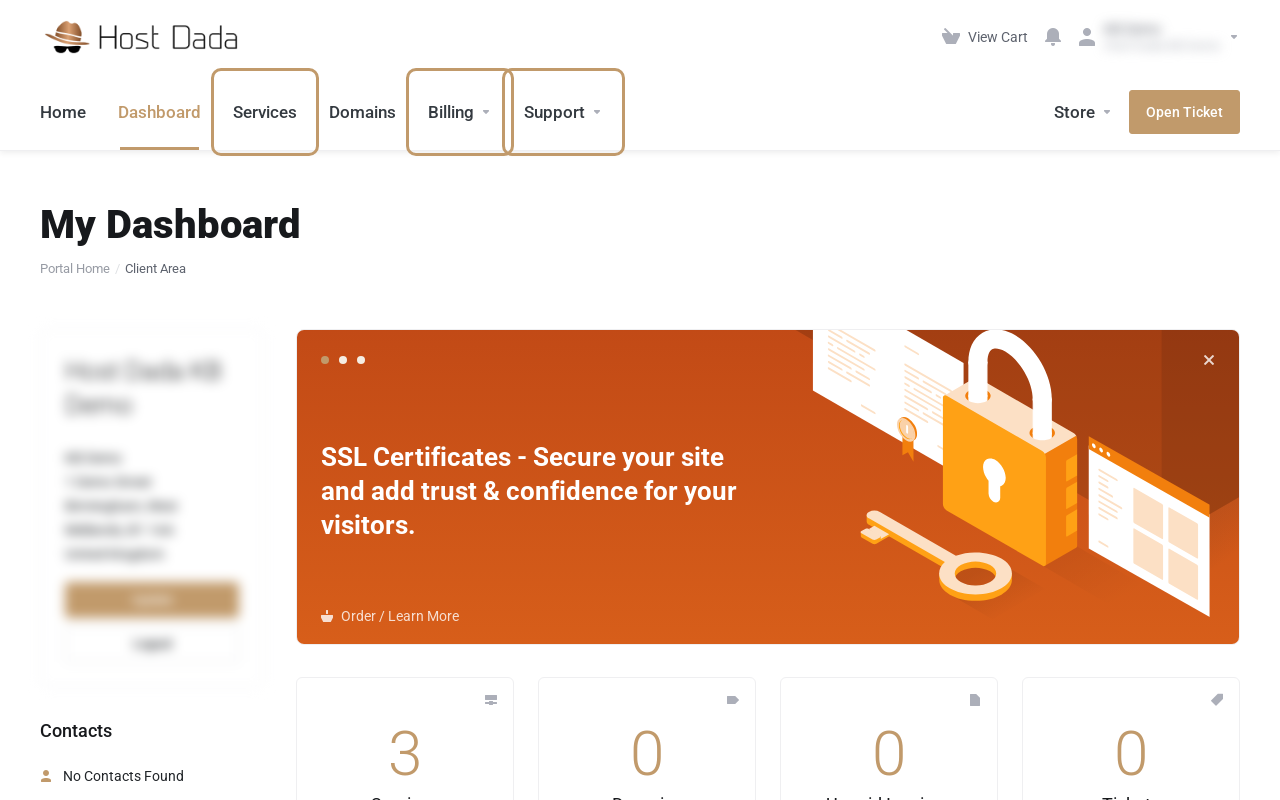 The main menu runs along the top: Services, Domains, Billing and Support are the ones you'll use most.
What each menu does
| Menu | What you'll find there |
|---|---|
| Services | Every hosting, email, Microsoft 365 and SSL product on your account. Select one to see its details, log in to its control panel, upgrade or request cancellation. |
| Domains | Your registered domains. Change nameservers, turn auto-renew on or off, get the transfer (EPP) code and manage the registrar lock. |
| Billing | My Invoices, My Quotes, Mass Payment (pay several invoices at once) and Payment Methods (your saved card). |
| Support | Tickets, Announcements, Knowledgebase, Downloads, Network Status and Open Ticket. |
| Store | Order new hosting, email, SSL certificates or domains. |
Your account menu
Select your name in the top-right corner to open the account menu.
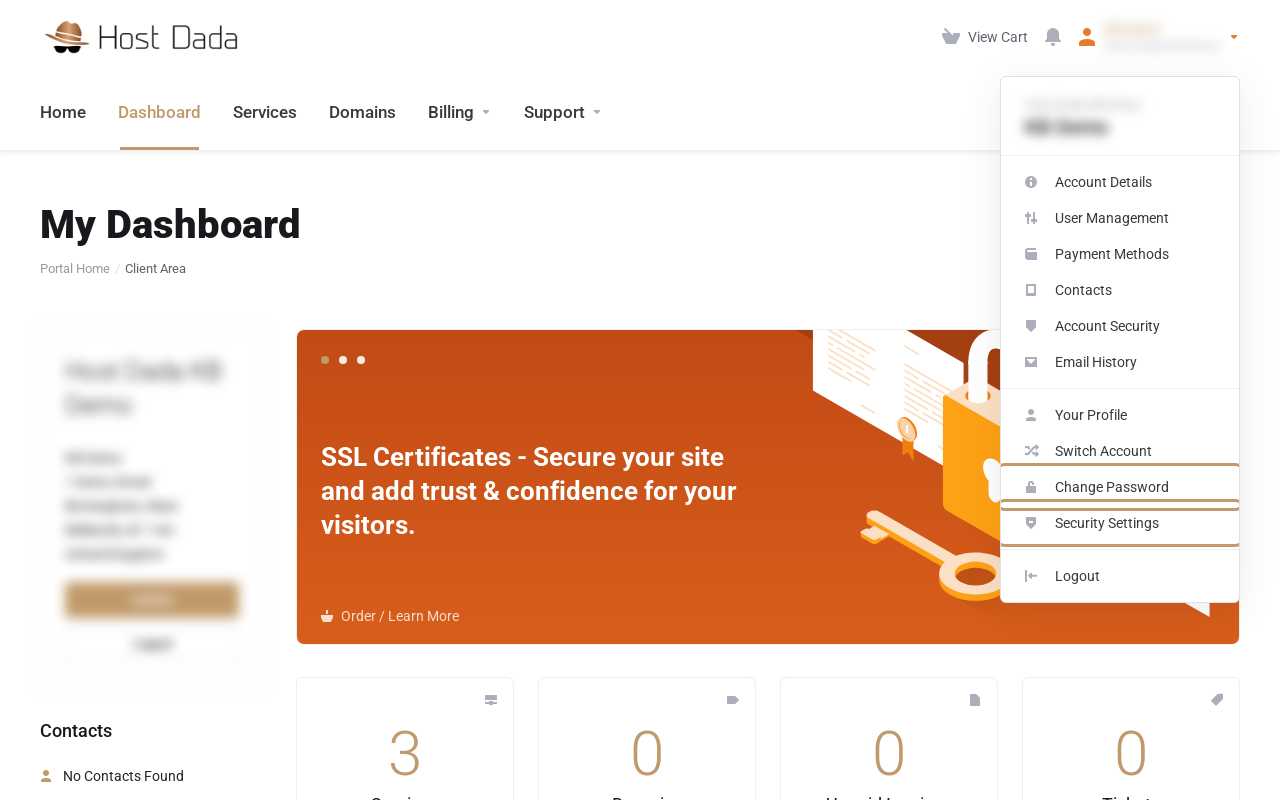 Change Password and Security Settings (two-factor authentication) are in the account menu.
- Account Details: your company name, address and the email address we send invoices to. Keep these up to date, especially if you own domains, because the registrant details must be accurate.
- User Management: invite a colleague or your web designer with their own login, so you never have to share your password.
- Payment Methods: add or update the card used for renewals.
- Contacts: extra contacts who can receive billing or technical emails.
- Email History: a copy of every email we've sent you, handy if a renewal reminder went to spam.
- Your Profile, Change Password and Security Settings: your own login details and two-factor authentication.
Troubleshooting
I can't see my hosting or domain
It may be on a different Client Area account, for example one set up under a colleague's email address. Check Switch Account in the account menu, then open a ticket if it still doesn't appear and we'll find it for you.
The login page keeps saying my details are wrong
Use the email address you ordered with, not your website's domain name. If it still fails, select Forgot? on the login page to reset your password.
I'm not receiving invoice or renewal emails
Check Email History to confirm they were sent, then look in your junk folder and add our address to your safe senders. Make sure the email address in Account Details is one you still use.
Last reviewed: October 2026
