The fastest way to get help from Host Dada is a support ticket from your Client Area. Here's how to open one, which department to pick, and what to include so we can fix your problem first time.
Before you start
- Log in to the Client Area (my.hostdada.co.uk) first if you can. Tickets opened while logged in are linked to your account, so we can check your services straight away.
- Can't log in? You can still open a ticket at my.hostdada.co.uk/submitticket.php. Use the email address on your account.
Step-by-step
- Select Open Ticket. It's the button in the top-right corner of every Client Area page, and also under Support → Open Ticket.
- Choose a department.
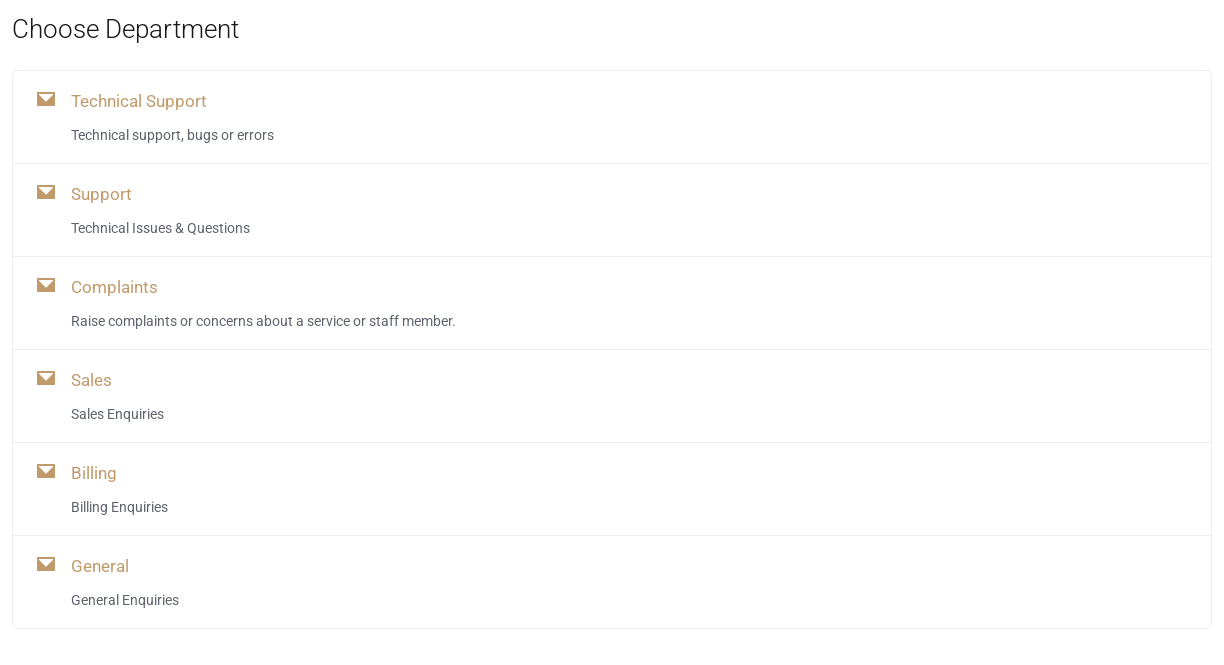 Pick the department that best matches your question.
Department Use it for Technical Support Something is broken: website errors, email not sending or receiving, can't log in Support "How do I...?" questions and general technical help Sales Questions before you buy, upgrades, and moving your website or email to Host Dada Billing Invoices, payments, cards, renewals and cancellations Complaints Concerns about our service or a member of staff General Anything else - Fill in the ticket. Choose the Related Service (the hosting or domain the problem is about), set the Priority, and write a clear Subject, such as "Contact form emails not arriving at info@mybusiness.co.uk".
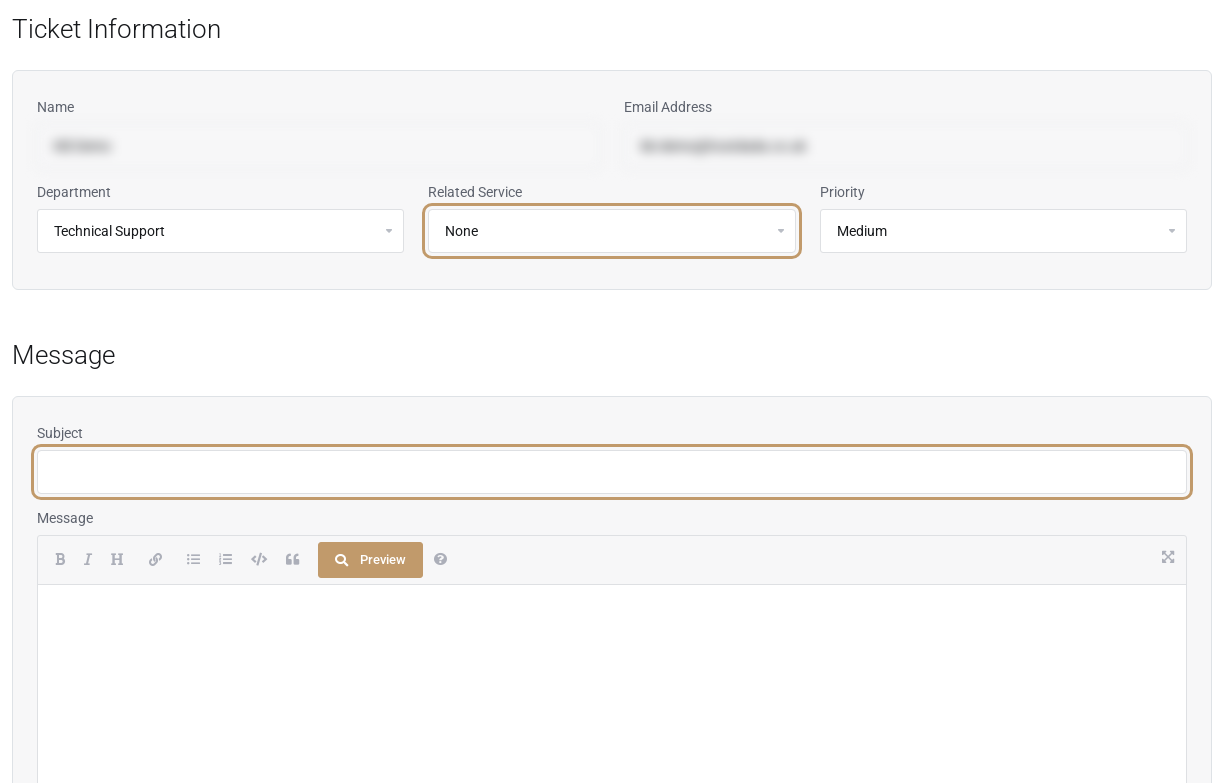 Choosing the Related Service saves us asking which website you mean.
- Describe the problem in the Message box (see the checklist below) and add any screenshots under Attachments. Allowed file types are .jpg, .gif, .jpeg, .png, .txt and .pdf.
- Select Submit. You'll get an email confirming your ticket number. Reply to that email, or use Support → Tickets, to add more information later.
What to include
- The domain name and, for email problems, the exact email address affected.
- What you expected and what actually happened, including the exact error message. A screenshot is ideal.
- When it started, and anything that changed around then (a plugin update, a DNS change, a new device).
- What you've already tried, so we don't ask you to repeat it.
- For "can't connect" problems: your public IP address (search "what is my IP"), as it helps us check whether it's been blocked by our firewall.
Never send passwords in a ticketWe'll never ask for your Client Area password. If we need access to something like your WordPress admin, we'll explain a safe way to give it, such as a temporary user you can delete afterwards.
TipUse Priority: High only when something is completely down, for example your whole website or all email. It helps us get to urgent problems first.
Troubleshooting
I didn't get a confirmation email
Check your junk folder. If you opened the ticket while logged in, you'll find it under Support → Tickets whether or not the email arrived.
My attachment won't upload
Only .jpg, .gif, .jpeg, .png, .txt and .pdf files are allowed. Save other documents as PDF, or take a screenshot instead, and try again.
I have a follow-up question about the same issue
Reply to the existing ticket rather than opening a new one, so the whole history stays together.
Ready to ask? Our UK support team is happy to help. Open a support ticket
and tell us your domain name, what's happening and what you've tried so far.
Last reviewed: October 2026
