
Forgotten an email password, or need to lock out someone who's left? You can set a new password for any Host Dada mailbox in the Control Panel, or change your own password in webmail. Afterwards, update the password on every phone and computer that uses the mailbox.
Before you start
- Reset a forgotten password: you'll need access to the Host Dada Control Panel (through your Client Area login). Mailbox users who don't have that access should ask the account owner.
- Change your own password: you'll need your current mailbox password and can do it in webmail.
Option 1: Reset a password in the Control Panel
Use this if the password is forgotten, or you're the account owner and want to change a staff member's password.
- Log in to the Host Dada Control Panel at cp.hostdada.uk (or from the Client Area: Services → your hosting → Login to Control Panel).
- Open Email Accounts. In the Email section, click Email Accounts. Your mailboxes are listed under Modify Email Accounts. Use the Search box if you have a lot of them.
-
Enter the new password. In the Change Password column next to the mailbox, type a new password. You can also click the key button to generate a strong one. A strength meter appears under the box.
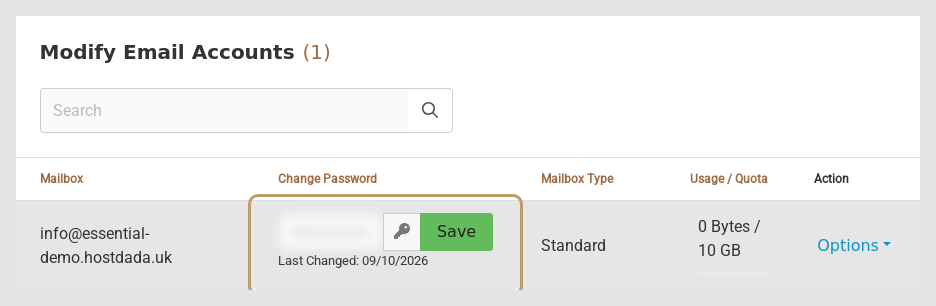 Type or generate a password, then click Save. The password shown here is blurred.
- Copy the password somewhere safe, then click Save. The Last Changed date updates to today. The new password works straight away.
Option 2: Change your own password in webmail
- Sign in at webmail.hostdada.uk with your full email address and current password.
-
Go to Settings → Password. Enter your Current Password, then your new password in New Password and Confirm New Password.
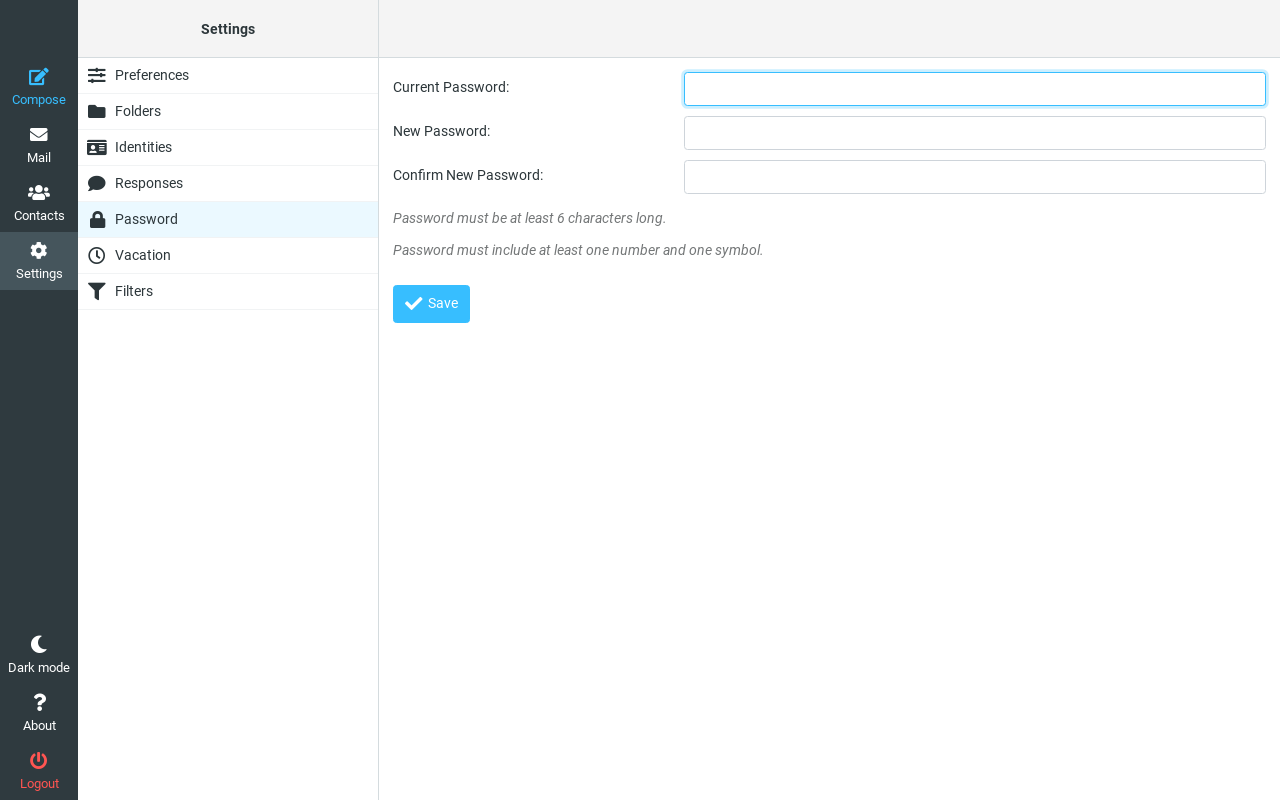 The Password page in webmail Settings.
- Click Save. The new password must be at least 6 characters and include at least one number and one symbol. We recommend 12 characters or more.
After changing the password
Every device that uses the mailbox will stop working until you give it the new password:
- iPhone and iPad: open the Mail app. It usually prompts for the new password. If it doesn't, go to Settings → Apps → Mail → Mail Accounts, tap the account and update the password for both incoming and outgoing servers.
- Outlook for Windows (classic): Outlook asks for the new password. Tick Remember my credentials, or update it under File → Account Settings → Account Settings → select the account → Change.
- Android, Thunderbird, Apple Mail and others: enter the new password when prompted, or update it in the account's settings.
- Don't forget printers, scanners and website contact forms that send email using this mailbox.
Troubleshooting
The new password works in webmail but not on my phone or in Outlook
The device is still trying the old one. Remove the saved password and enter the new one, making sure the username is the full email address. If it still fails, remove the account from the device and add it again using Email settings for any device.
Webmail won't accept my new password
It must be at least 6 characters and include a number and a symbol. If you can't remember your current password, reset it in the Control Panel instead (Option 1).
Outlook keeps asking for my password
Check the outgoing server uses port 587 with STARTTLS and has authentication turned on. A wrong outgoing setting often shows up as a repeated password prompt. Our Can't send email checklist covers this.
Last reviewed: October 2026


