If your browser shows "Not secure" or a broken padlock even though your site has SSL, the usual cause is mixed content: the page loads over https://, but some images, scripts or fonts still load over http://. This guide shows you how to find those items, fix them and send every visitor to the secure version of your site.
Before you start
- Make sure an SSL certificate is active. On Essential and WordPress hosting, check SSL/TLS in the Host Dada Control Panel. On ProFlex, AutoSSL handles it. See Activate free SSL and force HTTPS or SSL certificates on ProFlex.
- For WordPress, take a backup before running a search-and-replace on the database. See Restore from Timeline backups.
Step 1: Find what is loading insecurely
- Open the page in Chrome, Edge or Firefox and click the icon to the left of the address. If it says the connection isn't fully secure, the page has mixed content.
- Open the developer console. Press
F12(orCmd+Option+Jon a Mac) and choose the Console tab. Each insecure item is listed as a "Mixed Content" warning with its fullhttp://address. - Note where each item comes from. It's usually one of these: an image inserted into a page or post, a theme setting such as the logo or background, a hard-coded link in a template or CSS file, or a third-party widget or embed.
Step 2: Fix the links
WordPress sites
- Check the site address. In WordPress, go to Settings → General and make sure both WordPress Address (URL) and Site Address (URL) start with
https://. See Change your WordPress site address if they're greyed out. - Update old links in the database. Older posts and pages keep their original
http://image links. A search-and-replace plugin such as Better Search Replace can changehttp://yourdomain.co.uktohttps://yourdomain.co.ukeverywhere. Run it as a "dry run" first, then for real. - Check theme and page-builder settings. Logos, background images and custom CSS stored in the theme options may need re-saving or editing by hand.
- Clear every cache. Purge your caching plugin (for example LiteSpeed Cache on ProFlex) and the CDN if you use one, then reload the page.
Other websites (HTML, PHP and other CMSs)
Open the files that contain the http:// links (in File Manager or over FTP) and change them to https://. Links to your own site can be written without the domain at all, e.g. /images/logo.png. If a third-party resource isn't available over HTTPS, replace it or remove it.
Step 3: Send everyone to HTTPS
Essential and WordPress hosting
In the Host Dada Control Panel, open SSL/TLS and turn on Force HTTPS. It can take up to 30 minutes to take effect.
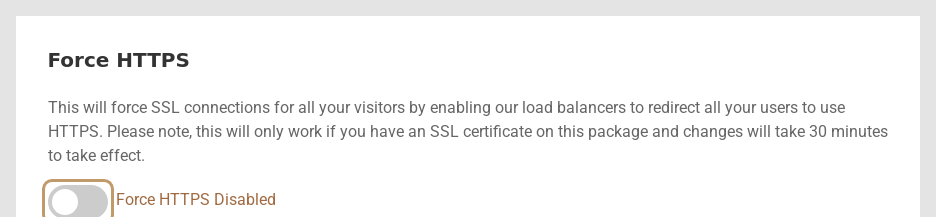 Turn on Force HTTPS once your certificate is active.
ProFlex hosting (cPanel)
In cPanel, open Domains and turn on Force HTTPS Redirect for the domain. WordPress users can also let LiteSpeed Cache or a redirect plugin handle this, but use only one method.
.htaccess, you may see "too many redirects". If that happens, turn off all but one.Troubleshooting
"Your connection is not private" or NET::ERR_CERT errors
That isn't mixed content: the certificate itself is missing, expired or doesn't cover the name you typed (for example www). Re-activate free SSL, wait a few minutes and try again. See Free SSL vs paid certificates.
"Too many redirects" after forcing HTTPS
Two redirects are fighting each other, often a plugin and the panel setting, or a Cloudflare SSL mode of "Flexible". Keep one redirect, and if you use Cloudflare set its SSL mode to Full (strict).
The padlock is fine for me but customers still see warnings
They're probably seeing a cached copy. Purge your site and CDN caches, and ask them to refresh with Ctrl+F5.
Last reviewed: October 2026
