Every ProFlex website gets a free SSL certificate automatically through cPanel's AutoSSL, so your site loads over https:// with a padlock. This guide shows how to check your certificate, force all visitors onto HTTPS, and fix a certificate that hasn't been issued.
How free SSL works on ProFlex
AutoSSL checks your domains several times a day. When a domain points at your ProFlex hosting, it requests a free certificate (from Let's Encrypt), installs it and renews it before it expires. You don't need to do anything, and there's nothing to pay.
The one requirement: your domain, and its www version, must point to your ProFlex hosting. AutoSSL proves you own the domain by placing a small check file on your website, so it can only succeed once visitors' browsers are reaching ProFlex.
Before you start
- Log in to cPanel from the Client Area: Services → your ProFlex service → Log in to cPanel.
- If you've only just pointed your domain at Host Dada, allow time for DNS to update. See How long do DNS changes take?
Check your certificate
- Open SSL/TLS Certificates in the Security section of cPanel.
- Click the Status tab. Each domain and subdomain is listed with its certificate.
- Look for your main domain and www. A valid certificate shows as AutoSSL Domain Validated with an expiry date. Self-signed means AutoSSL hasn't been able to issue one yet. The message underneath explains why.
mail., webmail., cpcalendars. and autodiscover.. ProFlex doesn't provide email in cPanel, so these usually don't point to your hosting and will show errors. That's harmless and doesn't affect your website's certificate.Force HTTPS for all visitors
Once your certificate is valid, send everyone to the secure version of your site:
- Open Domains in the Domains section of cPanel.
-
Turn on Force HTTPS Redirect for your domain. The switch changes to On. A warning symbol next to the switch means there's no valid certificate yet, so wait until AutoSSL has issued one.
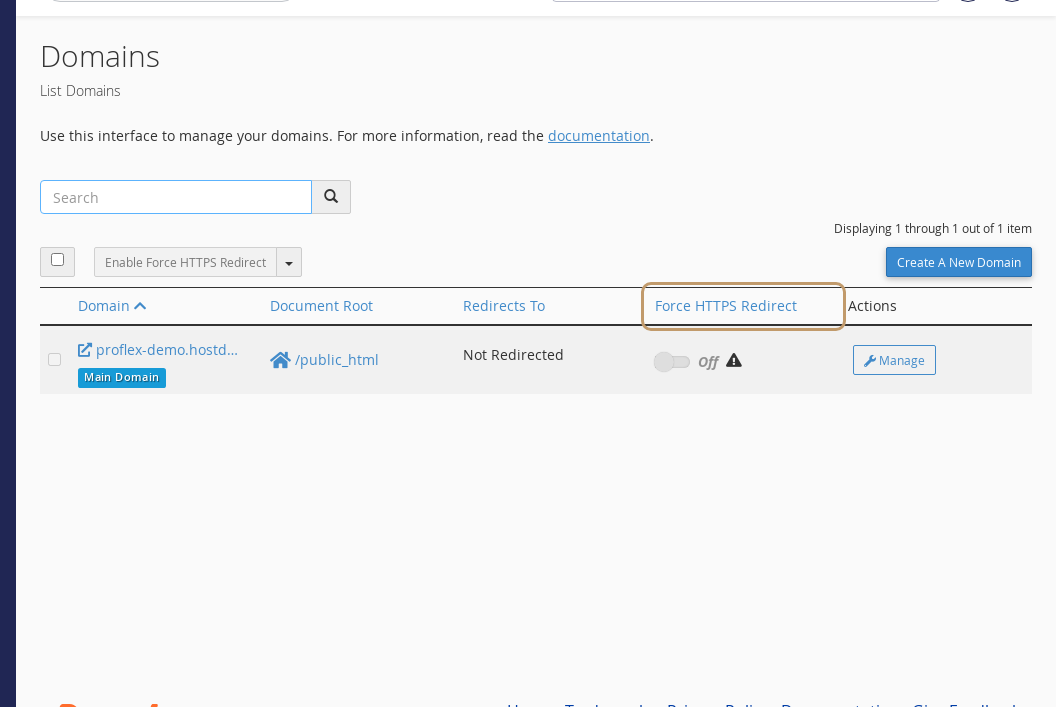 Force HTTPS Redirect is a switch on each domain in cPanel's Domains page.
- For WordPress, also check that Settings → General shows both addresses starting with
https://.
Troubleshooting
Status shows "Self-signed" or an AutoSSL error
The most common cause is that the domain doesn't point to your ProFlex hosting yet, or only one of yourdomain.co.uk and www.yourdomain.co.uk does. Check both. If your domain uses Host Dada nameservers, we manage these records for you. Open a ticket and we'll correct them and run AutoSSL straight away. If your DNS is elsewhere (for example at your registrar), make sure both point to the IP address shown as Shared IP Address on cPanel's home page.
"Your connection is not private" or a padlock warning
If the certificate is valid but the browser still complains, the page is probably loading images or scripts over http://. See Fix "not secure" and mixed-content warnings.
Too many redirects after turning on HTTPS
This usually happens when Cloudflare is set to Flexible SSL. Change Cloudflare's encryption mode to Full (strict). See Using Cloudflare with ProFlex. Also check for a second HTTPS redirect in .htaccess or a plugin.
I need a paid certificate (OV, EV or wildcard)
Free AutoSSL certificates suit almost every site. If you need organisation validation or a warranty, see Free SSL vs paid certificates. You can buy one in the Client Area and we can install it on your ProFlex hosting for you.
Last reviewed: October 2026