Send visitors (and search engines) from an old page, folder or whole domain to a new address with a 301 or 302 redirect, using the Redirects tool in the Host Dada Control Panel. This guide also shows how to force www (or remove it) and how to write redirects in .htaccess.
Before you start
- The domain you're redirecting from must be on your hosting package and pointing to Host Dada. To redirect a second domain, add it first: see Add a website or domain. If the domain has no hosting at all, see Forward a domain to another website.
- 301 or 302? Use 301 Permanent Redirect when a page or site has moved for good. Search engines pass your rankings to the new address. Use 302 Temporary Redirect for short-term changes, such as a seasonal offer page.
Create a redirect
- Log in to the Host Dada Control Panel. Go to cp.hostdada.uk (or Client Area → Services → your hosting → Login to Control Panel) and open your package.
- Open Redirects. It's in the Web Tools section. The page is called Website Redirect.
-
Fill in Create Website Redirect.
- Domain: the domain visitors arrive on.
- Redirect From: the path on that domain, starting with
/. For example/old-pagefor one page,/blogfor a folder, or/for the whole domain. - Redirect To: the full new address, including
https://, for examplehttps://www.yourbusiness.co.uk/new-page/. - Redirect Type: 301 Permanent Redirect or 302 Temporary Redirect.
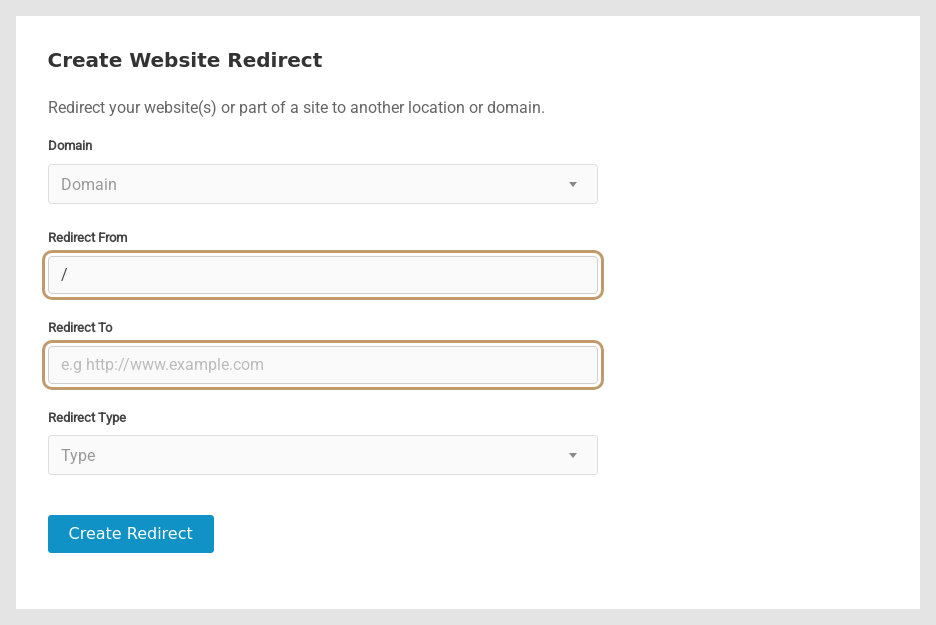 Redirecting one page to a new address.
-
Click Create Redirect. It's listed under Edit Website Redirects, where Remove deletes it. Redirects usually work within a minute.
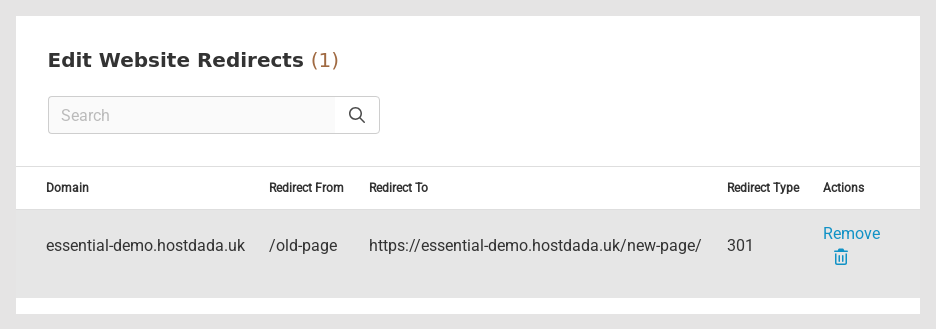 Your redirects, with a Remove option for each.
- Test it in a private or incognito window. Browsers remember 301 redirects, so a normal window may keep showing an old result after you change or remove one.
/old-page also catches /old-page-2 and /old-page/anything. Be specific, and add the most specific redirects first./ on a domain to another page on the same domain, as the new address also starts with / and visitors will bounce in a loop ("too many redirects"). Whole-domain redirects should point to a different domain.Common examples
| Goal | Domain | Redirect From | Redirect To | Type |
|---|---|---|---|---|
| Old page to new page | yourbusiness.co.uk | /services.html | https://yourbusiness.co.uk/our-services/ | 301 |
| Old domain to new domain | oldname.co.uk | / | https://newname.co.uk/ | 301 |
| Extra domain to your main site | yourbusiness.com | / | https://yourbusiness.co.uk/ | 301 |
| Temporary offer page | yourbusiness.co.uk | /sale | https://yourbusiness.co.uk/summer-sale/ | 302 |
Force HTTPS
Don't use a redirect for this. Switch on Force HTTPS under SSL/TLS instead. See Activate free SSL and force HTTPS.
Force www (or non-www) with .htaccess
Pick one version of your address so search engines don't see two copies of your site. Open public_html/.htaccess in File Manager (right-click → Code Editor; create the file if it doesn't exist) and add these lines at the top, using your own domain:
Always use www:
RewriteEngine On
RewriteCond %{HTTP_HOST} ^yourbusiness\.co\.uk$ [NC]
RewriteRule ^(.*)$ https://www.yourbusiness.co.uk/$1 [L,R=301]
Never use www:
RewriteEngine On
RewriteCond %{HTTP_HOST} ^www\.yourbusiness\.co\.uk$ [NC]
RewriteRule ^(.*)$ https://yourbusiness.co.uk/$1 [L,R=301]
For WordPress, also set both addresses in Settings → General to the same version, and put these lines above the # BEGIN WordPress block.
Redirect a single page with .htaccess
If you prefer to keep redirects with your website files, add a line like this to public_html/.htaccess:
Redirect 301 /old-page.html https://yourbusiness.co.uk/new-page/.htaccess file in your home folder (one level above public_html), between #+WebsiteRedirect and #-WebsiteRedirect. Manage them in the Control Panel rather than editing that section by hand.Troubleshooting
"Too many redirects" (ERR_TOO_MANY_REDIRECTS)
Two rules are sending visitors back and forth. Common causes: a whole-domain redirect pointing to the same domain, a www rule that clashes with WordPress's site address, or HTTPS being forced in more than one place. Remove one rule at a time and test in a private window.
The redirect doesn't happen
Check the domain points to Host Dada and that Redirect From starts with /. Test in a private window, and purge the CDN cache if you'd visited the old page recently (see Speed up your site with the CDN).
I removed a redirect but my browser still redirects
Your browser cached the 301. Clear your browser cache or test in a private window. Other visitors may also see it until their browser cache expires, which is why 302 is safer for anything temporary.
Last reviewed: October 2026
