Your ProFlex site is backed up off-site every day by Host Dada, and you can also download your own copy at any time with cPanel's Backup tool. This guide shows how to download a full or partial backup, restore files or a database yourself, and ask us to restore from our daily backups.
Two kinds of backup
| Host Dada daily backups | Your own cPanel backups | |
|---|---|---|
| Who makes them | Automatic, every day, stored off-site | You, whenever you click the button |
| Where they're kept | On Host Dada's backup storage | Downloaded to your computer (or sent to your own FTP server) |
| How to restore | Open a support ticket | Upload in cPanel's Backup tool, or ask us |
| Best for | Recovering from mistakes, hacks or failed updates | Keeping your own independent copy, and before big changes |
Download a full account backup
- Log in to cPanel from the Client Area: Services → your ProFlex service → Log in to cPanel.
-
Open Backup in the Files section and click Download a Full Account Backup.
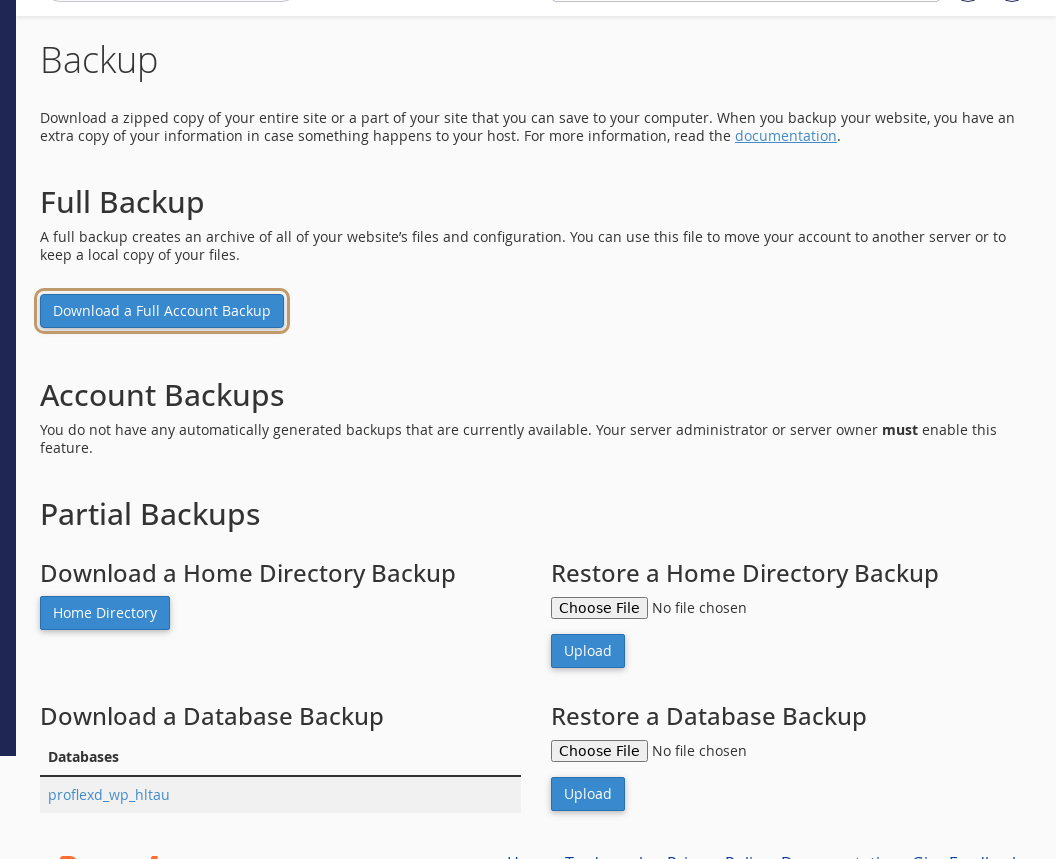 cPanel's Backup page.
- Leave Backup Destination as Home Directory, check the email address for the completion notice, then click Generate Backup.
- Wait for the email, then return to the same page. The file appears under Backups Available for Download, named like
backup-date_time_username.tar.gz. Click it to download. - Delete the file from your hosting afterwards with File Manager. It counts towards your storage.
A full backup contains your files, databases and cPanel settings. It's ideal for keeping or for moving to another host, but it can't be restored from inside cPanel. If you need a full account restored, open a ticket and we'll do it.
Download only your files or a database
Under Partial Backups on the same page:
- Download a Home Directory Backup: click Home Directory to download all your files as one
.tar.gzfile. - Download a Database Backup: click a database name to download it as a
.sql.gzfile.
Restore files or a database yourself
- Open Backup in cPanel.
- Choose what to restore: under Restore a Home Directory Backup or Restore a Database Backup, click Choose File and select the backup you downloaded earlier.
- Click Upload. cPanel restores it and shows the result. Then check your site.
The Backup Wizard tool (also in Files) walks through the same backup and restore steps one screen at a time.
Restore from Host Dada's daily backups
If you didn't take your own copy, or something went wrong overnight, we can restore from our daily backups:
- Open a support ticket.
- Tell us what to restore: the whole site, specific files or folders, or a database, and the date and time you'd like to go back to (for example "before Tuesday's plugin update").
- Say whether to overwrite or restore alongside. We can put restored files in a separate folder so you can compare them before anything is replaced.
Ask our team which backup dates are available for your account. We'll confirm before we change anything.
WordPress sites: WP Toolkit backups
For a WordPress site, WP Toolkit has a Back Up / Restore button on each site's card. It's a quick way to take a snapshot right before an update. See Install and manage WordPress with WP Toolkit.
Troubleshooting
The backup email never arrives
Large sites can take a while. Refresh the Download a Full Account Backup page and look under Backups Available for Download. The file may already be there. Check your spam folder too.
"Disk quota exceeded" while generating a backup
The backup is created inside your hosting space before you download it, so it needs free space. Delete old backups and unused files (see Check disk usage), or download a Home Directory and a Database backup separately. Or open a ticket and we'll help.
"Account Backups" says no backups are available
That's expected. Host Dada's daily backups are stored off-site, so they aren't listed in cPanel. Open a ticket to restore from them.
Last reviewed: October 2026