Install WordPress on ProFlex in a couple of minutes with WP Toolkit (shown in cPanel as WordPress Management), then use it to log in, update, secure, back up and clone your site, all from one screen.
Before you start
- Log in to cPanel from the Client Area: Services → your ProFlex service → Log in to cPanel.
- Your domain should point to your ProFlex hosting so that visitors (and the free SSL certificate) can reach it. You can install before then, but you won't see the site at your domain until DNS is updated.
- If there are already files in
public_html, such as an old site, back them up and remove them first. WordPress needs an empty folder.
Install WordPress
- Open WordPress Management. It's in the Domains section of cPanel and in the left-hand menu. It opens WP Toolkit.
- Click Install WordPress (or Install if you already have a site).
-
Fill in the details.
- Installation path: keep
https, choose your domain and leave Installation directory blank to install at the main address. Type a folder name, such asblog, only if you want WordPress at yourdomain.co.uk/blog. - Website title: your business or site name. You can change it later.
- Website language: choose English (UK) for UK spelling and date formats.
- WordPress Administrator: replace the random Username with something you'll remember (avoid
admin), set a strong Password and enter your email address. This is the address password-reset emails go to.
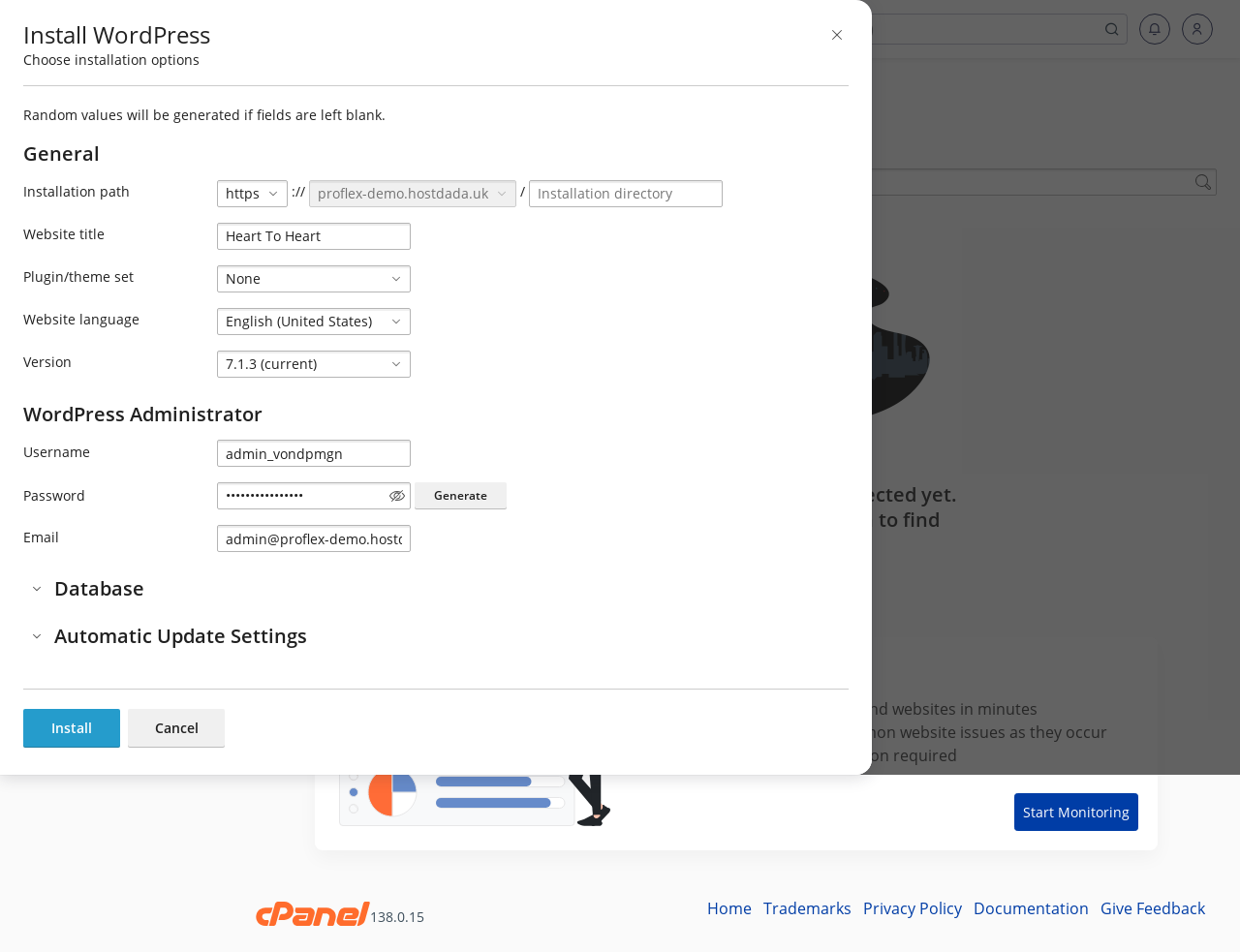 The Install WordPress window in WP Toolkit.
- Installation path: keep
- Click Install. It takes about a minute. WP Toolkit creates the database for you and adds your site to its list.
Manage your site
Each site in WP Toolkit has a card showing its status, with these main tools:
 A site card in WP Toolkit.
| Tool | What it does |
|---|---|
| Log in | Opens your WordPress dashboard without typing a password |
| Updates | Shows WordPress, plugin and theme updates. Tick what you want and click Update |
| Autoupdate settings | Choose whether WordPress, plugins and themes update automatically. Security updates for WordPress itself are on by default |
| Plugins and Themes tabs | Install, activate, update or remove plugins and themes |
| Back Up / Restore | Takes an on-demand backup of the site's files and database, and restores it |
| Clone | Copies the whole site to another domain or subdomain, for example to make a staging copy |
| Copy Data | Copies files and/or database from one site to another, such as pushing staging changes live |
| Security | Applies recommended hardening, such as blocking access to sensitive files |
| Maintenance mode | Shows visitors a "back soon" page while you work |
| Search engine indexing | Turn off on staging copies so Google doesn't index them |
Create a staging copy
A staging copy is a private duplicate of your site where you can test changes safely. Cloning needs a spare database for the copy. Every ProFlex plan has room for one: ProFlex Web includes 2 databases, Business 3 and Business Plus 5. If the Clone window says "You do not have enough resources to create a new database", all your databases are in use. Delete an old staging copy or unused database first.
- Click Clone on your site's card.
- Choose a Target. Leave Create subdomain selected with the suggested name
staging, or choose Use existing domain. - Click Start. When it's finished, the copy appears as its own site in WP Toolkit. Turn off Search engine indexing on the copy.
- Push changes live when you're ready with Copy Data on the staging site, choosing your live site as the target. Take a backup of the live site first.
Already have WordPress installed?
If you uploaded WordPress yourself or migrated a site, click Scan in WP Toolkit. It finds existing WordPress installations in your account and adds them to the list.
Troubleshooting
WP Toolkit warns that the installation folder already has files
There are already files where you're installing, often an old site or a default index.html page. Back up anything you need, remove the files with File Manager, and try again.
The site shows a security warning or "Not secure"
The free SSL certificate is issued automatically once your domain points at your ProFlex hosting. See SSL certificates on ProFlex.
WP Toolkit says "Outdated PHP version detected"
Your site is running an older PHP version. Switch to PHP 8.3 in MultiPHP Manager. See Change PHP version and settings in cPanel.
I'm locked out of WordPress
Click Log in on the site's card in WP Toolkit. Once inside WordPress, go to Users → Profile and set a new password.
Last reviewed: October 2026
