Moving your email to Host Dada from another provider? The Email Migration tool in the Host Dada Control Panel copies all your existing emails and folders from your old mailbox into your new Host Dada mailbox, so nothing is left behind. It works with almost any provider, including Gmail and Outlook.com.
What gets moved
- Moved: emails and folders (Inbox, Sent, your own folders and so on).
- Not moved: contacts, calendars, rules and signatures. Export contacts from your old provider (usually as a CSV or vCard file) and import them into your email app or webmail.
- The tool copies mail. Nothing is deleted from your old mailbox, and email already in your Host Dada mailbox is kept and merged.
Before you start
- Keep the old email account active until the migration has finished and you've checked everything.
- For each mailbox, you'll need:
- the old provider's IMAP server name (for example
imap.oldprovider.co.uk). Search your old provider's help pages for "IMAP settings" if you're not sure; - the old username (usually the full email address) and password.
- the old provider's IMAP server name (for example
- Gmail and Outlook.com: you'll need an app password rather than your normal password. Turn on 2-Step Verification in your Google or Microsoft account, then create an app password there.
- Create the Host Dada mailboxes first (see How to create an email account), or tick the option in the tool to create them for you.
Recommended order (no lost email)
- Create your Host Dada mailboxes.
- Run the migration (steps below). Most of your email is copied while your old provider is still receiving new mail.
- Switch your domain's email to Host Dada. Point the MX record to Host Dada, or move the domain to Host Dada nameservers. New mail starts arriving here, usually within a few hours.
- Run the migration again a day or two later. It only copies new messages, so anything that reached the old mailbox during the switch is picked up without duplicates.
- Set up your devices with the Host Dada settings, then close the old account.
Migrate one mailbox
- Log in to the Host Dada Control Panel at cp.hostdada.uk, open your package and click Email → Email Migration.
-
Choose where the mail is coming from. Leave the Single Mailbox tab selected. Under Choose Mailbox Type to Sync from, pick IMAP (most providers), Gmail or Outlook (Outlook.com and Hotmail).
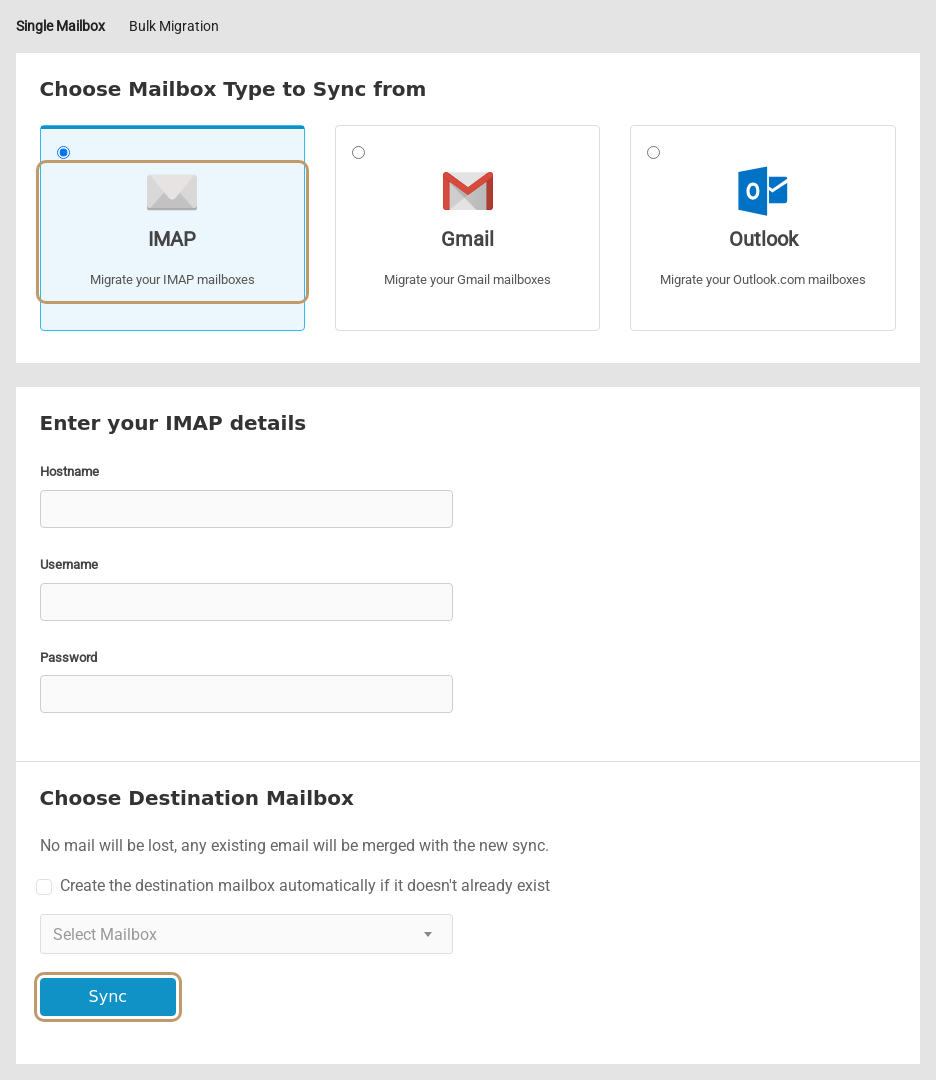 Choose the source, enter the old mailbox details and pick the Host Dada mailbox to copy into.
- Enter the old mailbox details. For IMAP, fill in Hostname, Username and Password. For Gmail or Outlook, enter the Username and app password, and tick I've created an app password for this migration.
- Choose the destination mailbox from Select Mailbox, or tick Create the destination mailbox automatically if it doesn't already exist.
- Click Sync. The job appears under Current Email Migrations, where you can follow its progress. Large mailboxes can take several hours. You can close the page while it runs.
Migrate several mailboxes at once
If all your mailboxes are with the same old provider, use the Bulk Migration tab. Enter the old provider's Hostname, choose the Destination Domain, fill in the Mailboxes to migrate as the form asks, then click Start Migrations. Each mailbox is created on the domain you selected if you tick the create option.
Troubleshooting
The migration fails straight away
The tool can't log in to the old mailbox. Check the hostname, username and password by signing in to your old provider's webmail. For Gmail and Outlook.com, make sure you're using an app password, not your normal password. Some providers also need IMAP access turned on in their settings first.
Some folders or emails are missing
Run the migration again. It only copies what's missing. If a folder is still absent, check whether it was a label (Gmail) or a shared folder. Shared and archive folders sometimes aren't available over IMAP.
I see duplicate emails
This can happen if an email app was copying mail at the same time, for example by dragging folders between accounts in Outlook. Let the migration tool do the copying, and don't drag folders as well.
Moving from Gmail or Google Workspace?
See our step-by-step guide: Move from Gmail or Google Workspace.
Last reviewed: October 2026
