Your Host Dada hosting includes a content delivery network (CDN) that stores copies of your images, scripts and stylesheets on servers closer to your visitors, so pages load faster. This guide explains what's switched on already, how to clear the cache after changes, and how to safely turn on extra speed optimisations.
Before you start
- Global edge caching of static files is on by default. You don't need to do anything for the basic speed boost.
- Take a snapshot before turning on optimisation filters, so you can roll back. See Timeline backups.
Where to find the CDN tools
Log in to the Host Dada Control Panel and open your package. The CDN section is at the top of the page.
 The CDN tools in the Host Dada Control Panel.
| Tool | What it does |
|---|---|
| Edge Caching | Controls what's cached and for how long, and lets you purge the cache |
| Web Optimisation | Optional filters that shrink and combine your site's code and images |
| Block Visitors | Blocks visitors by IP address or by country |
| Statistics | Shows bandwidth and hits over the last 24 hours, 30 days or 12 months, including how much was served from the cache |
| Security Headers | Adds browser security headers (advanced) |
Clear the cache after updating your site
- Click Edge Caching in the CDN section.
-
Click Purge Everything under Purge Cache. All edge servers fetch fresh copies of your files. Your site may be slightly slower for a few minutes while the cache refills.
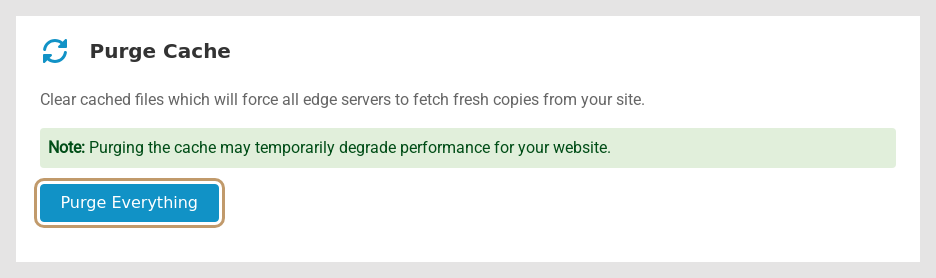 Purge Everything clears cached copies on every CDN server.
- Refresh your browser with Ctrl+F5 (Cmd+Shift+R on a Mac) to see the changes.
Other Edge Caching settings
- Global Edge Caching (on by default): caches images, JavaScript, CSS and similar files at the edge.
- Default Cache Settings: how long each file type is kept (Stylesheets, JavaScript, Images, Audio and Video, Documents, Fonts), from 1 hour to 180 days, or Do not cache. Longer is faster; shorter means changes show sooner.
- Dynamic Cache (advanced): caches whole pages when your site sends public cache headers. Pages that set cookies are never cached, so logged-in users and baskets aren't affected. Most WordPress sites can leave this as it is.
Turn on Web Optimisation
- Click Web Optimisation in the CDN section.
-
Start with the wizard or One Click Optimisation. Click Try the Wizard to switch on the recommended settings, or turn on One Click Optimisation, which applies only Low Risk filters.
 The wizard switches on recommended optimisation settings.
- Test your site thoroughly: menus, sliders, forms, logins and checkout, on a phone as well as a computer.
- Add more filters one at a time if you like. Each filter is labelled Low Risk, Medium Risk or High Risk. Turn on one, test, and turn it off again if anything breaks.
Troubleshooting
My changes don't show on the live site
Click Purge Everything, clear any WordPress caching plugin, then refresh with Ctrl+F5. While you're editing a lot, use Development Mode.
The layout or menus broke after turning on optimisation
Turn off the most recent filter (start with any Medium Risk or High Risk ones), purge the cache and test again.
A customer sees an old version but I see the new one
Their browser has cached it. Purging the CDN clears our servers, but each visitor's browser keeps its own copy until it expires. Shorter cache times in Default Cache Settings help for files you change often.
Last reviewed: October 2026
