
File Manager lets you upload, edit, unzip, rename and delete your website files in your web browser, with no FTP program needed. Your website's files live in the public_html folder.
Before you start
- You'll need your Host Dada Control Panel login. See How to log in to the Host Dada Control Panel.
- For lots of files or anything over a few hundred megabytes, FTP is usually quicker and more reliable. Alternatively, zip the files on your computer, upload the single zip file, then extract it (see below).
Open File Manager
- Log in to the Host Dada Control Panel. Go to cp.hostdada.uk (or Client Area → Services → your hosting → Login to Control Panel). If you have several packages, click Manage next to the right one.
-
Click File Manager. It's the first icon in the Web Files section.
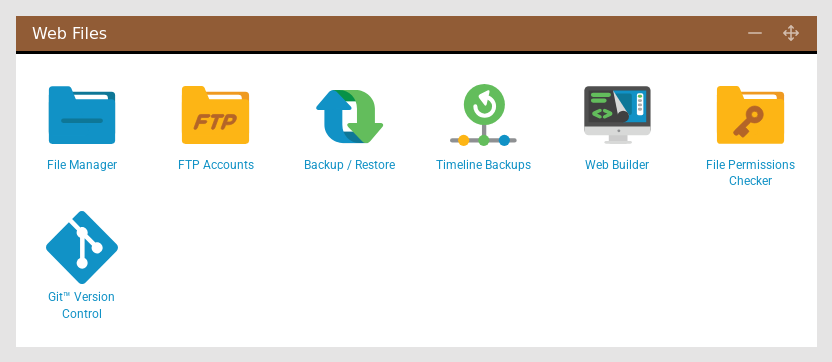 File Manager is in the Web Files section, next to FTP Accounts and Timeline Backups.
-
Double-click public_html. This is your website's main folder. Anything you put here appears at your domain, so
public_html/about.htmlshows atyourdomain.co.uk/about.html. The address bar at the top shows which folder you're in. Click the house icon to go back to the top.
What are the other files?Above
public_html you'll see files such as .htaccess and .bash_profile. The .htaccess file there holds settings the Control Panel manages for you, such as your PHP version and redirects. Avoid editing the sections between the #+ and #- marker lines.Upload files
-
Open the folder you want to upload into (usually
public_html). -
Click the Upload icon. If you can only see a menu icon (three lines) at the top right of the file area, click it to show the toolbar, then click the cloud icon with the upward arrow (Upload). You can also click Uploads in the bar at the bottom.
 The File Manager toolbar includes New File, New Folder, Upload and Search.
- Click Select files to upload and choose the files on your computer. The counter in the Uploads panel shows progress. Click the refresh arrows next to the address bar if a file doesn't appear straight away.
Extract (unzip) a zip file
- Right-click the zip file.
-
Choose Extract Here to unzip into the current folder, or Extract to... to pick another folder.
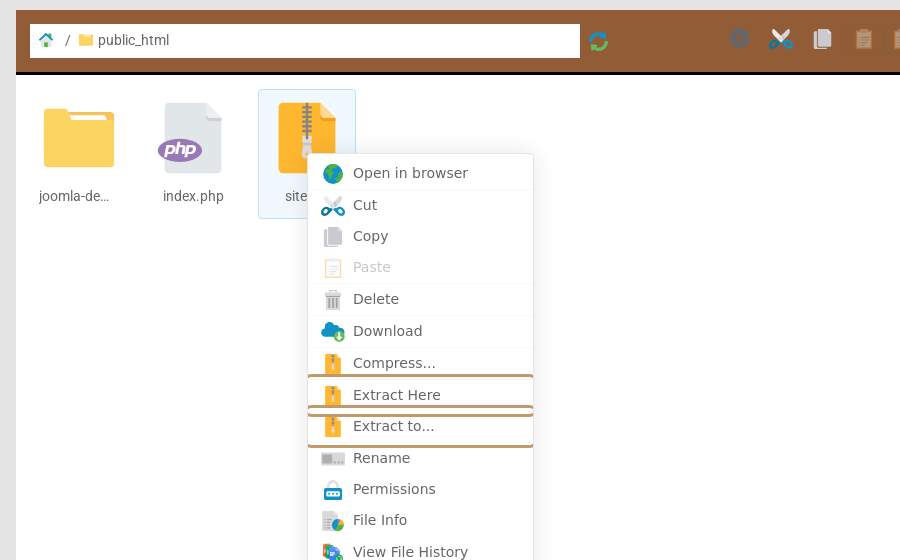 Right-click a zip file to extract it.
- Check the result. If your zip contained a top-level folder, the files may now be one level too deep (for example
public_html/mysite/index.html). Select them, use Cut, openpublic_htmland use Paste. Then delete the zip file.
Other things you can do
| To do this | Do this |
|---|---|
| Create a file or folder | Right-click an empty area and choose New File or New Folder |
| Edit a file (HTML, CSS, PHP, .htaccess) | Right-click the file and choose Code Editor. Save when you're done |
| Rename, delete or download | Right-click and choose Rename, Delete or Download |
| Zip up a folder to download | Right-click and choose Compress..., then download the zip |
| Move or copy | Right-click and choose Cut or Copy, open the destination folder, then Paste |
| Change permissions | Right-click and choose Permissions. Files are normally 644 and folders 755 |
| Get back an earlier version of a file | Right-click and choose View File History, or see Timeline backups |
| See what's using your space | Click Disk Usage Reports in the bottom bar |
Deleting is permanentFiles you delete in File Manager don't go to a recycle bin. If you delete something by mistake, restore it from Timeline Backups as soon as possible.
Troubleshooting
I uploaded my site but still see the old page or a placeholder
Make sure the files are directly inside public_html (or the folder set as the domain's document root), not in a subfolder. Your home page must be called index.html or index.php. Delete any placeholder index file you no longer need. If the CDN is caching the old page, purge it (see Speed up your site with the CDN).
An upload fails or stops part way
Very large files can time out in a browser. Zip the files first, or use FTP.
I get "403 Forbidden" after uploading
Usually a permissions problem or a missing index file. See Website showing an error?
Still stuck? Our UK support team is happy to help. Open a support ticket
and tell us your domain name, the file or folder involved and what happens when you try.
Last reviewed: October 2026


