
Choose which PHP version your ProFlex website runs, and raise PHP limits such as memory_limit and upload_max_filesize, using cPanel's MultiPHP Manager and MultiPHP INI Editor. This fixes "Allowed memory size exhausted" errors and upload size limits.
Before you start
- Log in to cPanel from the Client Area: Services → your ProFlex service → Log in to cPanel.
- Check that your website, theme and plugins support the PHP version you want. Current WordPress and its popular plugins run on PHP 8.3.
- Take a backup first, or be ready to switch back (it only takes a few seconds).
Change your PHP version
- Open MultiPHP Manager. It's in the Software section.
- Tick your domain in the list at the bottom. Each domain and subdomain can have its own version.
- Choose the version from the PHP Version menu on the right, for example PHP 8.3 (ea-php83).
-
Click Apply. The change usually takes effect within a minute. Visit your site to check it still works.
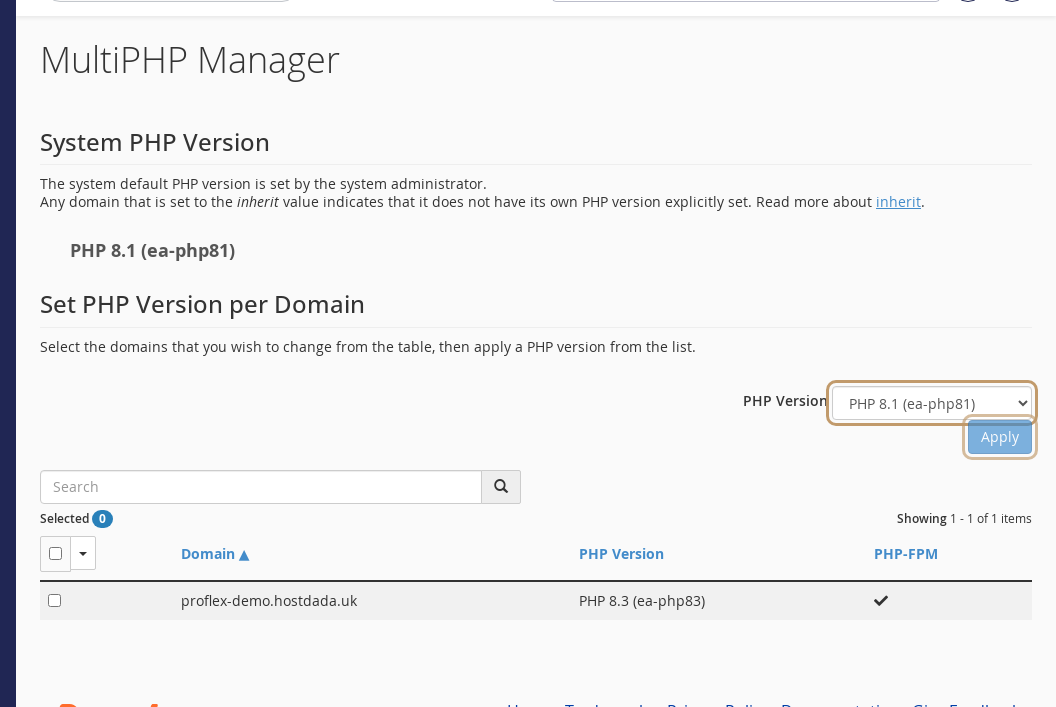 Tick the domain, pick a PHP version and click Apply.
| Version on ProFlex | Recommendation |
|---|---|
| PHP 8.3 | Recommended for WordPress and most modern sites |
| PHP 8.2 | Fine if a plugin or app isn't ready for 8.3 yet |
| PHP 8.1 | Older version that no longer gets security fixes from the PHP project. Only use it while you update incompatible code |
A domain marked Inherited follows the server's default version. Setting a version explicitly, as above, keeps it fixed.
Raise PHP limits (memory, upload size, time)
- Open MultiPHP INI Editor in the Software section.
- Stay on Basic Mode and choose your domain from Select a location.
-
Change the values you need and click Apply. New values can take a minute or two to take effect.
 Choose a location to see its PHP settings.
Settings at a glance
| Setting | What it does | Typical value for WordPress |
|---|---|---|
memory_limit | Memory one PHP request can use | 256M (512M for large WooCommerce shops) |
upload_max_filesize | Largest single file you can upload | 64M |
post_max_size | Largest form submission; keep it at or above upload_max_filesize | 64M |
max_execution_time | Seconds a script may run | 120 |
max_input_vars | Number of form fields accepted (large menus and page builders need more) | 3000 |
Different PHP settings for one folder
Settings apply per domain. If you need a different version or setting for one application in a subfolder, add it as a subdomain (in Domains) pointed at that folder, then set that subdomain's version in MultiPHP Manager.
Troubleshooting
"Allowed memory size of 134217728 bytes exhausted"
PHP ran out of memory (134217728 bytes is 128 MB). Raise memory_limit to 256M in MultiPHP INI Editor. If you're using WordPress and the error continues, check for a WP_MEMORY_LIMIT line in wp-config.php that sets a lower value.
My site broke after changing PHP version
Switch back to the previous version in MultiPHP Manager and the site should recover within a minute. Then update your theme and plugins (or the application) before trying the newer version again.
"The uploaded file exceeds the upload_max_filesize directive"
Raise both upload_max_filesize and post_max_size to the same value and click Apply. In WordPress, the limit shown under Media → Add New updates immediately.
Last reviewed: October 2026


