
Create a MySQL database and user in cPanel, then import, export or repair it with phpMyAdmin. You'll need this when installing a website by hand or moving a site from another host.
Before you start
- Log in to cPanel from the Client Area: Services → your ProFlex service → Log in to cPanel.
- Installing WordPress? You don't need to do this. WP Toolkit creates the database for you. See Install and manage WordPress with WP Toolkit.
- Database limits: ProFlex Web includes 2 databases (one for your site, one spare for a staging copy), ProFlex Business 3 and ProFlex Business Plus 5.
 The Databases section of cPanel.
Create a database with the Database Wizard
The wizard creates the database and its user, and connects them, in one go.
- Open Database Wizard in the Databases section.
- Name the database and click Next Step. cPanel adds your account name as a prefix, so
shopbecomes something likeyouruser_shop. - Create a database user. Enter a username and a strong password (or use Password Generator), then click Create User. Copy the password somewhere safe.
- Give the user privileges. Tick ALL PRIVILEGES and click Next Step. Most applications need all privileges.
Settings your website needs
| Setting | Value |
|---|---|
| Database host | localhost |
| Database name | The full name with prefix, e.g. youruser_shop |
| Database username | The full username with prefix, e.g. youruser_shopuser |
| Password | The password you set for the database user |
| Port | 3306 (most apps assume this) |
For WordPress these go in wp-config.php as DB_NAME, DB_USER, DB_PASSWORD and DB_HOST.
Manage databases and users
Manage My Databases lists your databases and users. From here you can:
- Rename or Delete a database (under Current Databases). Renaming means you must update your website's settings too.
- Change a user's password with Change Password, under Current Users.
- Add an existing user to a database under Add User To Database.
- Run Check Database or Repair Database if a site reports a crashed or corrupt table.
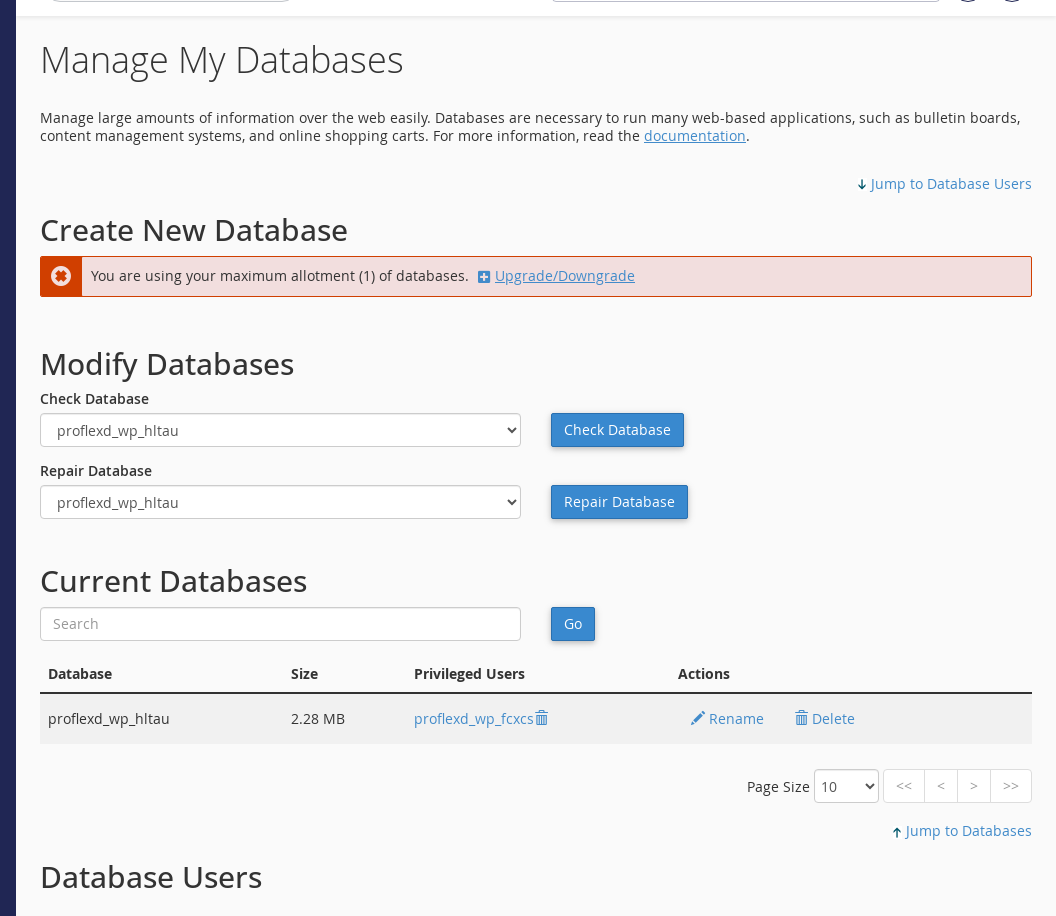 Manage My Databases. Here the ProFlex Web plan's single database is already in use by WordPress.
Import a database with phpMyAdmin
- Open phpMyAdmin in the Databases section. It opens in a new tab, already signed in.
- Select the database in the left-hand list. Import into an empty database unless you mean to overwrite tables.
- Click the Import tab, then Choose File and pick your
.sqlor.sql.gzfile. - Click Import at the bottom. You'll see a green success message listing the queries that ran.
Export (back up) a database
- Open phpMyAdmin and select the database on the left.
- Click the Export tab. Leave the method as Quick and the format as SQL.
- Click Export. A
.sqlfile downloads to your computer.
Troubleshooting
"You are using your maximum allotment of databases"
Your plan's database limit has been reached. ProFlex Web includes two: one for your live site and one spare, often used by a WordPress staging copy. Delete a database you no longer use, or upgrade to ProFlex Business (3 databases) or Business Plus (5) from Upgrade/Downgrade in the Client Area.
"Error establishing a database connection"
The details in your website's configuration don't match. Check that the name and username include the prefix, that the host is localhost, and that the user has been added to the database with privileges. If you're not sure of the password, set a new one in Manage My Databases and update your configuration file.
The import fails or times out with a large file
Compress the file as .sql.gz before uploading, which often makes it 5 to 10 times smaller. If it still fails, open a ticket. We can import it for you from a file you upload with File Manager.
"#1044 Access denied" when importing
The SQL file contains a CREATE DATABASE or USE line with another database name. Remove those lines, select your cPanel database in phpMyAdmin first, then import again.
Last reviewed: October 2026


