
Strange redirects, spam pages, a Google "This site may be hacked" warning or a sudden flood of outgoing email can all mean your website has been compromised. This guide covers what to do in the first hour, how to clean the site up and how to stop it happening again.
Signs your site may be hacked
- Visitors (often only those arriving from Google or on mobile) are redirected to spam, gambling or "you've won" pages.
- Google search results show pages or titles you never created, often in another language or about pharmacy products.
- Browsers or Google show "Deceptive site ahead" or "This site may be hacked".
- New admin users you didn't create, or files and folders with odd names.
- Your mailbox receives hundreds of bounce messages for emails you didn't send.
- We've contacted you about malware found on your hosting.
First hour: contain it
- Change your passwords, starting with email and the Client Area. Use a different, strong password for each: your Client Area, Control Panel or cPanel, every WordPress administrator, FTP accounts and the database user. Change them from a computer you trust. See Reset your Client Area, Control Panel or cPanel password.
- Turn on two-factor authentication for your Client Area and any site administrators. See Turn on two-factor authentication.
- Scan your own computer. Stolen FTP or admin passwords often come from malware on the PC used to manage the site. Run a full scan with your antivirus.
- Tell us. Open a ticket so we can check the server logs and, if needed, pause outgoing email from your account to protect your domain's reputation.
Scan the site
Essential and WordPress hosting
Your site is scanned every day. In the Host Dada Control Panel, open your package, choose Malware Scan under Security, and click Start scan to run one now. Any files found in the last 30 days are listed.
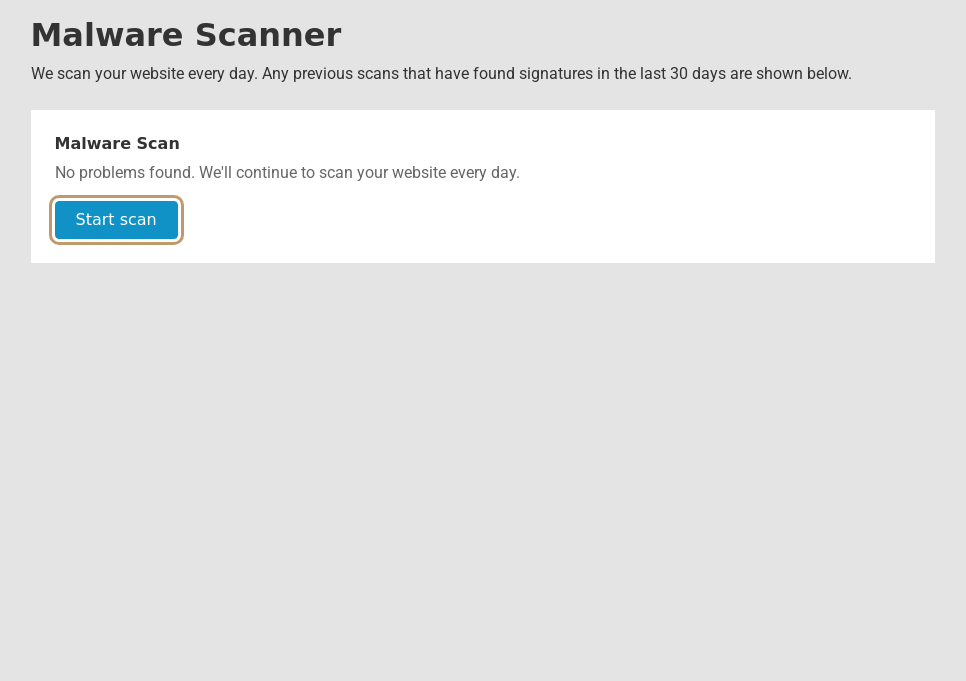 The Malware Scanner runs daily, and you can start a scan on demand.
ProFlex hosting
ProFlex accounts are protected by Imunify360, which scans files and blocks many attacks automatically. In cPanel, open Imunify360 under Security to see detected files and their status. See Malware scanning and protection with Imunify360.
Clean up
You have two options. Restoring a clean backup is usually quicker and more reliable.
- Option A: restore a clean backup. Pick a backup from before the first sign of trouble. On Essential and WordPress hosting, use Timeline Backups (see Restore from Timeline backups). On ProFlex, see Back up and restore your ProFlex site. Anything added since that backup, such as new orders or posts, will need re-adding.
- Option B: clean it in place. Remove the files flagged by the scanner. For WordPress, reinstall core files from Dashboard → Updates → Re-install, delete and reinstall every plugin and theme from official sources, and remove any administrator users you don't recognise under Users.
- Close the hole. Whichever option you choose, update WordPress, every plugin and theme straight away, then delete any plugins and themes you don't use. A restored site that is still out of date will be hacked again.
- Change the passwords again once the site is clean, including the database password (update it in
wp-config.phptoo).
After the clean-up
- Google warnings: verify your site in Google Search Console, check Security issues and click Request review once the site is clean. Reviews usually take a few days.
- Email reputation: if spam was sent, check that your SPF, DKIM and DMARC records are in place. See SPF, DKIM and DMARC explained.
- Prevention: follow Secure your WordPress site: 10 essentials.
Troubleshooting
The hack came back after I cleaned it
Something was missed: a hidden admin user, a backdoor file in the uploads folder, an outdated plugin, or a password that wasn't changed. Restore an older clean backup and update everything before the site goes live again, or ask us to help.
The redirect only happens on my phone or from Google
Hacked sites often hide from logged-in administrators. Test in a private window, on mobile data, or by clicking your site in Google results.
I can't log in to WordPress any more
The attacker may have changed your password or removed your account. See Can't log in to WordPress? Reset your admin password.
Last reviewed: October 2026


