
If your domain uses Host Dada nameservers, this guide gives you the exact DNS records to add in the Host Dada Control Panel so Microsoft 365 email (Exchange Online) and Outlook work with your own domain. It also shows which old records to remove so your email doesn't split between two providers.
Before you start
- Check your domain uses Host Dada DNS. Your nameservers (the settings that tell the internet where your domain's records live) should be
ns1.kandekore.nettons4.kandekore.net. If they point somewhere else, add the records wherever your DNS is hosted instead. See What are nameservers? - Add your domain in Microsoft 365 first. The Microsoft 365 admin centre gives you a verification code and your personal MX value. Follow Connect your domain to Microsoft 365 up to the Add DNS records page and keep that page open in another tab.
- Create every mailbox before you switch MX. As soon as the MX record changes, new email goes to Microsoft 365. Anyone without a Microsoft 365 mailbox will start bouncing. See Add a user and assign a licence.
- Moving from Host Dada Email? Existing messages stay in the old mailboxes. Plan to copy them across with an IMAP migration and keep the old mailboxes until that's done.
The records Microsoft 365 needs
Replace yourbusiness.co.uk with your own domain. Always copy the MX and verification values from your admin centre, because they're unique to your tenant.
| Type | Name / host | Value | Priority | Purpose |
|---|---|---|---|---|
| TXT | Your domain (the root, often shown as @) | MS=ms12345678 (your own code from the admin centre) | n/a | Proves you own the domain. One-off. |
| MX | Your domain (root) | Copy from the admin centre. It looks like yourbusiness-co-uk.mail.protection.outlook.com or, for domains added since mid-2026, a name ending in .mx.microsoft | 0 | Delivers incoming email to Microsoft 365 |
| TXT (SPF) | Your domain (root) | v=spf1 include:spf.protection.outlook.com -all | n/a | Tells other mail servers Microsoft 365 may send as you |
| CNAME | autodiscover | autodiscover.outlook.com | n/a | Lets Outlook and phones set themselves up automatically |
Optional but recommended: two DKIM CNAME records (selector1._domainkey and selector2._domainkey) and a DMARC TXT record (_dmarc). Their values are covered in Turn on DKIM and DMARC for Microsoft 365.
_sip, _sipfederationtls) and sip/lyncdiscover CNAMEs. Microsoft only shows these now if you tick extra services under Advanced options. Most Business Basic and Standard customers don't need them. Only add what your admin centre asks for.Records to remove or replace
A domain on Host Dada nameservers usually starts with Host Dada Email records. These must go, or be changed, when you move to Microsoft 365:
| Existing record | What to do |
|---|---|
MX mx.stackmail.com (priority 10) | Delete it once the Microsoft 365 MX record is in place. |
CNAME autodiscover → autodiscover.stackmail.com | Edit it to point to autodiscover.outlook.com. A name can only have one CNAME, so you can't add a second one alongside it. |
TXT v=spf1 include:spf.stackmail.com a mx -all | Edit it rather than adding a second SPF record. Change it to the Microsoft 365 value above. |
| Any MX from a previous provider (for example GoDaddy, IONOS or Google) | Delete it. |
v=spf1. Two SPF records make both invalid, and your email is more likely to land in junk. If something else still sends email as your domain, for example a website contact form that sends through Host Dada Email or a mailing service, merge its include: into the same record, e.g. v=spf1 include:spf.protection.outlook.com include:spf.stackmail.com -all. If nothing else sends, use the Microsoft 365 value on its own.Step-by-step: add the records in the Host Dada Control Panel
- Log in to the Host Dada Control Panel. Go to cp.hostdada.uk, or from the Client Area open your hosting service and choose Login to Control Panel.
- Open the DNS editor. Under Manage Services, select Manage on the package that holds your domain, then choose Manage DNS. You'll see the list of existing records for your domain.
Can't see Manage DNS?If you only have Microsoft 365 with us (no hosting package), or your domain doesn't appear, open a ticket and paste in the values from your admin centre. We'll add the records for you.
- Add the verification TXT record. Add a new TXT record on the root of your domain with the
MS=ms…value from the admin centre, then select Update DNS to save. Go back to the admin centre and select Verify. It usually works within 10 to 15 minutes. If it fails, wait a little longer and try again. - Add the Microsoft 365 MX record. Add an MX record on the root of your domain. Paste the value exactly as shown in the admin centre and set the priority to
0. - Delete the old MX record(s). Remove
mx.stackmail.comand any other MX record that isn't Microsoft's. - Change the autodiscover record. Edit the existing
autodiscoverCNAME so it points toautodiscover.outlook.com. If there isn't one, add it. - Replace the SPF record. Edit the existing
v=spf1TXT record tov=spf1 include:spf.protection.outlook.com -all, or merge it as described in the warning above. - Save. Select Update DNS. Changes on Host Dada nameservers usually show within 30 minutes, though some networks can take up to 24 hours to notice.
- Finish in Microsoft 365. Back on the Add DNS records page in the admin centre, select Continue. When Microsoft finds the records you'll see Domain setup is complete. You can check again at any time under Settings → Domains → your domain → DNS records.
The "Office 365 Mail" shortcut
The DNS editor has a Preconfigured Settings drop-down with an Office 365 Mail option that fills in Microsoft's mail records in one go.
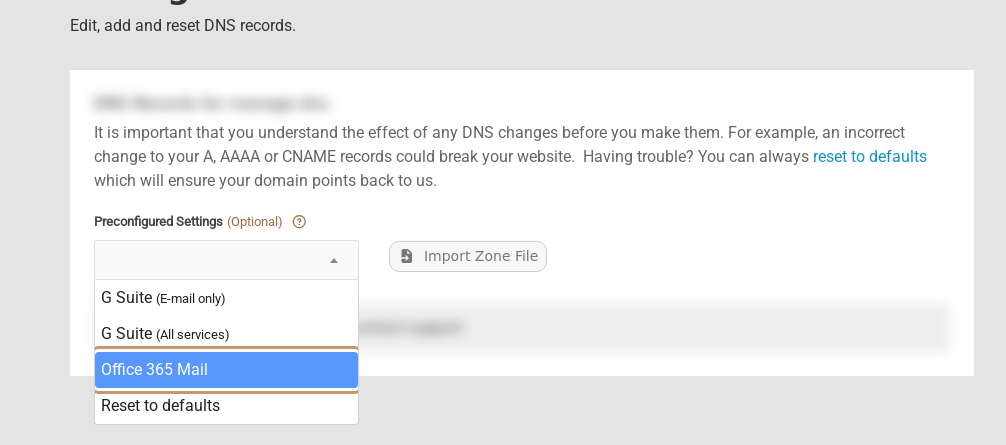 Preconfigured Settings → Office 365 Mail in Manage DNS.
It's a handy start, but always check the result against your admin centre afterwards:
- The MX value must match the one Microsoft gave you exactly. Newer tenants use a different format, so fix it if it differs.
- Make sure no old MX record is left behind.
- Make sure you have one SPF record, not two.
- You still need to add the
MS=verification record and any DKIM records yourself.
Settings at a glance
| Setting | Value |
|---|---|
| Host Dada nameservers | ns1.kandekore.net, ns2.kandekore.net, ns3.kandekore.net, ns4.kandekore.net |
| MX | Your value from the admin centre, priority 0 |
| SPF (TXT, root) | v=spf1 include:spf.protection.outlook.com -all |
| Autodiscover (CNAME) | autodiscover → autodiscover.outlook.com |
| Remove | MX mx.stackmail.com and any other non-Microsoft MX |
Troubleshooting
Microsoft 365 says "We couldn't verify your domain"
Check that the TXT record is on the root of the domain (not on a name like ms.yourbusiness.co.uk) and that the code matches exactly, with no spaces. Give it 15 to 30 minutes and select Verify again.
Some emails arrive, others go missing
This is almost always an old MX record still in place. Open Manage DNS and make sure the only MX record is Microsoft's. Messages that went to the old provider in the meantime will be in your old mailbox, for example at Host Dada Webmail.
Outlook keeps asking for a server or shows the old provider's settings
The autodiscover CNAME is probably still pointing to the old service. Change it to autodiscover.outlook.com, wait 30 minutes, then add the account again. See Set up Outlook for Windows with Microsoft 365.
The admin centre shows "Possible service issues" for DNS
Open Settings → Domains → your domain → DNS records and compare each record listed with what's in Manage DNS. A typo or an extra SPF record is the usual cause.
Last reviewed: October 2026


