Use phpMyAdmin to download a backup copy of a MySQL database (export) or load a .sql file into one (import), for example when moving a website to Host Dada. You can import files up to 1 GB.
Before you start
- To import, you need an empty database to import into. Create one first: see Create a MySQL database and user.
- Have your
.sqlfile ready. It can be compressed as.sql.gz,.sql.bz2or.sql.zip, which makes the upload much faster.
Open phpMyAdmin
- Log in to the Host Dada Control Panel. Go to cp.hostdada.uk (or Client Area → Services → your hosting → Login to Control Panel) and open your package.
- Click phpMyAdmin in the Web Tools section.
-
Click Sign in next to your database. Your databases may be spread across more than one database server, so the MySQL Host Selection page lists each server with the databases on it. Click Sign in on the row with the database you want. phpMyAdmin opens in a new tab and logs you in automatically.
 Choose the row that contains your database.
Export (download) a database
- Select the database in the list on the left of phpMyAdmin.
- Click the Export tab at the top.
- Leave Export method as Quick and Format as SQL, then click Export. Your browser downloads a
.sqlfile.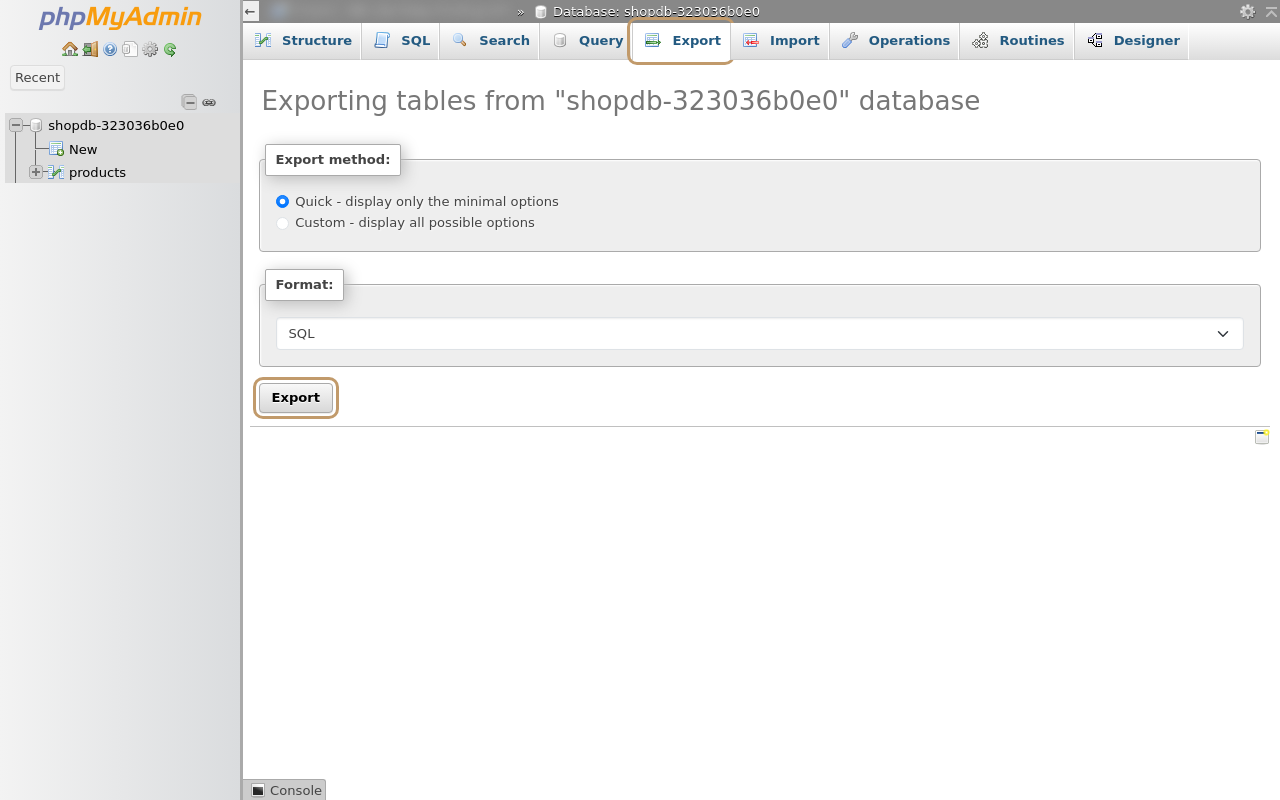 A Quick SQL export is right for backups and moving sites.
Import a database
- Select the database you want to import into in the list on the left. Make sure it's the right one: importing can overwrite tables with the same names.
- Click the Import tab.
-
Choose your file. Under File to import, click Choose File (or Browse) and pick your
.sqlor compressed file. The maximum size is shown next to it (1,024 MiB).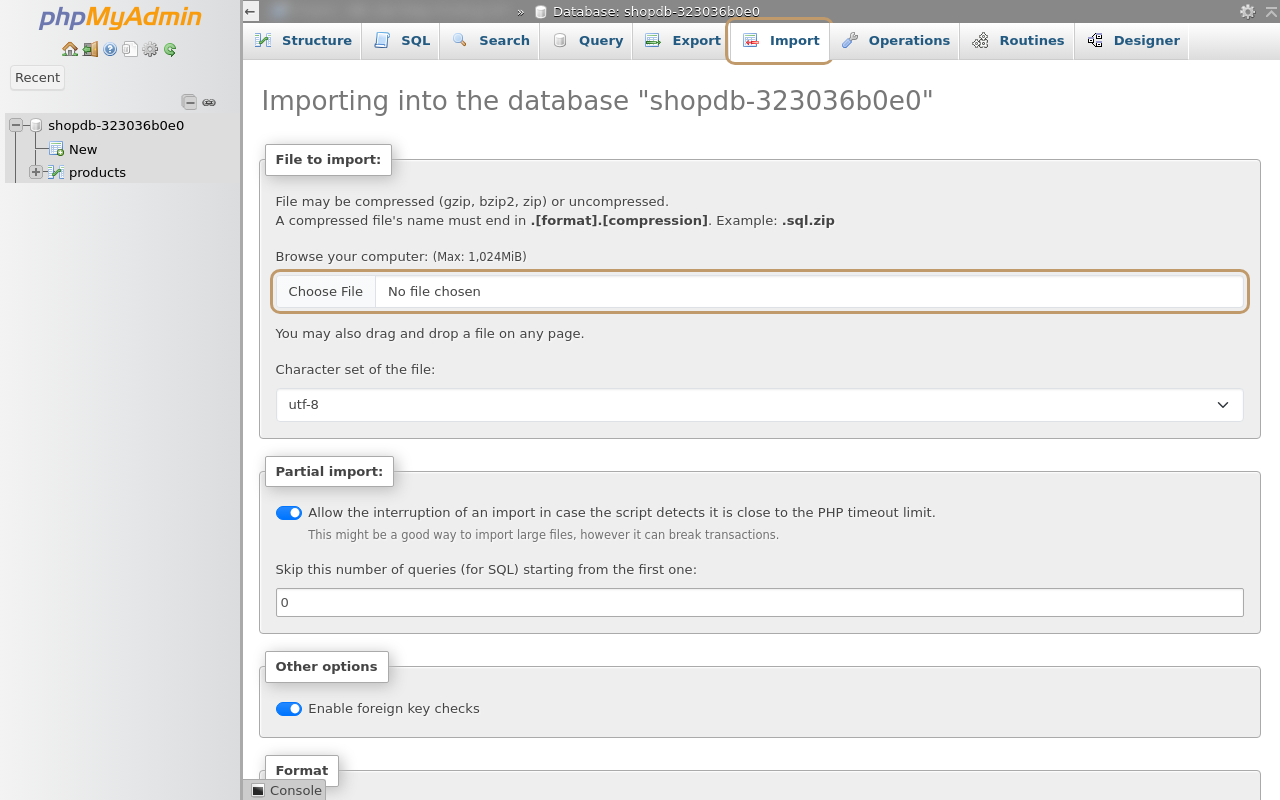 The Import tab for the selected database.
- Scroll down and click Import. Leave the other options as they are. When it's finished, you'll see a green "Import has been successfully finished" message, and the tables appear on the left.
Troubleshooting
"#1044 - Access denied for user ... to database"
Your file contains a CREATE DATABASE or USE line for the old database name. Open the .sql file in a text editor, delete those lines near the top, save and import again.
"#1050 - Table already exists"
The database isn't empty. Drop the existing tables (after exporting a backup) or import into a new, empty database.
The import times out or stops part way
Compress the file (.sql.gz or .sql.zip) and try again. If it was interrupted, phpMyAdmin may offer to resume: leave the partial import option ticked. For very large databases on plans with SSH, you can import with the mysql command instead (see Connect with SFTP and SSH), or ask us to help.
Strange characters (é instead of é) after importing
The file's character set didn't match. Import again with Character set of the file set to utf-8, or export again from the old host using UTF-8.
Last reviewed: October 2026
