cPanel's File Manager lets you upload, edit, move and delete your website files in your web browser, with no FTP program needed. This guide covers uploading a site, creating and editing files (including .htaccess), extracting zip files and recovering deleted files from the trash.
Before you start
- Log in to cPanel from the Client Area: Services → your ProFlex service → Log in to cPanel.
- Your main website lives in the
public_htmlfolder. Files outside it aren't visible on the web. - Before you edit or delete anything important, download a copy first, or take a backup (see Back up and restore your ProFlex site).
Open File Manager
-
Click File Manager. It's the first tool in the Files section of cPanel's home page. It opens in a new browser tab.
 File Manager is in the Files section.
-
Open public_html. Double-click
public_htmlin the file list, or click it in the folder tree on the left.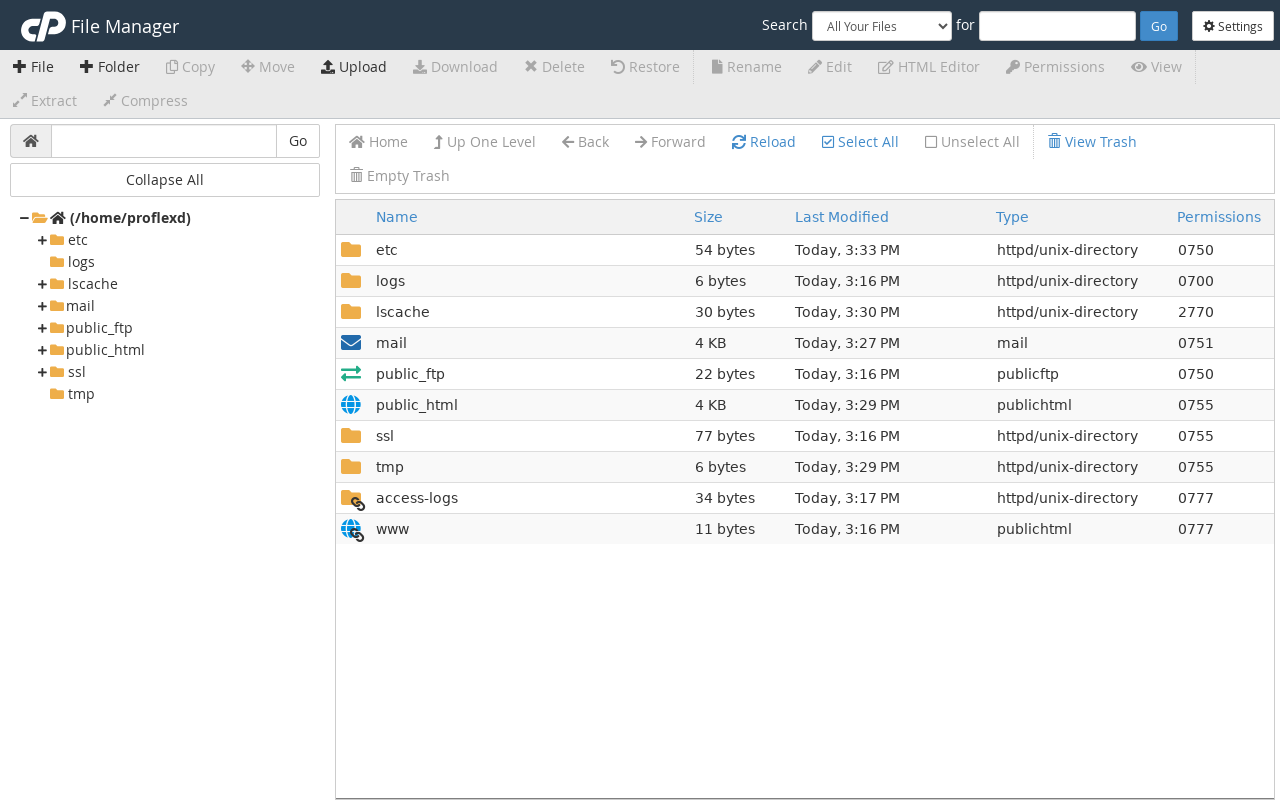 The toolbar along the top holds File, Folder, Upload, Edit, Extract and the other actions.
Upload files
- Go to the right folder. Open
public_html(or a subfolder) first. Files upload to whichever folder you're in. - Click Upload. A new tab opens.
- Drag your files in, or click Select File. A progress bar shows each file. When they reach 100%, click Go Back to the folder link at the bottom.
Create, edit and rename files
- New file or folder: click + File or + Folder in the toolbar, type a name and click Create.
- Edit a file: select it, then click Edit. The code editor opens in a new tab. Click Save Changes when you're done.
- Rename, move or copy: select the file, then use Rename, Move or Copy and enter the new name or path.
- Permissions: select the file and click Permissions. Folders are normally
755and files644.
Show and edit .htaccess
Files whose names start with a dot, such as .htaccess, are hidden by default.
- Click Settings at the top right of File Manager.
- Tick Show Hidden Files (dotfiles) and click Save.
- Edit the file. Select
.htaccessinpublic_htmland click Edit.
Delete files and use the trash
When you click Delete, File Manager asks whether to skip the trash. Leave Skip the trash and permanently delete the files unticked unless you're certain. Files in the trash can be put back with View Trash → select the file → Restore. Trashed files still count towards your disk space until you click Empty Trash.
Other ways to manage files
- FTP or SFTP: best for large uploads. See FTP accounts in cPanel.
- Web Disk: in the Files section. It lets you open your hosting as a network drive in Windows or macOS. It works well for occasional drag-and-drop but can be slow for big transfers.
- Git Version Control: for developers deploying from a Git repository.
Troubleshooting
I uploaded my site but still see the old page or a default page
Make sure the files are directly inside public_html, not in a subfolder such as public_html/mysite. Your home page must be called index.html or index.php. Then clear your browser cache. If your site uses WordPress with LiteSpeed Cache, purge the cache too.
"Disk quota exceeded" when uploading or extracting
Your plan's storage is full. Empty the File Manager trash, delete old backups and zip files, and check Disk Usage to find what's taking up space.
500 Internal Server Error after editing a file
This is usually a mistake in .htaccess or a PHP file you've just changed. Undo your last change, or restore the copy you downloaded. See Website showing an error? for other common causes.
Last reviewed: October 2026
