
Sign out now!
Tip
Need help setting this up?
If you'd rather not deal with the technical side, we can fully set up and manage your Microsoft 365 for you — including email, DNS, and ongoing support.
Need help with the steps in this topic? We’ve got you covered. Make an appointment at your local Microsoft Store with an Answer Desk expert to help resolve your issue. Go to the Microsoft Stores page and choose your location to schedule an appointment.
If you need to get an employee out of Office 365 immediately, here's what you do:
- Go to the
 .
.
-
In the Office 365 admin center, choose the user, and reset their password (don't send it to them).
-
While still at the user's properties page, expand OneDrive Settings, and then choose Initiate.

Within an hour - or after they click out of the current Office 365 page they are on - they will be prompted to sign in again. (The refresh token is good for an hour, so the timeline depends on how much time is left on their token and whether they navigate out of their current webpage.)
CAVEAT: If the user is in Outlook on the web, just clicking around in their mailbox, they may not be kicked out immediately. As soon as they click a different tile, such as OneDrive, or refresh their browser, the sign out is initiated.
To use PowerShell to sign out a user immediately, see Revoke-AzureADUserAllRefreshTokencmdlet.
For more information about how long it takes to get someone out of email, see What you need to know about terminating an employee's email session.
Overview of all the steps to remove an employee and secure data
A question we often get is, "What should I do to protect data when an employee leaves the organization?" This article explains how to block access to Office 365 and the steps you should take to secure your data.
Note
If you are a global administrator you can delete the employee, forward their email, choose what to do with their OneDrive content using the new guided experience. For more information, see Global admin: Delete a user. However, we recommend completing all of the additional steps listed here to ensure the employee doesn't have access to your company's data.
Here's a quick overview. Each step is explained in detail in this article.
| Step | Why do this |
| 1. Save the contents of a former employee's mailbox | This is useful for the person who is going to take over the employee's work, or in case of litigation. |
| 2. Forward a former employee's email to another employee or convert to a shared mailbox | This lets you keep the former employee's email address active. If you have customers or partners still sending email to the former employee's address, this gets them to the person taking over the work. |
| 3. Wipe and block a former employee's mobile device | Removes your business data from the phone or tablet. |
| 4. Block a former employee's access to Office 365 data | It prevents the person from accessing their old Office 365 mailbox and data. Tip: When you block a user's access, you're still paying for their license. You have to delete the license from your subscription to stop paying for it (step 5). |
| 5. Move the employee's OneDrive content | If you only remove a user's license but don't delete the account, the content in the user's OneDrive will remain accessible to you even after 30 days. Before you delete the account, you should move the content of their OneDrive to another location that's easy for you to access. After you delete an employee's account, the content in their OneDrive is retained for 30 days. During that 30 days, however, you can restore the user's account, and gain access to their OneDrive content. If you restore the user's account, the OneDrive content will remain accessible to you even after 30 days. |
| 5a. What if the person used their personal computer to access OneDrive and SharePoint? | If they used a personal computer instead of a company-issued computer to download files from OneDrive and SharePoint, there's no way for you to wipe those files they stored. They will continue to have access to any files that were synced to their computer. |
| 6. Remove and delete the Office 365 license from a former employee | When you remove a license, you can assign it to someone else. Or, you can delete the license so you don't pay for it until you hire another person. When you remove or delete a license, the user's old email, contacts, and calendar are retained for 30 days, then permanently deleted. If you remove or delete a license but don't delete the account, the content in the user's OneDrive will remain accessible to you even after 30 days. |
| 7. Delete a former employee's user account | This removes the account from your Office 365 admin center. Keeps things clean. |
Save the contents of a former employee's mailbox
There are two ways you can save the contents of the former employee's mailbox:
-
Add the former employee's email address to your version of Outlook 2013 or 2016, and then export the data to a .pst file. You can import the data to another email account as needed. To learn how to do this, see Get access to and back up a former user's data.
OR
-
Place a Litigation Hold or In-Place Hold on the mailbox before the deleting the user account. This is much more complicated than the first option but worth doing if: your Enterprise plan includes archiving and legal hold, litigation is a possibility, and you have a technically strong IT department.
Once you convert the mailbox to an "inactive mailbox," administrators, compliance officers, or records managers can use In-Place eDiscovery tools in Exchange Online to access and search the contents.
Inactive mailboxes can't receive email and aren't displayed in your organization's shared address book or other lists.
To learn how to place a hold on a mailbox, see the TechNet article Manage inactive mailboxes in Exchange Online.
Forward a former employee's email to another employee or convert to a shared mailbox
In this step, you assign the former employee's email address to another employee, or convert the user's mailbox to a shared mailbox that you've created.
-
Creating a shared mailbox is the less expensive way to go because you won't have to pay for a license as long as the mailbox is smaller than 50GB. Over 50GB and you'll need to assign a license to it.
-
If you convert the mailbox to a shared mailbox, all the old email will be available, too. This can take up a lot of space.
-
If you set up email forwarding, only new emails sent to the former employee will now be sent to the current employee.
-
Email forwarding requires that the former employee's account has a license.
Important
If you're setting up email forwarding or a shared mailbox, at the end, don't delete the former employee's account. The account needs to be there to anchor the email forwarding or shared mailbox.
- Go to the .
-
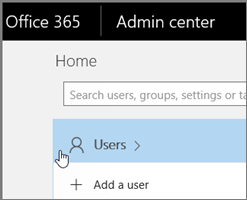
In the Office 365 admin center, select Users.
-
Choose the employee that you want to block.

-
Click Mail Settings. Next to Email Forwarding choose Edit.

-
Turn on Forward all email sent to this mailbox. In the Forwarding address box, type the email address of the current employee (or shared mailbox) who's going to get the email.

-
Choose Save.
-
Remember, don't delete the former employee's account.
Wipe and block a former employee's mobile device
If your former employee had a organization phone, you can use the Exchange admin center to wipe and block that device so that all organization data is removed from the device and it can no longer connect to Office 365.
- Go to the .
-
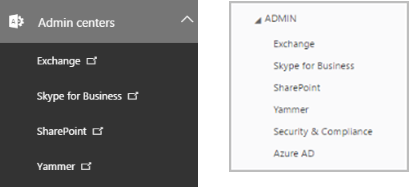
In the Office 365 admin center, in the lower-left navigation pane, expand Admin centersand select Exchange.
Your screen might look like one of the following images:
-
In the Exchange admin center, navigate to Recipients > Mailboxes.
-
Select the user, and under Mobile Devices, choose View details.
-
On the Mobile Device Details page, under Mobile devices, select the mobile device, click Wipe Data
 , and then click Block.
 -
Click Save.
Tip: Be sure you remove or disable the user from your on-premises Blackberry Enterprise Service. You should also disable any Blackberry devices for the user. Refer to the Blackberry Business Cloud Services Administration Guide if you need specific steps on how to disable the user.
Block a former employee's access to Office 365 data
Important
Blocking an account can take up to 24 hours to take effect. If you need to immediately prevent a user's sign-in access, you should reset their password and then initiate a one-time event that will sign them out of Office 365 sessions across all devices. See Sign out now!
To block a user from signing in and accessing Office 365 data:
- Go to the .
-
In the Office 365 admin center, select Users.
-
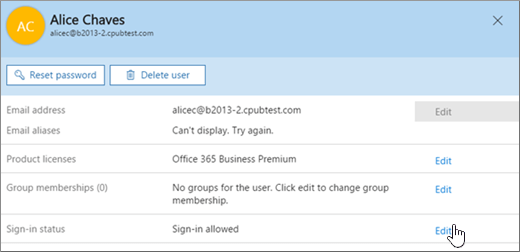
Select the employee that you want to block, and then choose Edit next to Sign-in statusin the user pane.
-
On the Sign-in status pane, choose Sign-in blocked and then Save.
Block a former employee's access to email (Exchange Online)
If you have Office 365 email as part of your Office 365 subscription, you need to log in to the Exchange admin center to follow these steps to block your former employee from accessing their email.
- Go to the .
-
In the Office 365 admin center, in the lower-left navigation pane, expand Admin centersand select Exchange.
Your screen might look like one of the following images:
-
In the Exchange admin center, navigate to Recipients > Mailboxes.
-
Double-click the user to open Mailbox features page. Under Mobile Devices, click Disable Exchange ActiveSync and Disable OWA for Devices, and answer Yes to both when prompted.
-
Under Email Connectivity, click Disable for all protocols, (Outlook on the web, IMAP, POP3 & MAPI) and answer Yes to all when prompted.
Remove and delete the Office 365 license from a former employee
So you don't continue paying for a license after someone leaves your organization, you need to remove their Office 365 license and then delete it from your subscription. If you choose not to delete the license from your subscription, you can assign it to another user.
When you remove the license, all that user's data is held for 30 days. You can access the data, or restore the account if the user comes back. After 30 days, all the user's data (except for documents stored on SharePoint Online) is deleted permanently from Office 365 and can't be recovered.
- Go to the .
-
In the Office 365 admin center, select Users.
-
Select the employee that you want to block, and then choose Edit next to Product licenses in the user pane.

-
On the Product licenses pane, slide the license indicator to Off position and then choose Assign to remove the license.

The pane will state Products removed when the removal is done.
To reduce the number of licenses you're paying for until you hire another person, do the following:
-
In the Office 365 admin center, choose Billing > Subscriptions.
-
Choose Add/Remove licenses to delete the license so you don't pay for it until you hire another person.

When you add another person to your business, you'll be prompted to buy a license at the same time, with just one click!
For more information about managing user licenses for Office 365 for business, see Assign licenses to users in Office 365 for business, and Remove licenses from users in Office 365 for business.
How the deleted employee account affects Skype for Business
When you remove a user's license from Office 365, the PSTN calling number associated with the user will be released. You can assign it to another user.
If the user belongs to a queue group, they will no longer be a viable target of the call queue agents. So, we recommend also removing the user from the groups associated with the call queue.
Delete a former employee's user account
After you've saved and accessed all the former employee's user data, you can delete the former employee's account.
- Share calendars with external users
- Centralised deployment of add-ins
- Manage deployment of add-ins
- Message center
- Basic mailbox settings for Outlook and other email clients (POP/IMAP)
Prefer us to handle this?
We provide fully managed Microsoft 365 setup and support — so you can focus on running your business.


