
This article is for people who set password expiration policy for a business, school, or nonprofit.
Need help setting this up?
If you'd rather not deal with the technical side, we can fully set up and manage your Microsoft 365 for you — including email, DNS, and ongoing support.
If you're a user, you don't have the permissions to set your password to never expire. Ask your work or school technical support to do the steps in this article for you.
As an admin, you can make user passwords expire after a certain number of days, or set passwords to never expire. By default, passwords are set to never expire.
Important
Only Office 365 global admins can perform these steps.
-
Go to the
 .
. -
In the Office 365 admin center, go to Settings > Security and privacy. If you aren't an Office 365 global admin, you won't see the Security and privacy option.

-
Click Edit.

-
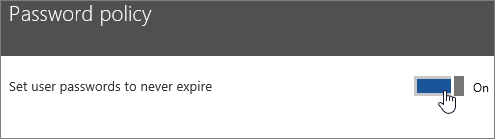
If you don't want users to have to change passwords, set Passwords never expire to On.
-
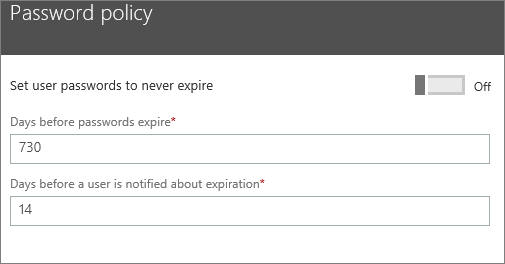
If you want user passwords to expire, in the first box type how often passwords should expire. Choose a number of days from 14 to 730.
-
In the second box type when users are notified that their password will expire, and then click Save. Choose a number of days from 1 to 30.
-
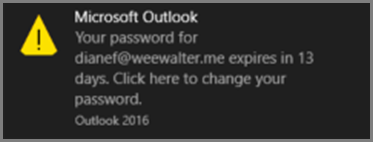
When the user's password expires, they'll get a notification that appears in the lower right corner of their screen.
Important things you need to know about the password expiration feature
Here are some things to know about how this feature currently works as of January 2018:
-
Bug: We're currently investigating a bug that's preventing this feature from working consistently. Your users may not get a notification before their password expires. This means when they sign in to Office 365 and their password has expired, they'll be prompted to change their password at that time without any advance notice.
-
People who only use the Outlook app won't be forced to reset their Office 365 password until it expires in the cache. This can be several days after the actual expiration date. There's no workaround for this at the admin level.
-
Users do not get an email notification that their password is going to expire in X number of days. Do you want this feature? Vote here!
Prevent last password from being used again
If you want to prevent your users from recycling old passwords, you can do so in Azure AD. See Password policies and restrictions in Azure Active Directory.
In addition, if an employee used a mobile device to access Office 365, you can wipe it to ensure the password is no longer stored and recycled from there. To learn more, see Wipe and block a former employee's mobile device.
Synchronise user passwords hashes from an on-premises Active Directory to Azure AD (Office 365)
This article is for setting the expiration policy for cloud-only users (Azure AD). It doesn't apply to hybrid identity users who use password hash sync, pass-through authentication or on-premises federation like ADFS.
To learn how to synchronise user password hashes from on premises AD to Azure AD, see Implement password hash synchronisation with Azure AD Connect sync.
Related Guides
- Share calendars with external users
- Centralised deployment of add-ins
- Manage deployment of add-ins
- Message center
- Basic mailbox settings for Outlook and other email clients (POP/IMAP)
Prefer us to handle this?
We provide fully managed Microsoft 365 setup and support — so you can focus on running your business.


