
Multi-factor authentication (MFA) is a method of authentication that requires the use of more than one verification method and adds a second layer of security to user sign-ins and transactions. It works by requiring any two or more of the following verification methods:
Need help setting this up?
If you'd rather not deal with the technical side, we can fully set up and manage your Microsoft 365 for you — including email, DNS, and ongoing support.
-
A randomly generated pass code
-
A phone call
-
A smart card (virtual or physical)
-
A biometric device
Multi-factor authentication in Office 365
Office 365 uses multi-factor authentication to help provide the extra security and is managed from the Office 365 admin center. Office 365 offers the following subset of Azure multi-factor authentication capabilities as a part of the subscription:
-
The ability to enable and enforce multi-factor authentication for end users
-
The use of a mobile app (online and one-time password [OTP]) as a second authentication factor
-
The use of a phone call as a second authentication factor
-
The use of a Short Message Service (SMS) message as a second authentication factor
-
Application passwords for non browser clients (for example, the Microsoft Lync 2013 communications software)
-
Default Microsoft greetings during authentication phone calls
For the full list of added features, see the comparison of Azure Multi-Factor Authentication version. You can always get the full functionality by purchasing the Azure Multi-Factor Authentication service.
You get a different subset of capabilities depending on whether you have a cloud-only deployment for Office 365 or a hybrid set up with single sign-on and Active Directory Federation Services (AD FS).
| Where do you manage your Office 365 tenant? | MFA second factor options |
|---|---|
| Cloud only | Azure Active Directory MFA (text or phone call) |
| Hybrid setup, managed on-premises | If you manage user identity on-premises, you have the following choices: Physical or virtual smart card (AD FS) Azure MFA (module for AD FS) Azure AD MFA |
The following figure shows how the updated Office 2013 device apps (on Windows) enable users to sign in with MFA. TheOffice 2013 device apps support multi-factor authentication through the use of the Active Directory Authentication Library (ADAL). Azure AD hosts a webpage where users can sign in. The identity provider can be Azure AD or a federated identity provider like AD FS. The authentication for federated users follows these steps:
-
Azure AD redirects the user to the sign-in web page hosted by the identity provider of record for the Office 365 tenant. The identity provider is determined by the domain specified in the user's sign in name.
-
The user signs in on the sign in web page on his or her device.
-
The identity provider returns a token to Azure AD when the user is successfully signed in.
-
Azure AD returns a JSON Web Token (JWT) to the Office device app, and the device app is authenticated by using a JWT with Office 365.
This is detailed in the following figure:

Software requirements
To enable MFA for Office 2013 client apps, you must have the following software installed (the version listed below, or a later version) based on whether you have a Click-to-run based installations or an MSI-based installations.
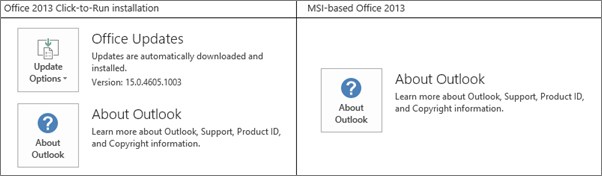
To determine whether your Office installation is Click-to-run or MSI-base:
-
Start Outlook 2013.
-
On the ** File ** menu, choose Office Account.
-
For Outlook 2013 Click-to-Run installations, an Update Options item is displayed. For MSI-based installations, the Update Options item is not displayed.
Click-to-run based installations
For Click-to-run based installations, you must have the following software installed, at file version listed below or a later file version. If your file version is not equal to or greater than the file version listed, update it using the steps below.
| File name | Install path on your computer | File version |
|---|---|---|
| MSO.DLL | C:\Program Files\Microsoft Office 15\root\vfs\ProgramFilesCommonx86\Microsoft Shared\OFFICE15\MSO.DLL | 15.0.4753.1001 |
| CSI.DLL | CSI.DLL C:\Program Files\Microsoft Office 15\root\office15\csi.dll | 15.0.4753.1000 |
| Groove.EXE | C:\Program Files\Microsoft Office 15\root\office15\GROOVE.exe | 15.0.4763.1000 |
| Outlook.exe | C:\Program Files\Microsoft Office 15\root\office15\OUTLOOK.exe | 15.0.4753.1002 |
| ADAL.DLL | C:\Program Files\Microsoft Office 15\root\vfs\ProgramFilesCommonx86\Microsoft Shared\OFFICE15\ADAL.DLL | 1.0.2016.624 |
| Iexplore.exe | C:\Program Files\Internet Explorer | varies |
MSI-based installations
For MSI-based installations, you must have the following software installed, at file version listed below or a later file version. If your file version is not equal to or greater than the file version listed, update it using the link in the Update KB Article column.
| File name | Install path on your computer | Where to get the update | Version |
|---|---|---|---|
| MSO.DLL | C:\Program Files\Common Files\Microsoft Shared\OFFICE15\MSO.DLL | KB3085480 | 15.0.4753.1001 |
| CSI.DLL | C:\Program Files\Common Files\Microsoft Shared\OFFICE15\Csi.dll | KB3085504 | 15.0.4753.1000 |
| Groove.exe | C:\Program Files\Microsoft Office\Office15\GROOVE.EXE | KB3085509 | 15.0.4763.1000 |
| Outlook.exe | C:\Program Files\Microsoft Office\Office15\OUTLOOK.EXE | KB3085495 | 15.0.4753.1002 |
| ADAL.DLL | C:\Program Files\Common Files\Microsoft Shared\OFFICE15\ADAL.DLL | KB3055000 | 1.0.2016.624 |
| Iexplore.exe | C:\Program Files\Internet Explorer | MS14-052 | Not applicable |
Enable MFA
To enable MFA, you have to complete the following:
- Enable clients for modern authentication:
-
Enable Modern Authentication for Office 2013 on Windows devices .
-
Set up Azure MFA with third-party directory services.
See the Advanced scenarios with Azure Multi-Factor Authentication and third-party VPN solutions for information on specific identity providers accepted to this program.
-
Tell individual users how to sign in by MFA: Sign in to Office 365 with 2-step verification.
Important
If you have enabled your users for Azure AD MFA and they have any devices running Office 2013 that are not enabled for Modern Authentication, they will need to use AppPasswords on those devices. More information on AppPasswords and when/where/how they should be used can be found here: App Passwords with Azure Multi_Factor Authentication.
Related Guides
- Set up multi-factor authentication (with Office 2013)
- Top 10 ways to secure Office 365
- GDPR compliance
- How to run AutoSSL on your Domains to install an SSL via cPanel?
- Share calendars with external users
Prefer us to handle this?
We provide fully managed Microsoft 365 setup and support — so you can focus on running your business.


