
Your Host Dada hosting takes automatic daily Timeline backups of your website files and databases. This guide shows you how to restore a whole site, one folder or a database from an earlier date, take your own snapshot before making changes, and download a copy to keep.
Before you start
- Work out roughly when the site was last working. Snapshots are taken daily and you can usually go back up to 30 days.
- A restore replaces what's there now. If you've made changes since the snapshot that you want to keep (new orders, posts or uploads), download a copy first using Backup / Restore (see below).
Restore your website files
- Log in to the Host Dada Control Panel. Go to cp.hostdada.uk (or Client Area → Services → your hosting → Login to Control Panel) and open your package.
- Open Timeline Backups. It's in the Web Files section.
-
Click Restore on the Webspace row. The Webspace section holds your website files, and Databases holds each database.
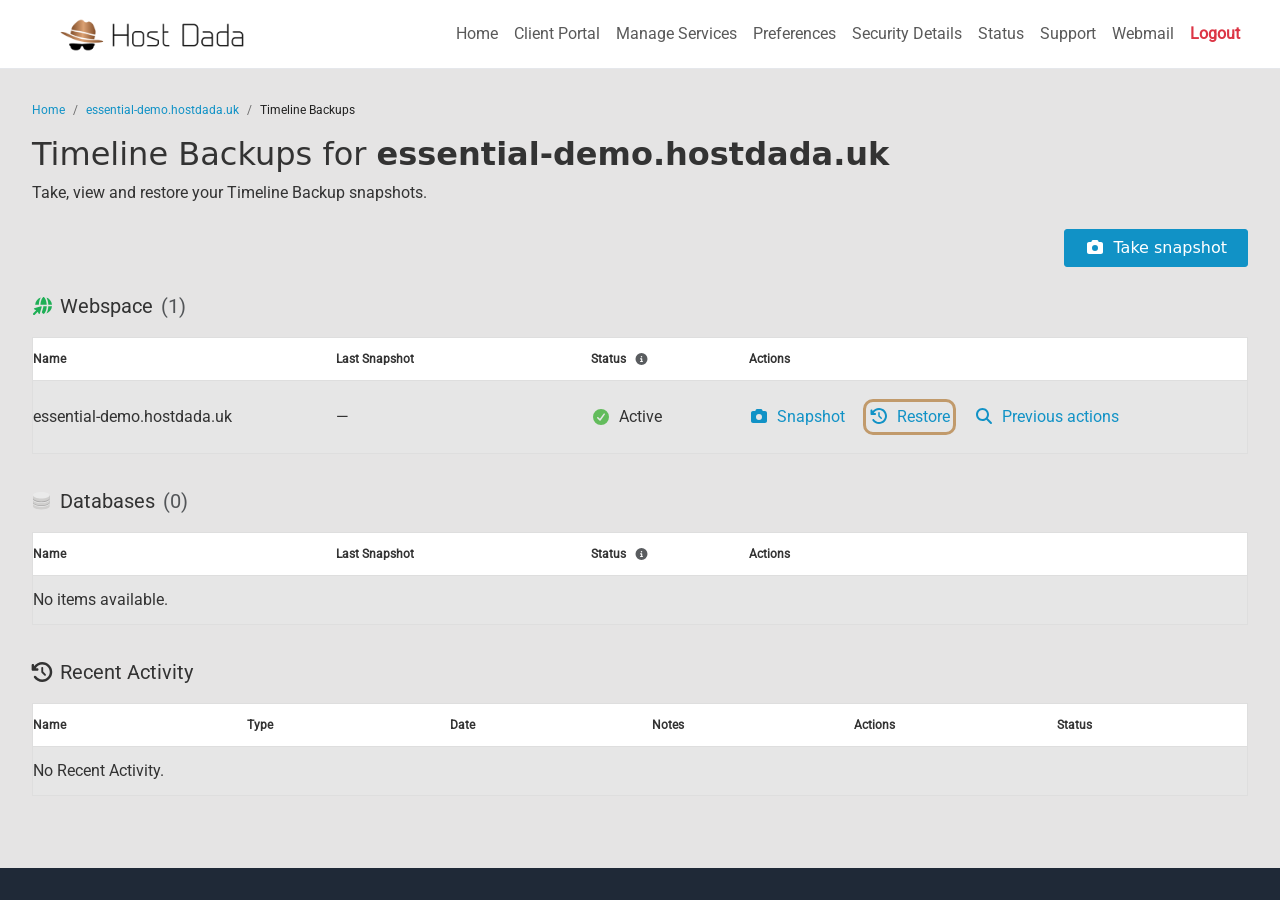 Restore is next to each item. Take snapshot (top right) makes a backup on demand.
- Pick the date and snapshot. Choose a day on the calendar, then a snapshot time from that day.
- Choose what to restore. Leave the path empty to restore all files. To restore only part of the site, enter a folder path, for example
public_html/wp-content/uploads. Make sure the target is your package. - Confirm the restore. Progress and results appear under Recent Activity. Larger sites can take a while.
Restore a database
- In Timeline Backups, find the database in the Databases section and click Restore on its row.
- Pick the date and snapshot time, and check the target database is correct.
- Confirm. The database is returned to how it was at that time.
Take a snapshot before making changes
Before updating WordPress, changing PHP version or editing code, click Take snapshot (top right of Timeline Backups), or Snapshot on a single row. If the change goes wrong, you can restore to that exact point. Previous actions shows past snapshots and restores for that item.
Download a backup to keep (Backup / Restore)
For a copy on your own computer, for example before a big redesign or when moving host:
- Open Backup / Restore in the Web Files section.
-
Choose Files or Databases under Backup Type and click Create Backup.
 Downloadable backups are removed automatically after 12 hours.
- Download it from Previous Backups when it's ready. Backups older than 12 hours are deleted automatically, so download promptly.
The Restore part of the same page can put back a backup you downloaded from this Control Panel. Choose Delete all files and restore the zip file, Recreate missing files only or Uncompress all files into a temporary directory (the safest choice if you only need a few files back).
Timeline Backups on this page cover website files and databases. If you've lost email (for example, a mailbox or folder was deleted), open a ticket straight away with the mailbox address and roughly when it happened, and we'll check what can be recovered. The sooner you ask, the better the chance.
Troubleshooting
A database is missing from the Databases list
New databases appear after their first daily snapshot. Click Snapshot on the webspace or Take snapshot to create one now.
The site still looks the same after restoring
You may be seeing a cached copy. Purge the CDN cache (see Speed up your site with the CDN), clear any caching plugin, and refresh with Ctrl+F5.
The site was hacked. Is restoring enough?
Restoring removes the changed files, but change all passwords too (Control Panel, FTP, WordPress admin users and database) and update every plugin. See Think your site has been hacked?
Last reviewed: October 2026


