Create a MySQL database for WordPress, a shop or any other web app, and find the four details your app needs to connect: database name, username, password and host. A database user with full access is created for you automatically.
Before you start
- Installing WordPress or another app with the WordPress installer or one-click installs? The database is created for you, so you don't need this guide.
- Check your plan's database allowance under Usage Information on the package's home page (for example, LAUNCH includes 1 database, ELEVATE 5 and SUMMIT 10).
Create a database
- Log in to the Host Dada Control Panel. Go to cp.hostdada.uk (or Client Area → Services → your hosting → Login to Control Panel) and open your package.
- Open MySQL Databases. It's in the Web Tools section.
-
Enter a database name. Under Add a New MySQL Database, type a name of 6 to 20 characters using letters, numbers and hyphens, such as
shopdb, then click Create Database.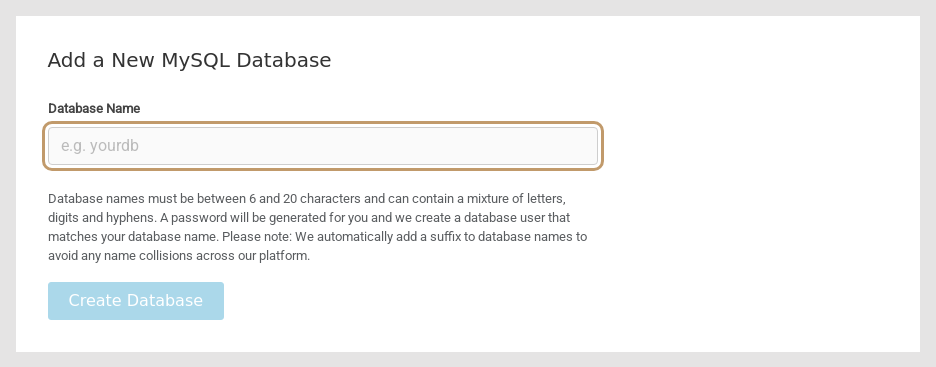 Creating a new database.
-
Copy the connection details. The database appears under Manage MySQL Databases. A short code is added to the end of the name to keep it unique, so
shopdbbecomes something likeshopdb-323036b0e0. A user with the same name is created with full access, and a strong password is generated and shown in the Change Password box.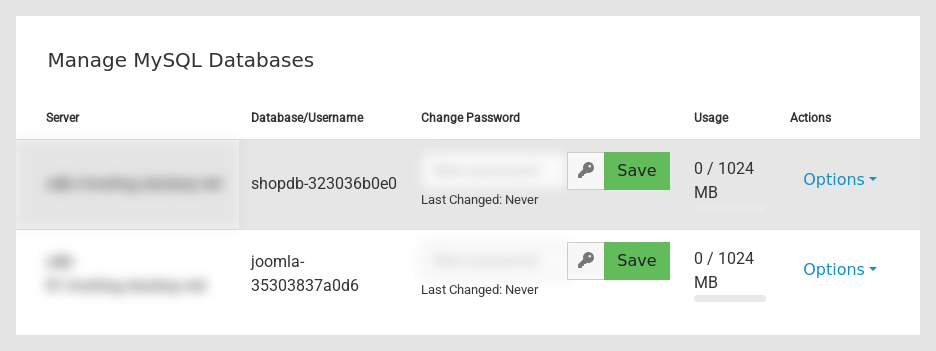 Each database lists its server, its name (which is also the username), a password box and its usage.
wp-config.php), or the site will show "Error establishing a database connection".Settings at a glance
| Your app asks for | Use |
|---|---|
| Database name | The full name from the Database/Username column, including the added code |
| Username | The same as the database name |
| Password | The password from the Change Password box |
| Host (server) | The hostname in the Server column. Don't use localhost: databases run on separate database servers |
| Port | 3306 (the standard MySQL port, rarely needed) |
For WordPress, these go into wp-config.php as DB_NAME, DB_USER, DB_PASSWORD and DB_HOST.
Manage your databases
- Change a password: type a new password in Change Password (or click the key icon to generate one) and click Save.
- Open in phpMyAdmin or delete: click Options next to the database and choose Sign in or Remove. Removing a database deletes its contents permanently, so export a copy first (see Import or export a database with phpMyAdmin).
- Add another user: under Add MySQL User, enter a username, choose the database, set a password and click Create MySQL User. This is useful if a developer or reporting tool needs its own login.
- Connect from outside (for example a desktop SQL app): allow your IP address under Remote MySQL Access in the Web Tools section first. Remote access isn't needed for websites hosted with us.
Troubleshooting
"Error establishing a database connection" (WordPress)
One of the four details in wp-config.php doesn't match. The most common causes are DB_HOST set to localhost, a missing suffix on the database name, or a password that was changed in the Control Panel. Copy the values again from MySQL Databases.
The name I typed isn't accepted
Names must be 6 to 20 characters and can only contain letters, numbers and hyphens (no spaces or underscores).
I can't create any more databases
You've reached your plan's limit. Remove databases you no longer use (export them first), or ask us about upgrading.
Last reviewed: October 2026
