
1. Log into your cPanel account.
2. In the "Files" section, click on "File Manger" Icon.

3. cPanel File Manager will be open, select the appropriate domain name or folder location, and press the "Go" button.
4. Navigate to the directory where your .htaccess file is located. If you want to edit the .htaccess file of your root directory, navigate to the public_html folder.
5. If the .htaccess file does not show, click on the "Settings" button in the File Manager. You can find the "Settings" button on the Right Side of the top menu. A new small window will open. Mark the "Show Hidden Files (Dotfiles)" option and click on the "Save" button. You will be able to see the .htaccess file. If it does not exist, create a new one.
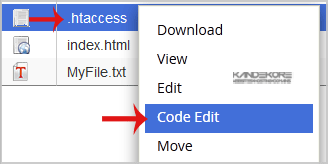
5. Right click on the .htaccess file and then on "Edit" or "Code Edit" in the Context Menu.
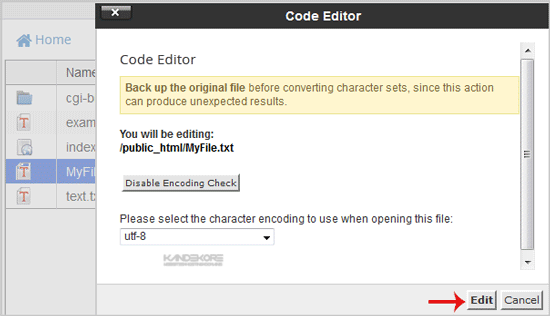
6. If the small "Code Editor" window is open, click on the "Edit" button, which will open a new window with options you can edit.
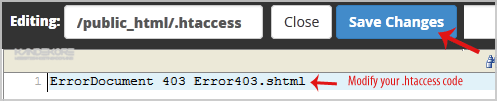
7. Make changes to your .htaccess file and then click on the "Save Changes" button.
Most Popular Articles
How to add an email account
Related Guides How to Access your cPanel from the customer portal How to update your cPanel...
How to create a user-friendly URL using .htaccess?
If your website is using long URL like example.com/files/folder/sitemap.html, you can change it...
How to redirect a page to another page or website using .htaccess?
If a page on your website no longer exist and you want to redirect it to your new page or website...
php error: Allowed memory size of x bytes exhausted
If you are getting an error like "Allowed memory size of... in file...
How to update your SiteWorx Email Address?
If you want to change your SiteWorx email Address then follow these steps.1. Log into your...


