The WordPress Tools section of the Host Dada Control Panel lets you look after your WordPress site without logging in to WordPress itself. You can switch themes, turn plugins on and off, manage users and passwords, and change the site title. This guide explains what each tool does and when to use the WordPress dashboard instead.
Before you start
- WordPress must be installed on the package. If the Control Panel says WordPress is not installed, follow Install WordPress first.
- Log in to the Host Dada Control Panel (or from the Client Area choose Services → your hosting → Login to Control Panel).
The WordPress Tools at a glance
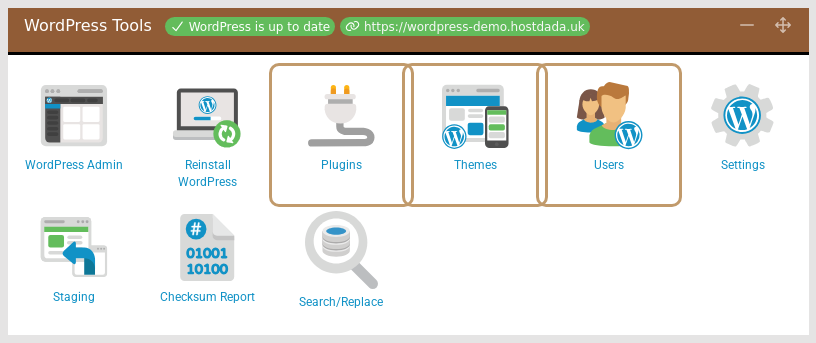 The WordPress Tools section at the top of your package's page. The badge shows whether WordPress is up to date.
| Tool | What it does |
|---|---|
| WordPress Admin | Opens your WordPress dashboard (/wp-admin) in a new tab. You'll sign in with your WordPress username and password. |
| Reinstall WordPress | Wipes the site and installs a clean copy. Only use it if you want to start again. |
| Plugins | Lists installed plugins so you can activate, deactivate or remove them. |
| Themes | Lists installed themes. Activate a different one or remove those you don't use. |
| Users | Shows administrators and other users, lets you change any user's password and add new users. |
| Settings | Edit the Site Url, Home, Site Title and Site Tagline. |
| Staging | Creates a private copy of your site to test changes on (WP Growth and above). See Create a staging copy. |
| Checksum Report | Checks that WordPress's core files match the official versions, and can replace any that have changed. |
| Search/Replace | Swaps one site address for another throughout the database, for example after a domain change. |
Turn a plugin off or remove it
This is the quickest fix when a plugin update breaks your site and you can't get into the dashboard.
- Click Plugins in the WordPress Tools section.
- Find the plugin in the list. Use the search box if you have lots.
- Open the Manage menu next to it and choose to deactivate it. Reload your website to check whether the problem has gone.
- Remove it from the same menu if you don't need it any more. Unused plugins are a common way in for attackers, even when they're deactivated.
Change or remove a theme
- Click Themes. You'll see each theme with its Status (Active or Inactive) and Version.
-
Use the Manage menu. On an inactive theme choose Activate to switch to it, or Remove to delete it. On the active theme the only option is Deactivate.
 Manage your installed themes from the Control Panel.
Manage users and passwords
- Click Users. Administrators are listed first, then other users.
- To change a password, click Manage next to the user, choose Change Password, enter a New Password and click Change Password. Full steps are in Reset your WordPress admin password.
- To add a user, fill in the Add a user row (E-Mail, Name, Username, password and Role) and click Create Account. Give people the lowest role they need: Editor for someone who manages content, Author for someone who only writes posts.
Things you still do in the WordPress dashboard
Some jobs need the WordPress dashboard (click WordPress Admin to get there):
- Installing new plugins: go to Plugins → Add New Plugin, search, then click Install Now and Activate. To upload a plugin you've bought, use Upload Plugin on the same page and choose its .zip file.
- Installing new themes: go to Appearance → Themes → Add New Theme.
- Updates: go to Dashboard → Updates to update WordPress, plugins and themes. You can turn on automatic updates per plugin from the Plugins page.
- Writing pages and posts, menus, widgets and most site settings.
Troubleshooting
The WordPress Tools section only shows the install wizard
The Control Panel can't see a working WordPress install. If you've installed WordPress yourself in a different folder, or the site is broken, click Recheck next to the status badge. If it still isn't detected, see Fix the WordPress white screen or critical error.
I deactivated a plugin but the site still looks the same
Your visitors may be seeing a cached copy. Go to Edge Caching under CDN and click Purge Everything, then reload with Ctrl+F5 (Cmd+Shift+R on a Mac).
The Checksum Report lists changed files
If you didn't edit WordPress core files yourself, treat this as a warning sign. Click Replace Core Files to restore the official versions, then run a malware scan. See Secure your WordPress site.
Last reviewed: October 2026
