Cron jobs run a command or script automatically on a schedule, for example every 15 minutes or at 3am every night. This guide shows how to add, edit and delete cron jobs in cPanel, with ready-to-use examples for WordPress and PHP scripts, and how to control the emails cron sends.
Before you start
- Log in to cPanel from the Client Area: Services → your ProFlex service → Log in to cPanel.
- Know the full path to the script you want to run. Your website is in
/home/yourusername/public_html. Your cPanel username is shown on cPanel's home page under Current User. - Many apps (such as WordPress plugins, WHMCS or Laravel) tell you the exact cron command to use. Copy it from their settings page.
Add a cron job
- Open Cron Jobs in the Advanced section.
-
Choose a schedule. Under Add New Cron Job, pick an option from Common Settings, such as Once Per Hour. It fills in the Minute, Hour, Day, Month and Weekday boxes for you. You can adjust them afterwards.
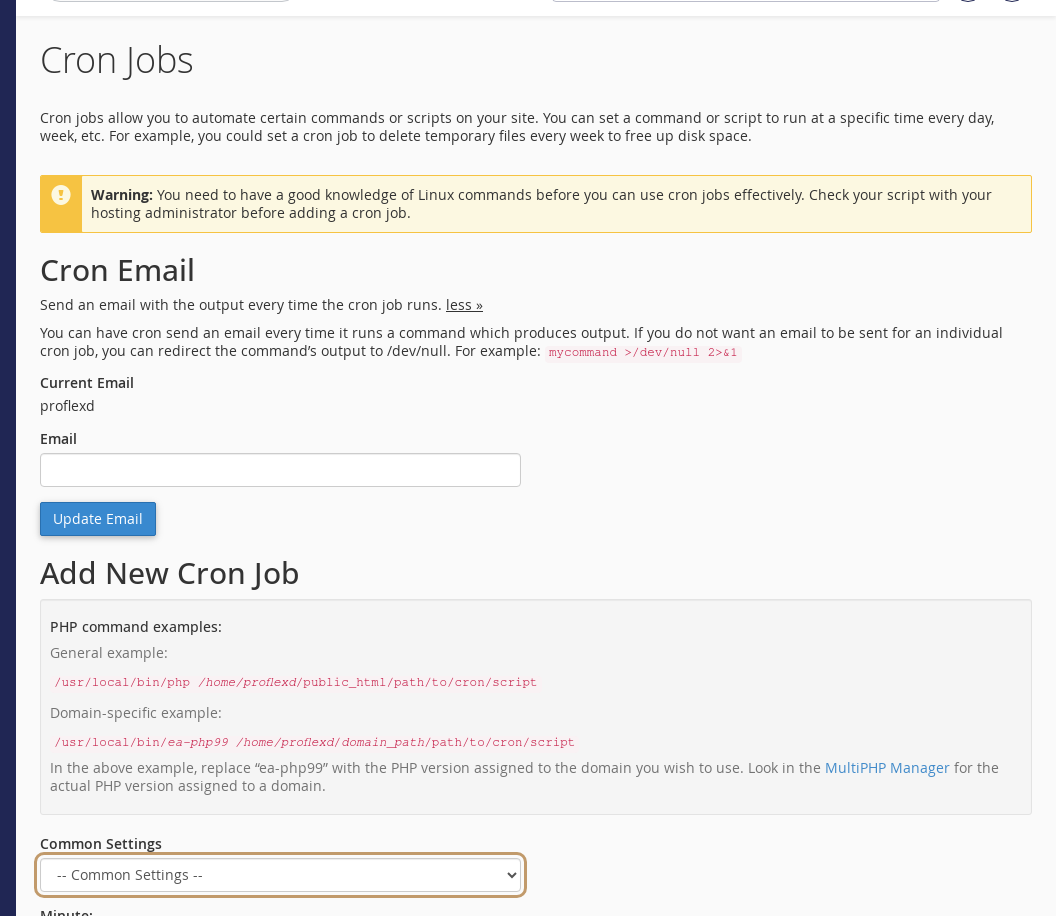 Cron Jobs in cPanel. Common Settings fills in the schedule for you.
- Enter the Command. See the examples below.
- Click Add New Cron Job. It appears under Current Cron Jobs.
Example commands
Replace yourusername with your cPanel username. Adding >/dev/null 2>&1 to the end stops cron emailing you every time the job runs.
| Task | Command |
|---|---|
| Run a PHP script with your site's PHP version (8.3) | /usr/local/bin/ea-php83 /home/yourusername/public_html/script.php >/dev/null 2>&1 |
| Run WordPress scheduled tasks (wp-cron) | /usr/local/bin/ea-php83 /home/yourusername/public_html/wp-cron.php >/dev/null 2>&1 |
| Call a web address | curl -s https://yourdomain.co.uk/cron-url >/dev/null 2>&1 |
Use the PHP version your site runs in MultiPHP Manager: ea-php82 for PHP 8.2, ea-php83 for PHP 8.3.
define('DISABLE_WP_CRON', true); to wp-config.php and add the wp-cron job above, every 5 or 15 minutes. WP Toolkit's Take over wp-cron.php switch can set this up for you.Schedule format at a glance
| Minute | Hour | Day | Month | Weekday | Runs |
|---|---|---|---|---|---|
*/15 | * | * | * | * | Every 15 minutes |
0 | * | * | * | * | Every hour, on the hour |
0 | 3 | * | * | * | Every day at 3am |
30 | 2 | * | * | 1 | Every Monday at 2:30am |
Times use the server's clock (UK time). Avoid running heavy jobs more often than every 5 minutes.
Edit or delete a cron job
Under Current Cron Jobs, click Edit next to the job, change the schedule or command and click Edit Line. To remove it, click Delete and confirm.
Cron emails
If a cron command produces any output, cron emails it to the address under Cron Email. ProFlex has no cPanel mailboxes, so enter an address you actually read (for example your Microsoft 365 address) in the Email box and click Update Email. For jobs where you don't want emails, add >/dev/null 2>&1 to the command.
Troubleshooting
The cron job doesn't seem to run
Temporarily remove >/dev/null 2>&1 and set a valid Cron Email address. The email you receive will show any error. The most common causes are a wrong file path or a typo in the PHP binary name.
"Could not open input file"
The path to the script is wrong. Open File Manager, find the script and copy its full path from the address box at the top.
The script works in a browser but not from cron
Some scripts depend on being called through the web. Use the curl example instead, with the script's full web address.
Last reviewed: October 2026
