
Need help setting this up?
If you'd rather not deal with the technical side, we can fully set up and manage your Microsoft 365 for you — including email, DNS, and ongoing support.
1. Open Mozilla Thunderbird.

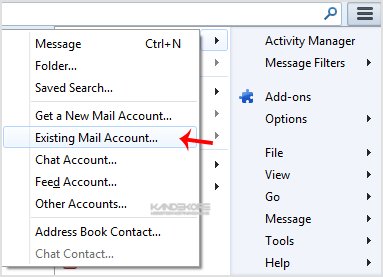
2. Click on the Menu Icon located on right side of the screen and then go to "New Message". A drop box will open.

3. Now Click on the "Existing Mail Account".
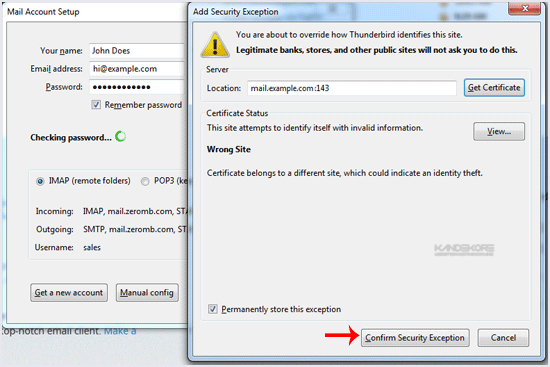
4. In Mail Setup Account, fill out your name, full email address like "yourname@example.com", and the password of your email account. Then click on "Continue".

5. It can take a few minutes to configure your email account so be patient. Once it is done, you will need to click on "Done".

6. If it shows a SSL Security exception, then click on the "Confirm Security Exception" button and the warning will disappear within few minutes.
Congratulations, Your email is setup up successfully. Now, you can manage your email through Mozilla Thunderbird.
Related Guides
- Basic mailbox settings for Outlook and other email clients (POP/IMAP)
- Diagnostics log collection in Support and Recovery Assistant
- Add an Outlook.com or Office 365 account
- How to Create Email Account in the Control Panel
- Groups naming policy
Prefer us to handle this?
We provide fully managed Microsoft 365 setup and support — so you can focus on running your business.


